
To set up a VPN on your phone, first download a reputable VPN app from your device’s app store. Sign in with your account and grant the necessary permissions. Most apps automatically select the best protocol, but you can customize this if needed. Turn on the VPN to establish a secure connection, and verify it with sites like whatismyip.com. To learn more about optimizing your VPN setup, keep exploring the detailed steps below.
Key Takeaways
- Download and install a reputable VPN app from your device’s app store.
- Sign in with your account credentials and grant necessary permissions.
- Access the app’s settings to choose preferred VPN protocols like OpenVPN or WireGuard.
- Toggle the VPN connection “On” to establish a secure tunnel.
- Verify your VPN is active by visiting a site like whatismyip.com to confirm your IP address has changed.
Using a VPN on your phone is one of the easiest ways to enhance your online privacy and security. When you activate a VPN, it encrypts your internet traffic, making it much harder for others to track your activity or intercept sensitive data. To guarantee you’re getting the best protection, you should understand the different VPN protocols available. VPN protocols are the rules and standards that determine how your device communicates with the VPN server. Common protocols like OpenVPN, IKEv2/IPSec, and WireGuard each offer different balances of speed, security, and stability. For mobile security, choosing the right protocol can make a noticeable difference in how well your connection performs and how secure your data remains.
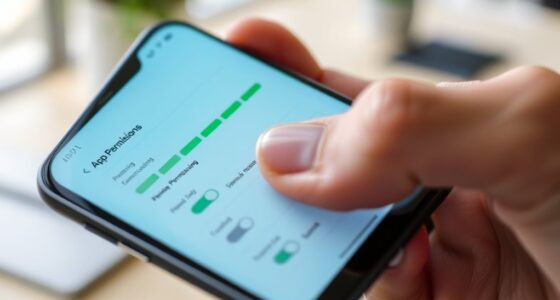
Getting started is straightforward. First, you’ll need to choose a reputable VPN provider. Look for one with strong encryption standards, a no-logs policy, and support for multiple VPN protocols to maximize your mobile security. Once you’ve signed up, download the VPN app from your device’s app store. After installation, open the app and sign in using your account credentials. Most VPN apps will prompt you to grant necessary permissions—accept these to allow the app to function properly.
Choose a reputable VPN with strong encryption, no-logs policy, and multiple protocols for maximum mobile security.
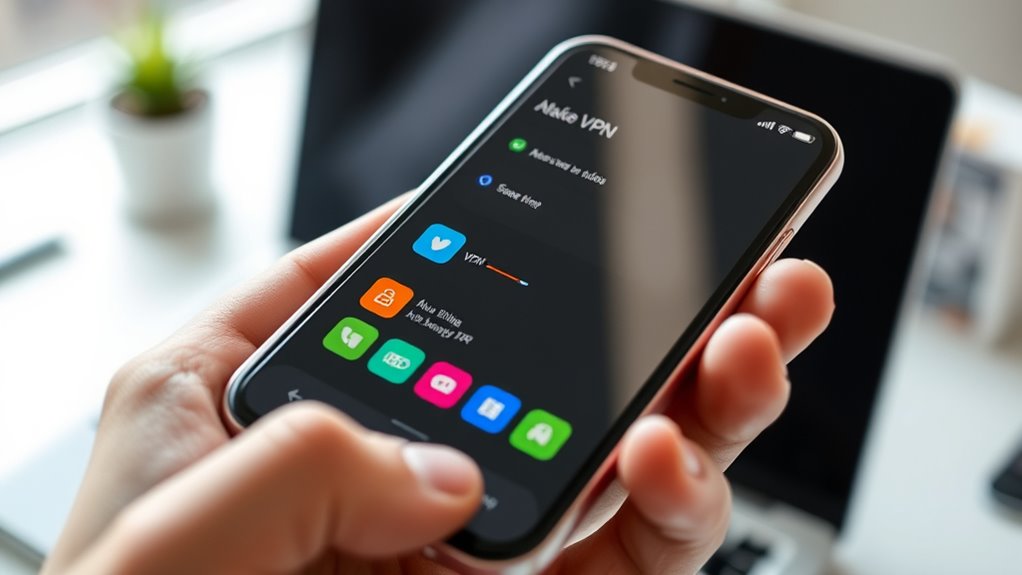
Next, you’ll want to configure your VPN settings. Many apps automatically select the best protocol based on your device and network, but you can often customize the connection. If you want to optimize for security, switch to a protocol like OpenVPN or WireGuard, which are known for their robustness. For faster speeds, especially when streaming or gaming, IKEv2/IPSec might be preferable. Once you’ve selected your preferred protocol, toggle the VPN connection to “On.” Your device will then establish a secure tunnel to the VPN server, encrypting all data transmitted.
After connecting, verify your VPN is working correctly by visiting a site like whatismyip.com. Your IP address should reflect the VPN server location, not your actual one. This confirms your traffic is now being routed securely through the VPN. Remember, keeping your VPN app updated ensures you benefit from the latest security features and protocol improvements. Also, enable features like a kill switch if available, which automatically disconnects your internet if the VPN drops, preventing unprotected data leaks. Understanding VPN protocols is essential for optimizing your mobile security and ensuring your online activities remain private.
Frequently Asked Questions
Can I Use a Free VPN Instead of a Paid One?
Yes, you can use a free VPN instead of a paid VPN, but be cautious. Free VPNs often have limitations like slower speeds, data caps, and fewer security features. Paid VPNs usually offer better privacy, faster connections, and more reliable service. If you’re okay with these restrictions and prioritize cost, a free VPN might work, but for better security and performance, investing in a paid VPN is usually smarter.
How Do I Troubleshoot Connection Issues With My VPN?
To troubleshoot VPN connection issues, first check your VPN protocol compatibility, as some protocols work better with certain networks. Make certain your internet connection is stable and restart your device if needed. Update your VPN app and device software, and try switching protocols to improve connection stability. If problems persist, contact your VPN provider’s support for further assistance to resolve any compatibility or stability issues quickly.
Will a VPN Slow Down My Phone’s Internet Speed?
A VPN can slow down your phone’s internet speed because of VPN encryption, which adds security but requires extra processing power. Sometimes, your provider might also engage in data throttling, intentionally reducing your speed. While this can cause some lag, choosing a VPN with fast servers and strong encryption minimizes slowdown. Keep in mind, the security benefits often outweigh the slight decrease in speed.
Is It Safe to Use Public Wi-Fi With a VPN?
Yes, using a VPN on public Wi-Fi is safe because it encrypts your data, protecting you from common public Wi-Fi risks like eavesdropping and data theft. When connected, your VPN creates a secure tunnel, ensuring that even if someone tries to intercept your connection, they can’t access your sensitive information. Always use a reputable VPN provider to maximize security and keep your online activities private.
How Do I Switch Between Different VPN Servers?
You can switch between different VPN servers easily by opening your VPN app and accessing the server selection menu. From there, you simply tap on the desired server and select “connect” to switch connections. Don’t worry about disrupting your activity; most apps allow quick connection switching, making it seamless to find the best server for speed or location. This way, you maintain maximum privacy and browsing experience while on the go.
Conclusion
Now that you’ve set up your VPN, you’re protected wherever you go—just like that unexpected coffee spill that didn’t ruin your day. It’s funny how a simple step can unexpectedly save you from a world of trouble, isn’t it? With your new VPN, you’re more secure and in control, ready for whatever comes next. Remember, sometimes the smallest actions have the biggest impact—just like this setup. Stay safe out there!