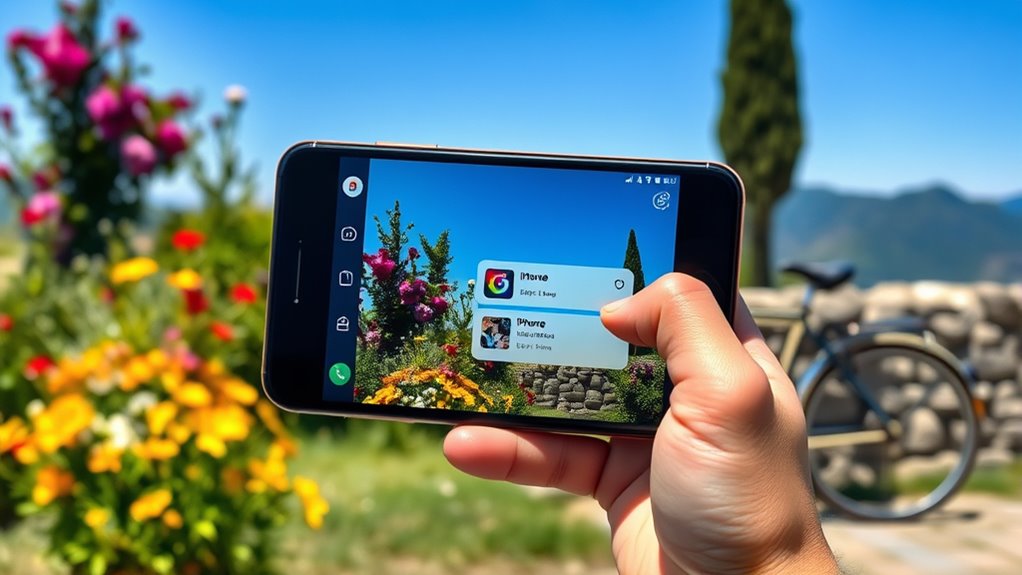

To identify anything using Google Lens or iPhone Visual Lookup, start by opening the respective app or feature. For Google Lens, tap the Lens icon on the Google app or Photos, then point your camera or upload a photo. For Visual Lookup, open a saved photo, tap the info icon, or swipe up and select “Look Up.” Both tools analyze images instantly to provide detailed info. Keep exploring to learn more about making the most of these powerful tools.

Get the latest gadgets delivered free — and shop member deals
- Fast, free delivery on millions of items
- Access to Prime Big Deal Days deals on October 6–7
- Prime Video, Amazon Music and more included
Key Takeaways
- Activate Google Lens via the Google app or Google Photos, then point your camera or upload a photo for instant identification.
- Open a photo in the Photos app, tap the info icon or swipe up, then select “Look Up” to use Visual Lookup for object recognition.
- Use Google Lens to scan live scenes for real-time translation of text, landmarks, or products.
- Analyze stored photos with iPhone Visual Lookup to identify objects, animals, artworks, or plant species within your library.
- Compare both tools’ functions: Google Lens offers quick, on-the-fly identifications; Visual Lookup specializes in detailed info within existing images.
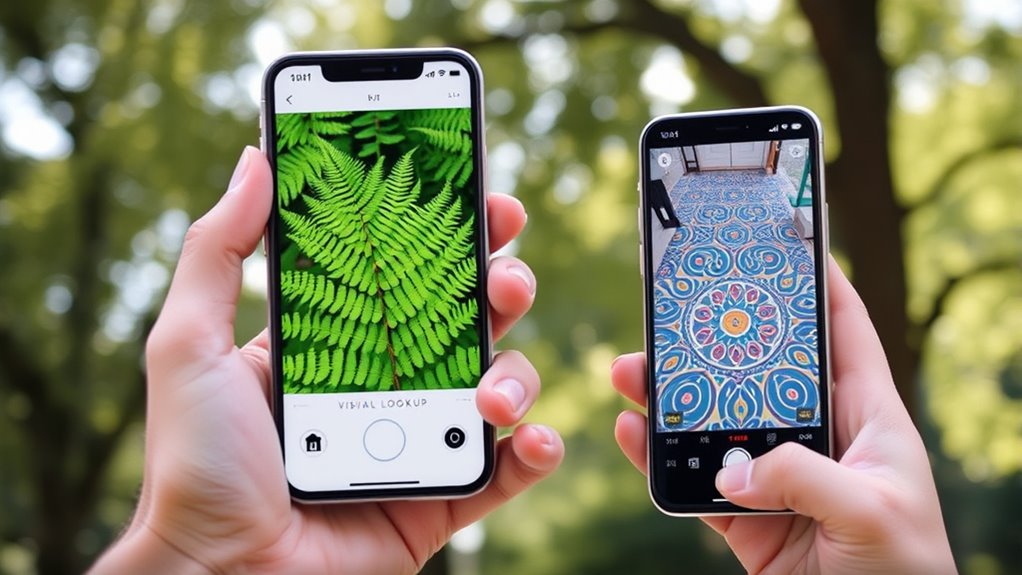
Ever wondered how to quickly identify objects, translate text, or find similar images using your smartphone? Both Google Lens and iPhone Visual Lookup are powerful tools designed to do just that. They leverage advanced photo recognition technology to analyze what you point your camera at and give you instant, relevant information. Whether you’re trying to identify a plant, translate a menu, or find a product online, these features make it effortless.
Google Lens is integrated into the Google app and Google Photos, making it accessible across Android and iOS devices. You activate it by opening the app or Google Assistant and tapping the Lens icon. Once you point your camera or upload a photo, Lens scans the image using sophisticated photo recognition algorithms. It can identify landmarks, products, animals, and more. For language translation, Google Lens excels by instantly translating text in real-time. Just aim your camera at foreign signs, menus, or documents, and Lens overlays the translated text directly on your screen. This instant translation capability saves you time and helps you understand foreign languages without needing separate translation apps.
On the iPhone, Visual Lookup is built into the Photos app and works seamlessly with your existing library. To use it, open a photo containing an object or text you’d like to identify. Tap the info icon (an ‘i’ inside a circle) or swipe up on the photo, then select “Look Up.” Visual Lookup leverages machine learning to recognize objects, animals, artworks, and even plant species. For text, it can identify written words and suggest options to copy or translate. Additionally, the underlying photo recognition technology supports these features by enabling accurate identification and contextual insights. While Visual Lookup is great for identifying items within your photos, it also supports language translation through the integration with the Translate app or Safari, allowing you to translate text from images or web pages directly.
Both tools are highly intuitive. With Google Lens, you can simply point and get immediate results, making it ideal for quick, on-the-fly identifications. iPhone Visual Lookup, on the other hand, works best when you already have a specific photo stored or in your library, providing detailed insights about the image content. For language translation, Google Lens offers a more dynamic experience, translating text in real-time as you scan it. Meanwhile, Visual Lookup helps you understand objects within your existing photos, often providing additional information or suggestions.
Google Lens compatible smartphone
As an affiliate, we earn on qualifying purchases.
As an affiliate, we earn on qualifying purchases.
Frequently Asked Questions
Can Google Lens Identify Handwritten Notes?
Yes, Google Lens can identify handwritten notes, thanks to its handwriting recognition feature. When you point your camera at handwritten notes, Lens attempts to analyze and convert the handwriting into digital text. Keep in mind that the accuracy depends on the clarity and neatness of the handwriting. For best results, verify your notes are legible and well-lit. This feature makes digitizing and organizing handwritten information easier for you.
Is Iphone Visual Lookup Available in All Countries?
iPhone Visual Lookup isn’t available in all countries due to regional restrictions and varying language support. You might find features limited or inaccessible depending on where you are. To check availability, go to your device settings or update your iOS. If it’s unavailable, consider changing your region settings or using alternative apps. Keep in mind, regional restrictions can affect not only availability but also the languages supported by Visual Lookup.
How Accurate Is Google Lens for Plant Identification?
Google Lens is about 90% accurate for plant identification, making it a reliable tool for distinguishing various plant species. You can confidently use it to identify plants in your garden or learn about new varieties. Keep in mind, for perfect garden care, it’s best to double-check with expert sources or local guides, especially for rare or tricky plants. Google Lens simplifies your plant identification process and enhances your gardening experience.
Can Visual Lookup Recognize Animated or Cartoon Images?
Visual Lookup can recognize some animated or cartoon images, but its accuracy varies. It’s better at identifying real-world objects than cartoon characters or animated images. If you’re trying cartoon recognition, you might find it less reliable, especially with stylized or less detailed images. For best results, use clear, high-quality images and understand that the technology still has limitations with animated content.
Are There Privacy Concerns When Using Google Lens?
Think of privacy as a garden that needs careful tending. When you use Google Lens, data privacy is a key concern, as your images and searches are processed on servers. While Google aims to protect your information, it’s essential to understand that user consent is necessary for data collection. Always review privacy settings and permissions to guarantee you’re comfortable with how your data is handled, keeping your digital garden secure.
As an affiliate, we earn on qualifying purchases.
Conclusion
Now that you’ve mastered Google Lens and iPhone Visual Lookup, you’re like a modern-day explorer, uncovering hidden details with a simple glance. Just as a detective pieces together clues, you can identify objects, plants, or landmarks effortlessly. Think of these tools as your digital magnifying glass, turning everyday moments into discoveries. With just a tap or a click, you access a world of knowledge, making every glance an adventure waiting to unfold.
photo recognition app for Android
As an affiliate, we earn on qualifying purchases.
As an affiliate, we earn on qualifying purchases.
As an affiliate, we earn on qualifying purchases.
Fall Picks
fall essentials
As an affiliate, we earn on qualifying purchases.