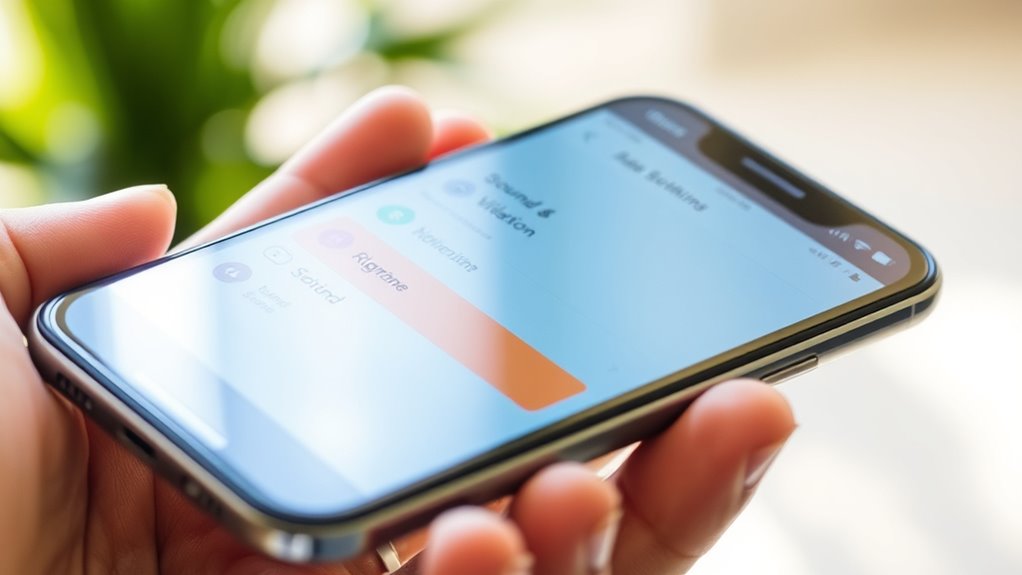

To set custom ringtones and notification sounds, first locate your device’s sound or ringtone settings. From there, you can choose pre-installed options or add your own files by browsing your storage. Make sure you grant any necessary permissions to access your media. For best results, select high-quality audio in compatible formats like MP3 or M4A. If you want to customize further, there are helpful tips to get the most personalized and effective sounds—keep exploring to learn more.

Get the latest gadgets delivered free with Prime
- Fast, free delivery on millions of items
- Prime Video, Amazon Music and more included
- Member-only deals all year
Key Takeaways
- Access your device’s sound or ringtone settings from the main menu.
- Ensure you have granted necessary app permissions to access storage or media files.
- Choose or add custom sound files in supported formats like MP3 or M4A.
- Browse your device storage to select your preferred ringtone or notification sound.
- Confirm permissions and apply the new sound settings to set it as your ringtone or alert.
Personalizing your device with custom ringtones and notification sounds allows you to easily identify incoming calls and alerts while adding a touch of personality. To do this effectively, you’ll need to understand how to select and set these sounds, which often involves managing app permissions and ensuring good sound quality. When you choose a custom ringtone or notification, your device typically requires access to certain apps or files, so make sure the app you’re using has the necessary permissions granted. Without these permissions, your device might not be able to access the sound files, preventing you from setting your preferred tones. Check your device settings or app permissions to confirm that access to storage or media is enabled. This ensures smooth functionality and avoids frustration when trying to customize sounds.
Custom sounds need app permissions to work; check settings for smooth personalization.
Next, focus on sound quality. High-quality audio makes your custom ringtones and alerts more pleasant and clear, so choose sound files that are crisp and free of distortion. Usually, the preferred formats are MP3 or M4A, as they balance quality and file size effectively. When selecting a sound, listen to it first; a loud, clear tone will be easier to recognize, especially in noisy environments. If you’re creating your own ringtones, use audio editing software to trim or enhance the sound, paying attention to clarity and volume. Poor sound quality can diminish the impact of your custom tones, so investing time in selecting or editing high-quality files pays off. Additionally, understanding audio formats helps ensure compatibility across devices and apps.
To set a custom ringtone or notification, locate your device’s sound or ringtone settings, often found in the settings menu under sound, notifications, or sounds and vibration. From there, you can choose from pre-installed options or add new ones. For added personalization, many apps allow you to browse your device’s storage for custom files. When you select a new sound, your device might prompt you to grant permission for the app or file access—this is normal and necessary for the process to complete successfully. Confirm the permission request, and your custom sound should be applied immediately.
Keep in mind that some devices or apps may limit the types of sounds you can set, or may require additional steps for certain formats. Always ensure your files meet the app’s requirements and have good sound quality before finalizing your selection. With a little attention to app permissions and sound quality, you’ll be able to enjoy personalized ringtones and notification sounds that not only make your device uniquely yours but also improve your overall user experience.
Frequently Asked Questions
Can I Use Copyrighted Music as My Ringtone?
You can use copyrighted music as your ringtone, but you risk copyright issues and legal considerations. If the music isn’t licensed for such use, you might face takedown notices or legal trouble. To avoid this, opt for royalty-free or your own recordings. Always respect copyright laws to prevent potential legal issues, and consider using licensed or original music to keep everything safe and compliant.
How Do I Set Different Ringtones for Specific Contacts?
Setting different ringtones for specific contacts is like giving each person a unique voice. To do this, go to your contacts app, select a contact, and tap on ‘Edit.’ Find the option for contact-specific alerts or personalized ringtone settings. Choose your preferred ringtone for that contact, then save. Repeat for other contacts, and now you’ll instantly recognize who’s calling with a tailored alert, making your phone truly personalized.
What File Formats Are Compatible for Custom Sounds?
You can use common audio file formats like MP3, M4A, WAV, and OGG for custom sounds. Most ringtone editing tools support these formats, making it easy to create and customize ringtones. When choosing a file, verify it’s compatible with your device, and if needed, convert your audio using online converters or editing software. This way, you’ll have a variety of sounds ready for your notifications and ringtones.
Can I Create Ringtones Directly on My Device?
Creating ringtones on your device is like painting a musical canvas. You can do it through built-in audio editing tools or sound sampling apps, which let you cut and customize your favorite clips easily. Just select a sound, trim it to your desired length, and save it as a ringtone. This hands-on approach puts creative control at your fingertips, making unique ringtones directly on your device without needing external software.
How Do I Change Notification Sounds for Individual Apps?
You can change notification sounds for individual apps through app sound customization settings. First, go to your device’s Settings, then navigate to Notification or Apps & Notifications. Select the specific app you want to customize, then tap on Notification settings. From there, you can choose a new notification tone or manage notification tone management options. This allows you to personalize alert sounds and improve your overall app sound customization experience.
Conclusion
Now that you know how to set custom ringtones and notification sounds, you’re all set to make your device truly yours. Whether you’re choosing a catchy tune or a classic melody, the process is simple and fun. Just remember, even the most modern smartphones can feel like a trusty, vintage typewriter when you customize your alerts. So go ahead—personalize your device and make every notification a little more you. The only limit is your imagination!
Fall Picks
fall essentials
As an affiliate, we earn on qualifying purchases.