To use your phone’s Emergency SOS and safety features, quickly press specific buttons multiple times or hold them to activate the alert. Your device will sound an alarm, display emergency options, and automatically notify your trusted contacts with your location. Make sure your emergency contacts are set up and aware of their roles. If you keep exploring, you’ll find even more tips to guarantee you’re prepared for any crisis.

Get the latest gadgets delivered free with Prime
- Fast, free delivery on millions of items
- Prime Video, Amazon Music and more included
- Member-only deals all year
Key Takeaways
- Activate Emergency SOS by pressing specific buttons multiple times or holding them, triggering an alarm and emergency call option.
- Add trusted contacts in your device’s safety app to receive alerts and your location during emergencies.
- Share your real-time location with emergency contacts to help coordinate assistance effectively.
- Familiarize yourself with activation methods and keep your device updated to ensure quick response during crises.
- Use additional safety features like location sharing and pre-set messages, accessible even when your device is locked.
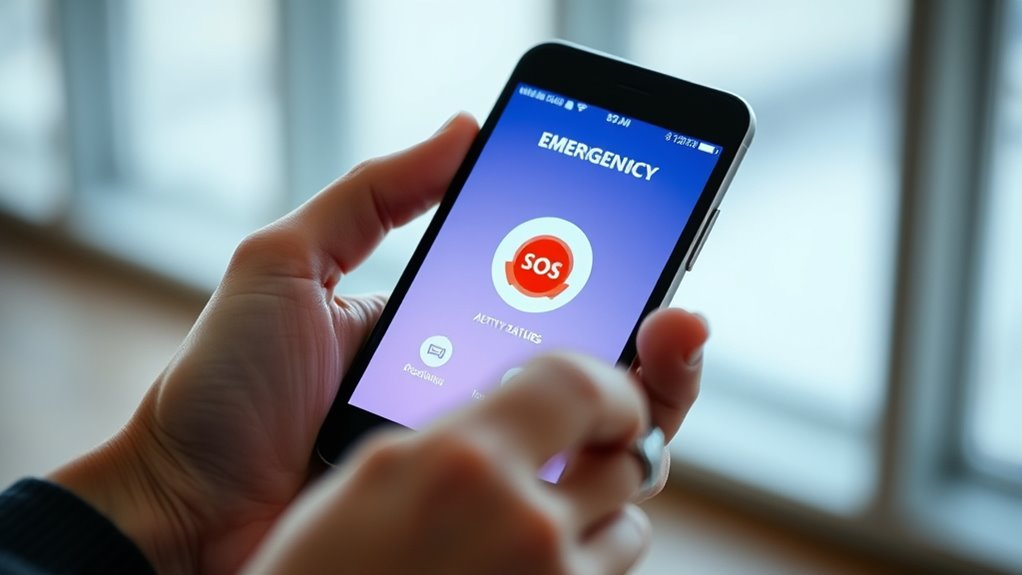
In emergencies, your phone’s Emergency SOS feature can be an essential tool for getting help quickly. When you activate this feature, it can automatically notify your emergency contacts and share your location, guaranteeing help arrives as fast as possible. Knowing how to use these safety functions effectively can make a notable difference during a crisis. To start, familiarize yourself with how to activate Emergency SOS on your device. On most smartphones, you can press a specific button multiple times or hold down certain buttons to trigger the alert. Once activated, your phone will typically sound an alarm, give you the option to call emergency services, and send alerts to your designated emergency contacts.
Emergency SOS quickly alerts contacts and shares your location during crises.
Setting up your emergency contacts is a key step. You can add trusted friends or family members who will be notified when you activate Emergency SOS. This process usually involves entering their phone numbers into your device’s health or safety app. When you trigger the emergency feature, these contacts will receive a message with your location details, so they know exactly where you are. This is where location sharing becomes invaluable. Your phone can transmit your real-time location to emergency contacts, enabling them to coordinate help more effectively. Some devices allow continuous location sharing once the emergency mode is active, providing ongoing updates until the situation is resolved.
It’s important to guarantee your emergency contacts are aware that they are listed and understand how the system works. This way, they won’t be caught off guard if they receive an alert unexpectedly. When you activate Emergency SOS, your device might also send a pre-written message along with your current location, saving you time and effort during a stressful moment. You can usually customize this message to include critical information or instructions. Remember, the more prepared you are, the faster your contacts and emergency services can respond.
Being familiar with accessible safety features** can also help you use your phone more effectively during emergencies. In some cases, your phone’s emergency features are designed to work even if the device is locked, making it easier to activate them quickly without unlocking your phone. Always keep your device’s software updated** to guarantee you have the latest safety features and improvements. Taking these steps now can help you feel more confident about your safety and guarantee that, in a crisis, help is just a few taps away. Your emergency contacts and location sharing are essential tools that, when used correctly, can greatly enhance your safety and peace of mind.
Emergency SOS smartphone safety device
As an affiliate, we earn on qualifying purchases.
As an affiliate, we earn on qualifying purchases.
Frequently Asked Questions
Can I Customize My Emergency SOS Contacts?
Yes, you can customize your Emergency SOS contacts. You just need to access your phone’s emergency contact customization settings, where you can add or remove contacts. Additionally, you can set your notification preferences to control how your contacts are alerted during an emergency. This way, you guarantee your emergency contacts receive the right notifications, and your safety features are tailored to your preferences, making your emergency response more effective.
What Happens After I Activate Emergency SOS?
Think of Emergency SOS as your safety net in a tight spot. Once you activate it, your phone instantly contacts emergency services and notifies your selected contacts. It sends your location and may start a countdown sound or vibration. After activation, follow emergency procedures and stay calm. Remember, these safety tips help make certain help arrives quickly, so stay on the line and keep your phone nearby until help arrives.
Does Emergency SOS Work Offline or Without Service?
Emergency SOS can work offline thanks to its offline functionality, allowing your phone to send alerts even without cell service. It uses your device’s emergency location tracking to pinpoint your position and send it to emergency contacts or services. Keep in mind, however, that some features might be limited without a network connection, but your phone still aims to help you in critical moments when service is unavailable.
Can Emergency SOS Be Used Internationally?
Yes, Emergency SOS can be used internationally if your phone supports global safety features and international roaming. When you’re abroad, activating Emergency SOS will alert local emergency services if supported, or notify your emergency contacts. Make sure your phone’s settings are configured for international use and that your carrier offers global safety features. Always test these features before traveling to ensure they work seamlessly wherever you go.
How Do I Cancel Emergency SOS Once Activated?
Oh, so you activated Emergency SOS and suddenly want to cancel? No worries, it’s simple. Just tap the cancel button on your screen if it appears or quickly press the power button. Your device’s security settings might also give you extra control over emergency contact notifications. Remember, it’s always a good idea to familiarize yourself with these options to avoid accidental alerts and keep your device secure.
personal safety alarm with location sharing
As an affiliate, we earn on qualifying purchases.
As an affiliate, we earn on qualifying purchases.
Conclusion
Remember, your phone’s emergency features are there to protect you when it matters most. Familiarize yourself with how to activate them so you can act quickly in a crisis. Don’t wait until it’s too late—practice and be prepared. As the saying goes, “Better safe than sorry.” Your safety is in your hands, so stay informed and confident in using these lifesaving tools whenever needed.
smartphone emergency contact setup kit
As an affiliate, we earn on qualifying purchases.
As an affiliate, we earn on qualifying purchases.
location sharing safety app for phones
As an affiliate, we earn on qualifying purchases.
As an affiliate, we earn on qualifying purchases.
Fall Picks
fall essentials
As an affiliate, we earn on qualifying purchases.