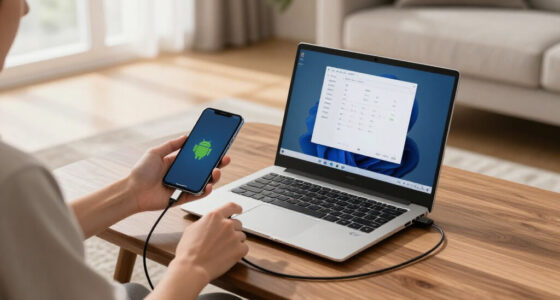
To turn your phone into a webcam for your PC, download a compatible app like DroidCam or EpocCam on both devices, then connect them via Wi-Fi or USB. Position your phone at eye level on a stable mount and make certain your Wi-Fi is strong and stable. Adjust the app’s resolution settings for the best balance between quality and connection stability. Stay with us to discover the finer details for a seamless setup.

Get the latest gadgets delivered free — and shop member deals
- Fast, free delivery on millions of items
- Access to Prime Big Deal Days deals on October 6–7
- Prime Video, Amazon Music and more included
Key Takeaways
- Install compatible webcam app on both your phone and PC, then pair them via Wi-Fi or USB.
- Position your phone at eye level on a stable mount to ensure natural framing.
- Use a strong, stable Wi-Fi connection and connect both devices to the same network for smooth streaming.
- Adjust resolution settings within the app to balance video quality and connection stability.
- Keep your phone’s camera lens clean and ensure good lighting for the best video output.

If you want to improve your video calls without investing in a dedicated webcam, turning your phone into a webcam is a practical solution. Your smartphone already features a high-quality camera and a built-in microphone, making it a convenient upgrade for your video conferencing needs. To get the best results, focus on optimizing both video quality and connection stability. When you set up your phone as a webcam, ensure that your device’s camera is clean and positioned at eye level. This helps create a more natural and engaging appearance on screen. Using steady mounting options such as a tripod or a stable surface prevents shaky footage and enhances overall video quality. The steadiness of your setup directly impacts how professional your video appears, and it avoids distracting movements that can detract from your message.
Next, pay attention to your Wi-Fi connection. A strong, stable internet connection is key to maintaining good connection stability during your calls. If your Wi-Fi signal is weak or inconsistent, your video may freeze or lag, which hampers effective communication. To improve stability, connect your phone and PC to the same high-speed Wi-Fi network, ideally one that’s close to your router. Avoid using cellular data unless necessary, as it’s more prone to fluctuations. Also, close other bandwidth-heavy applications on your PC and phone to reduce network congestion. This ensures that your webcam stream gets the maximum available bandwidth, resulting in smoother video transmission.
Many apps and software solutions are available to facilitate turning your phone into a webcam; choose one that’s compatible with your device and operating system. After installing the app on your phone and your PC, follow the simple pairing process, which usually involves connecting via Wi-Fi or USB. For ideal video quality, select the highest resolution setting available within the app, but keep in mind that higher resolutions demand more bandwidth and processing power. If your connection isn’t stable enough for 4K or high-def streams, lowering the resolution can improve stability without sacrificing too much clarity. Adjusting these settings ensures you get a good balance between video quality and connection stability, which is essential for smooth, professional-looking calls.
As an affiliate, we earn on qualifying purchases.
Frequently Asked Questions
Does Using My Phone as a Webcam Affect Its Battery Life?
Using your phone as a webcam can cause battery drain, especially during long sessions. It consumes power since your phone’s camera and screen stay active, which can deplete the battery quickly. To minimize this, enable power management settings, lower screen brightness, or connect your phone to a charger. This way, you prevent rapid battery loss and guarantee smooth operation without interrupting your video calls or recordings.
Can I Use My Phone as a Webcam Without Wi-Fi?
Yes, you can use your phone as a webcam without Wi-Fi, but Bluetooth limitations may affect quality and stability. Bluetooth typically doesn’t support high-definition video streaming, so your connection might be slow or choppy. To avoid this, consider using a USB cable, which provides a direct and more reliable connection. This way, you bypass Wi-Fi and Bluetooth issues, ensuring smoother video for your webcam setup.
What Are the Best Apps for Turning a Phone Into a Webcam?
Your quest to find the best apps for turning your phone into a webcam is easier than ever! Apps like DroidCam, iVCam, and EpocCam shine because of their extensive device compatibility and rich app features. They offer seamless setup, high-quality video, and easy controls, making your phone feel like a professional webcam. Pick one based on your device and needs, and transform your phone into a powerful webcam in no time!
Is There Lag or Delay When Using My Phone as a Webcam?
You might notice some lag or delay when using your phone as a webcam, especially if there’s high network latency or heavy video compression. These factors can cause a slight delay in the video feed, making it less smooth. To minimize lag, guarantee a strong Wi-Fi connection, use apps that optimize video compression, and keep your phone close to your PC. Reducing background activity also helps improve the overall experience.
How Do I Ensure High Video Quality During Use?
To guarantee high video quality, set your phone’s camera to the highest video resolution available. Good lighting conditions are essential; use natural light or soft, diffused lighting to reduce shadows and improve clarity. Keep your phone steady using a tripod or stable surface, and close unnecessary apps to prevent lag. Regularly clean the lens for a clearer image, and adjust settings within the app for peak quality.
As an affiliate, we earn on qualifying purchases.
Conclusion
Now that you’ve revealed the secret to turning your phone into a webcam, you hold a powerful tool in your digital toolkit. Like a chameleon blending seamlessly into new environments, your device adapts effortlessly to serve your needs. With a few simple steps, you transform your phone into a sleek, reliable camera, opening doors to clearer calls and sharper streams. Embrace this tech wizardry, and watch your virtual presence flourish like a well-tuned symphony.
As an affiliate, we earn on qualifying purchases.
As an affiliate, we earn on qualifying purchases.
Fall Picks
fall essentials
As an affiliate, we earn on qualifying purchases.