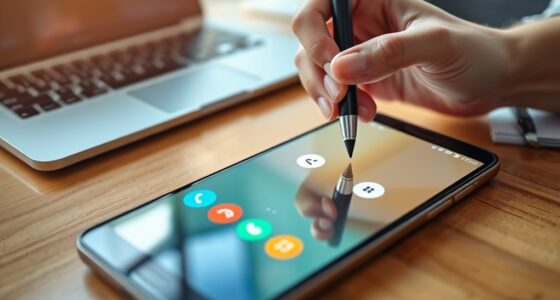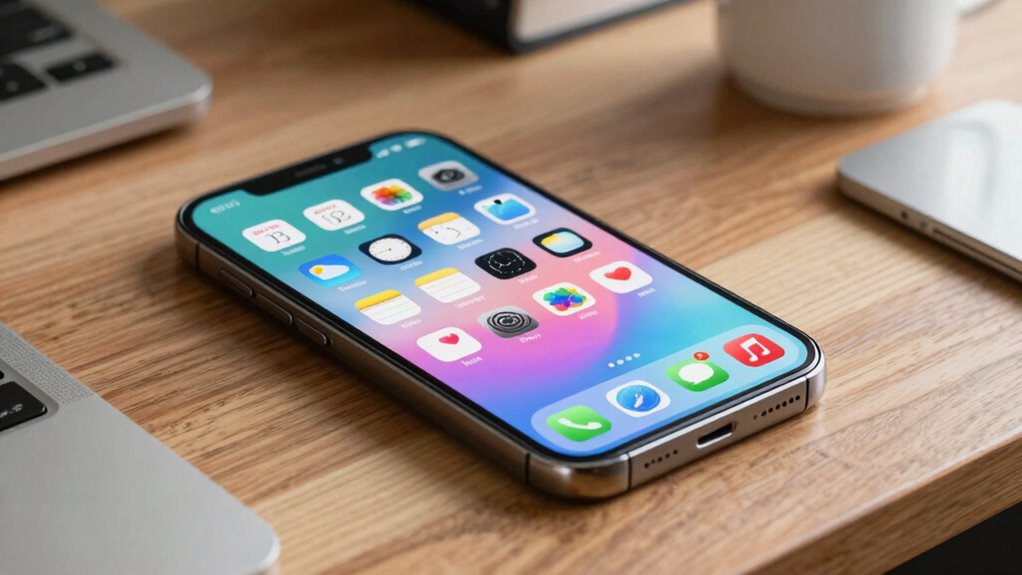

To make your lock screen more useful, customize it with widgets that show weather, your calendar, reminders, and music controls. Manage notifications so you only see alerts from key contacts and important apps, and silence the rest. Adjust privacy settings to control what information is displayed publicly. You can also combine widgets and notifications for quick access to your schedule and messages. Keep exploring to discover how to personalize and streamline your lock screen even further.
Key Takeaways
- Customize lock screen widgets to display weather, calendar, reminders, and quick controls for immediate access.
- Manage notifications to prioritize important alerts and reduce clutter.
- Adjust privacy settings to control what information appears publicly on your lock screen.
- Integrate widgets and notifications for a comprehensive view of your schedule and messages.
- Personalize your lock screen layout to match routines, enhancing efficiency and ease of use.
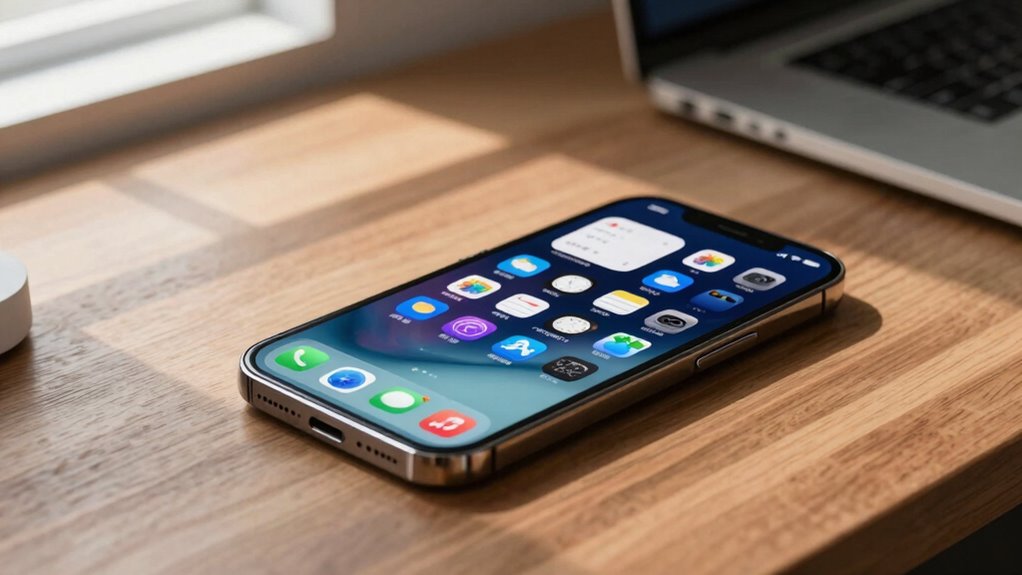
Have you ever wanted your lock screen to do more than just show the time and date? If so, you’re not alone. Many people look for ways to make their lock screens more functional and personalized. The good news is that with a few tweaks, you can transform your lock screen into a powerful tool that saves you time and keeps you informed. One of the best ways to do this is through widget customization. Widgets allow you to display essential information right on your lock screen, such as weather updates, calendar events, reminders, or even quick access to music controls. By choosing the right widgets, you guarantee that your lock screen becomes a glanceable hub that provides useful info without unlocking your device. Customizing these widgets is often straightforward—you can typically select what information you want to see and where it appears. This way, you tailor your lock screen to fit your daily routines and preferences.
Customize your lock screen with widgets for quick access to weather, calendar, and music—making your device more functional and personalized.
Alongside widget customization, notification management plays a critical role in improving your lock screen’s usefulness. Instead of getting overwhelmed by every alert and message, you can set preferences to prioritize what matters most. For example, you can allow notifications from your favorite contacts or essential apps, while silencing less important alerts. Many devices also let you customize how notifications appear—whether as banners, icons, or detailed previews—so you control how much information shows up on your lock screen. This reduces clutter and helps you stay focused on what’s truly urgent. Managing notifications smartly means you spend less time accessing your phone to dismiss unnecessary alerts and more time engaging with meaningful updates. Additionally, understanding template compatibility can help you optimize your device’s customization options across different platforms and apps, ensuring a consistent and seamless experience. This can also involve configuring privacy settings to control what information is displayed publicly on your lock screen, aligning with your privacy preferences.
Furthermore, combining widget customization with notification management offers a seamless experience. You can set up widgets that display upcoming appointments or weather forecasts, while your notifications alert you to important messages or reminders. This integration allows you to quickly assess your day without unlocking your device, making your lock screen a powerful dashboard. Also, many systems support quick actions—like replying to messages or controlling music—directly from the lock screen, boosting your efficiency and convenience.
Ultimately, making your lock screen more useful involves customizing what information you see and how you handle incoming alerts. By thoughtfully selecting widgets and managing notifications, you create a personalized, streamlined experience that keeps you informed and organized. It’s all about tailoring your lock screen to work for you, not the other way around. With these simple adjustments, you’ll find yourself accessing your device less often, while staying connected and in control throughout the day.
Swift Locker – Free Lock Screen
Music Album Art changes according to the song you play. This feature can also be switched off.
As an affiliate, we earn on qualifying purchases.
As an affiliate, we earn on qualifying purchases.
Frequently Asked Questions
Can I Customize My Lock Screen on All Smartphone Models?
You can customize your lock screen on many smartphone models, but capabilities vary. Lock screen customization is widely available on Android devices, allowing you to add widgets, wallpapers, and shortcuts. However, widget limitations may restrict some features, especially on iPhones. Apple offers some customization options, but they’re more limited compared to Android. Check your device’s settings and app options to see what specific lock screen customization features are available for your model.
Are There Privacy Concerns With Lock Screen Widgets?
Privacy concerns with lock screen widgets can definitely cause caution. You might worry about data disclosure, but data encryption keeps your info safe, and biometric security adds a layer of protection. Be cautious about what you display—avoid revealing sensitive info. Always enable encryption and biometric locks to bolster your security. By balancing convenience with caution, you can enjoy widget benefits without worrying about privacy pitfalls on your lock screen.
How Do I Update Lock Screen Settings on My Device?
To update your lock screen settings, go to your device’s Settings app. Tap on “Lock screen” or “Security & Lock screen,” then select “Lock screen shortcuts” to customize quick access options. You can also enable “Battery optimization” for apps to extend battery life. Adjust these settings to make your lock screen more functional and efficient. Remember to review privacy options to keep your information secure while customizing your lock screen.
Can I Add Multiple Widgets to My Lock Screen?
Yes, you can add multiple widgets to your lock screen through widget customization options available on your device. Most smartphones allow you to customize your lock screen by adding various widgets and lock screen shortcuts, giving you quick access to important apps and info. Simply go to your device settings, select lock screen customization, and choose the widgets you want to display, arranging them for easy access and better functionality.
Is It Possible to Lock Specific Apps to the Lock Screen?
Yes, you can lock specific apps to your lock screen through app restrictions and access control. By setting restrictions, you prevent others from opening certain apps without your permission, ensuring your privacy is protected like a fortress. This feature is perfect for safeguarding sensitive information or controlling what others can access on your device. Just explore your device’s settings, enable app restrictions, and select the apps you want to lock—easy and secure!
IPHONE 14 & 14 PLUS USER GUIDE FOR BEGINNERS & SENIORS: Master iOS 17 with Hidden Features, Shortcuts, Customization, Settings, and Tips for … Innovation and Information Guides)
As an affiliate, we earn on qualifying purchases.
As an affiliate, we earn on qualifying purchases.
Conclusion
By customizing your lock screen, you turn it into a handy tool rather than just a gatekeeper. With quick access to notifications, apps, and even your favorite quotes, you’ll save time and stay organized. Think of it as your modern-day quill, ready to jot down important info at a moment’s notice. So go ahead, make your lock screen as clever as a pocket watch—timely, useful, and always ready when you need it.
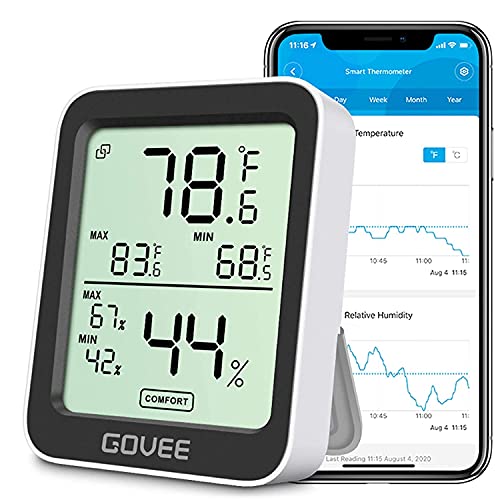
Govee Digital Hygrometer Indoor Thermometer Room H5075, Bluetooth Temperature Humidity Meter with 164ft Remote App Control, Notification Alerts, 2 Years Data Storage Export for Bedroom, Wine Cellar
Smart Features: The Govee Wireless Thermometer Hygrometer supports all basic functions as well as smart functions such as…
As an affiliate, we earn on qualifying purchases.
As an affiliate, we earn on qualifying purchases.

Learn with Gecko
As an affiliate, we earn on qualifying purchases.
As an affiliate, we earn on qualifying purchases.