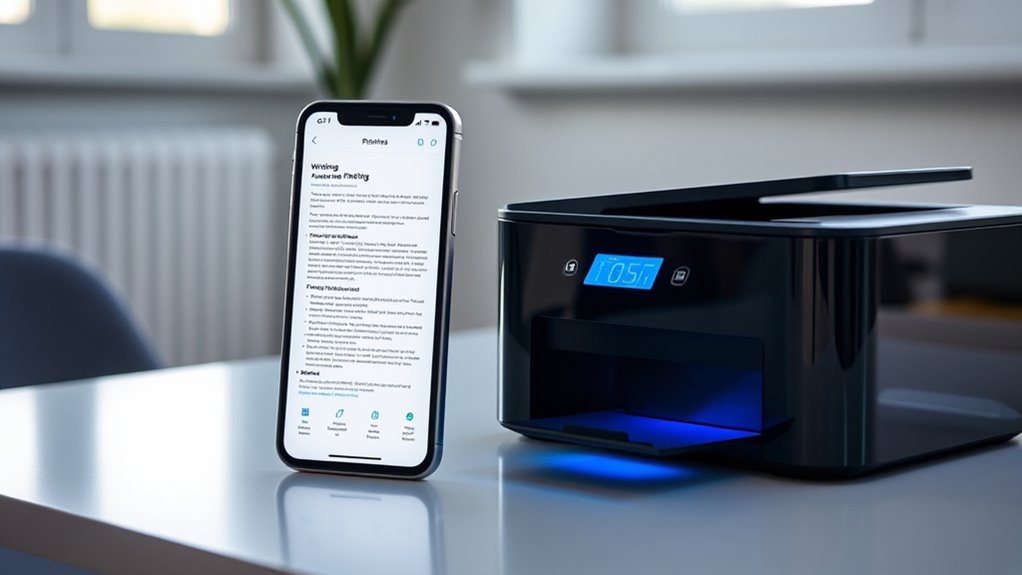

To print documents directly from your smartphone, guarantee your printer supports wireless or cloud printing features like Wi-Fi or Bluetooth. Connect your device to the same network, open the document, and access the share or menu options to find the print command. Select your compatible printer, adjust settings if needed, and confirm the print. Want to learn about more advanced steps or troubleshooting? Keep exploring to get the most out of wireless printing.
Key Takeaways
- Ensure your smartphone and printer support wireless or cloud printing, and connect both to the same Wi-Fi network or cloud service.
- Install the printer manufacturer’s app or use native OS print options (e.g., Android or iOS) for easy access.
- Open the document on your smartphone, tap the share or menu button, and select the print option.
- Choose your wireless printer from the list of available devices, customize settings if needed.
- Confirm and send the print job, utilizing cloud services for remote printing if applicable.

Printing documents from your smartphone is easier than ever with today’s wireless technology. Whether you’re at home, in the office, or on the go, wireless printing allows you to send files directly to your printer without needing a computer or tangled cables. This convenience is made possible through features like wireless printing and cloud printing, which streamline the process and save you time. With just a few taps on your device, you can have your documents ready to go without interrupting your workflow.
Wireless printing connects your smartphone directly to a compatible printer via Wi-Fi or Bluetooth. Many modern printers are equipped with built-in Wi-Fi, allowing you to set them up on your wireless network. Once connected, you can print from your smartphone using the printer manufacturer’s app or the native printing options built into your device’s operating system. For example, Android devices often support Google Cloud Print or similar services, enabling you to send print jobs from anywhere with an internet connection. Cloud printing, in particular, is a game-changer because it allows you to access your printer remotely. You can upload files to a cloud service like Google Drive or Dropbox, then print them through cloud-enabled apps or services, even if you’re not directly connected to the same Wi-Fi network as your printer.
Wireless printing lets you connect your smartphone directly to your printer via Wi-Fi or Bluetooth for easy, remote document access.
To get started with wireless printing, check if your printer supports Wi-Fi or cloud printing features. Then, follow the setup instructions provided by the manufacturer—usually involving connecting your printer to your Wi-Fi network and installing relevant apps on your smartphone. Once set up, printing becomes as simple as opening the document you want to print, tapping the share or menu button, and selecting the print option. From there, choose your wireless printer from the list, customize your print settings if needed, and confirm. If your printer supports cloud printing, you might instead select your cloud service as the source, then send the job directly from your phone to your printer over the internet. Understanding the compatibility of your devices can help ensure a smoother setup process.
The beauty of wireless and cloud printing is that it eliminates the need for physical connections, making it easy to print from any location within your network or even remotely. As long as your smartphone and printer are connected properly, you can quickly produce professional-quality prints without fuss. This technology makes printing faster, more flexible, and more accessible than ever, helping you stay productive no matter where you are.
Frequently Asked Questions
Can I Print Documents From Any Smartphone Brand?
Yes, you can print documents from any smartphone brand. Most smartphones support mobile apps compatible with popular printer brands, like HP, Canon, and Epson. Make certain your printer brand supports mobile app compatibility, so you can easily connect and print. Check your printer’s support for features like AirPrint or Google Cloud Print, which work across various devices. With the right app, printing from your smartphone becomes quick and straightforward, regardless of the brand.
Is an Internet Connection Required to Print Directly From My Phone?
No, an internet connection isn’t always required to print directly from your phone, thanks to cloud printing and wireless connectivity. If your printer supports these features, you can print over a local Wi-Fi network without needing internet. However, for remote printing via cloud services, an internet connection is necessary. Check your printer’s capabilities to determine whether you can print locally or through cloud printing.
What Types of Printers Support Mobile Printing?
You can print directly from your smartphone if your printer supports mobile printing and is compatible with various wireless standards like Wi-Fi, AirPrint, or Google Cloud Print. Check the printer’s compatibility with your device and verify it meets the necessary wireless standards for seamless connection. Many modern printers support multiple wireless standards, making it easy to print without cables, provided your phone and printer are compatible with the same technology.
Are There Any Security Risks When Printing From a Mobile Device?
Don’t let your guard down when printing from your mobile device; security risks are real. You could fall victim to mobile malware or data interception if your connection isn’t secure. Always use data encryption and trusted networks to keep your documents safe. Think of it as locking the door—prevents unwanted guests from snooping. Staying vigilant helps guarantee your sensitive information remains protected during the printing process.
How Do I Troubleshoot Printing Errors From My Smartphone?
When troubleshooting printing errors from your smartphone, first check your wireless connectivity to make sure your device and printer are on the same network. Next, verify app compatibility; update your printing app if needed. Restart both your phone and printer, then try printing again. Confirm that your printer supports mobile printing and that all drivers are current. If issues persist, reset network settings or reinstall the app to resolve connectivity or compatibility problems.
Conclusion
Printing documents from your smartphone is quick, simple, and convenient. Whether you’re printing a work report, a school assignment, or a personal photo, the process is seamless. Just connect, select, and print — it’s that easy. Embrace the freedom to print anytime, anywhere. Enjoy the convenience, save time, and stay productive. With these straightforward steps, you can print effortlessly, efficiently, and confidently, turning your smartphone into a powerful printing tool whenever you need it.