To edit videos on your smartphone, start by selecting a user-friendly editing app that offers stabilization, audio syncing, and visual enhancements. Import your footage, then use stabilization features to smooth shaky clips automatically. Trim and arrange clips with simple drag-and-drop tools, and carefully sync your audio tracks for clarity. Improving your display experience with the right projector settings can also make a difference if sharing on a big screen. Keep exploring, and you’ll discover how to make your videos look truly professional.

Get the latest gadgets delivered free — and shop member deals
- Fast, free delivery on millions of items
- Access to Prime Big Deal Days deals on October 6–7
- Prime Video, Amazon Music and more included
Key Takeaways
- Choose a user-friendly editing app that suits beginners, such as iMovie or InShot.
- Import your video clips into the app and arrange them on the timeline.
- Use stabilization features to smooth shaky footage automatically.
- Add audio tracks, sync them precisely, and adjust volume for clarity.
- Trim, cut, and rearrange clips with simple drag-and-drop tools for a polished final video.
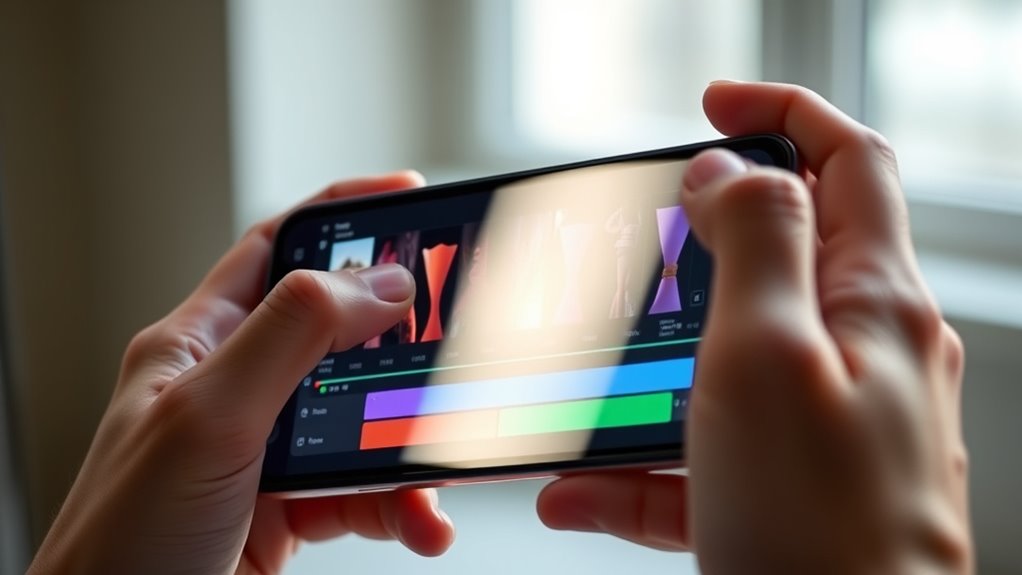
Have you ever wanted to turn raw footage into a polished video right on your smartphone? If so, you’re in luck because modern editing apps make it easier than ever. The first step to creating professional-looking videos is ensuring your footage is smooth and synchronized. Video stabilization plays a pivotal role here, especially if you’re filming while moving or in shaky conditions. Many editing apps include built-in stabilization features that analyze your clips and reduce unwanted jitters, making your footage look steady and professional. You simply select the stabilization option, and the app does the rest, saving you from shaky, distracting visuals. Once stabilized, your video will appear more polished and engaging, giving viewers a better experience from start to finish. Additionally, selecting the right projector technology can significantly improve how your videos are displayed on a larger screen, enhancing viewing quality and immersion.
Audio syncing is another essential aspect to focus on during editing. Whether you’re overlaying music, voiceovers, or sound effects, aligning audio with the visuals is key to maintaining realism and clarity. Many editing tools allow you to import multiple audio tracks and then adjust their position precisely on the timeline. This way, if you’re adding a narration or commentary, you can sync it perfectly with your video actions. Proper audio syncing ensures that dialogue matches mouth movements, sound effects align with events, and background music flows seamlessly. This not only enhances the overall quality but also keeps your audience engaged and immersed in your story.
Navigating the editing interface might seem intimidating at first, but most apps are designed with user-friendliness in mind. You can trim clips, cut unnecessary parts, and rearrange segments with simple drag-and-drop actions. When working with audio, many apps offer visual waveforms, making it easier to pinpoint exact sync points. Take your time to experiment with these features—small adjustments can make a big difference in the final product. Remember, the goal is to create a cohesive story that looks and sounds professional, and these tools are your best allies. As you become more familiar with the app, you’ll gain confidence in refining your edits, making your videos look like they were made by a seasoned professional.
As an affiliate, we earn on qualifying purchases.
Frequently Asked Questions
Can I Edit Videos Offline Without Internet Access?
Yes, you can definitely do offline editing on your smartphone without internet access. Just make certain your device has enough storage requirements for the video files and editing apps. Once you download the necessary editing app and your footage, you can edit videos offline, making changes, adding effects, and exporting your final project without needing an internet connection. This way, you stay productive even in offline mode.
What Is the Best Free Video Editing App for Beginners?
The best free video editing app for beginners is InShot. It offers a user interface that’s simple to navigate, making editing straightforward even if you’re new to it. You get essential editing features like trimming, cropping, adding music, and text overlays. Its intuitive design helps you focus on creating great videos without feeling overwhelmed. Plus, it’s available for both Android and iOS, so you can start editing right away.
How Do I Add Music to My Smartphone Videos?
To add music to your smartphone videos, you’ll want to use a video editing app that supports music mixing. Import your video, then select the audio or music option, and choose your preferred track. Make certain to adjust the timing for audio synchronization, so the music aligns perfectly with your visuals. Preview the video to ensure everything flows smoothly, then save and share your edited video with added music.
Can I Edit 4K Videos on a Smartphone?
Did you know over 60% of smartphones now support 4K video recording? Yes, you can edit 4K videos on your smartphone, but it depends on your device’s hardware requirements. Look for resolution options in your editing app, and verify your phone has a powerful processor, ample RAM, and sufficient storage. With these, you’ll smoothly handle high-resolution footage, making your editing process seamless and professional-looking.
How Do I Export Videos in High Quality?
To export videos in high quality, you need to adjust your export settings. First, select the highest video resolution available, like 4K or 1080p, for clarity. Then, guarantee your export settings are set to a high bitrate, which preserves detail and quality. Double-check that the format is compatible with your intended platform. Once done, export the video, and you’ll have a high-quality result ready to share.
video stabilization app for smartphones
As an affiliate, we earn on qualifying purchases.
As an affiliate, we earn on qualifying purchases.
Conclusion
Now that you’ve revealed the basics, your smartphone becomes a magic wand, transforming raw clips into captivating stories. With a few taps, you’re the director of your own cinematic universe, painting vivid scenes with just your fingertips. Keep experimenting, and soon, editing will feel as natural as breathing. So, go ahead—dive into your creative ocean, and watch your videos blossom into masterpieces that shine brighter than a thousand stars.
As an affiliate, we earn on qualifying purchases.
best smartphone video editing accessories
As an affiliate, we earn on qualifying purchases.
As an affiliate, we earn on qualifying purchases.
Fall Picks
fall essentials
As an affiliate, we earn on qualifying purchases.