To live stream from your phone to social media, first verify your camera and microphone are working well, and improve your lighting for a professional look. Choose a reliable app like Facebook, Instagram, TikTok, or YouTube, and do a quick test of your setup. Make sure you have a stable Wi-Fi connection and disable notifications to avoid interruptions. For more tips on achieving a smooth live stream, keep exploring how to optimize your device and environment.
Listen free for 30 days with Audible
Thousands of audiobooks and originals — cancel anytime.
As an affiliate, we earn on qualifying purchases.
Key Takeaways
- Choose a compatible live streaming app (e.g., Facebook, Instagram, TikTok, YouTube) and log in to start the broadcast.
- Prepare your phone by cleaning the lens, ensuring good lighting, and stabilizing it with a tripod or stabilizer.
- Verify your internet connection is stable, preferably using Wi-Fi, and adjust streaming quality settings if needed.
- Conduct a quick test of camera and audio before going live to ensure everything functions properly.
- Interact with viewers by responding to comments and promoting your stream beforehand for higher engagement.
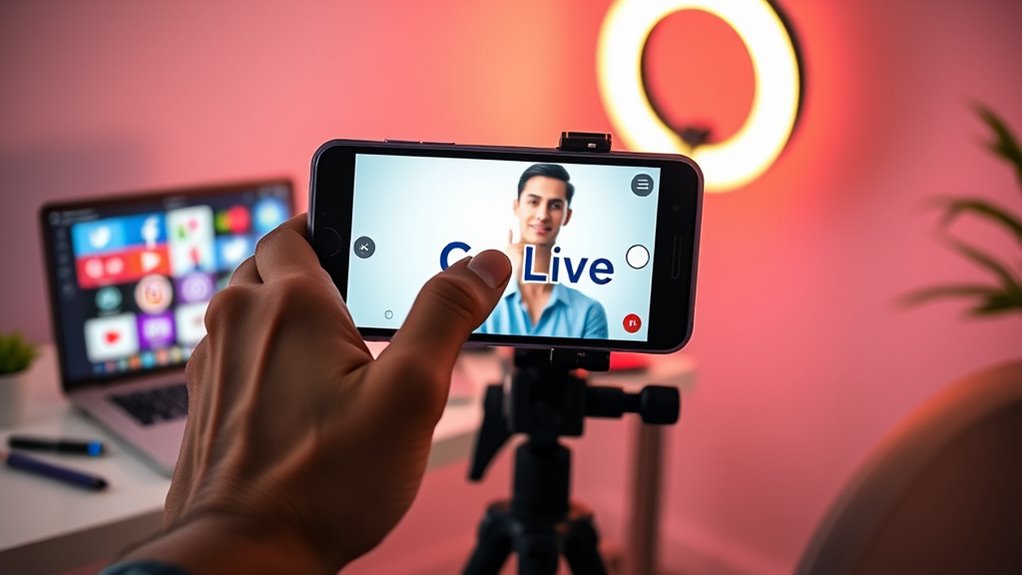
Streaming live from your phone to social media has become an easy way to connect with your audience in real time. Whether you’re sharing a special moment, hosting a Q&A, or showcasing a product, live streaming lets you engage directly with viewers. To start, verify your phone is set up properly. First, check that your camera quality is sufficient for the type of content you want to produce. Modern smartphones typically have high-resolution cameras, but if your device’s camera is outdated or has poor video quality, your stream might appear grainy or blurry. Clean your lens for a clearer picture, and consider using additional lighting to improve visibility. Good lighting enhances camera performance and makes your stream look more professional.
Battery life is equally important because live streaming can drain your phone’s power quickly. Before going live, fully charge your device and close any apps running in the background that might consume extra battery. If you’re planning a lengthy stream, keep a portable power bank handy or plug your phone into a charger if possible. This prevents unexpected shutdowns, which can frustrate your viewers and cut your session short. Also, disable notifications and background data to avoid interruptions or performance issues during your broadcast.
Next, choose an app that suits your needs—most social media platforms like Facebook, Instagram, TikTok, and YouTube offer built-in live streaming features. Log into your account and locate the live option; it’s usually prominently displayed on the app’s main interface. Before going live, do a quick test to ensure your camera works properly and that your audio is clear. Speak clearly and keep your device steady—using a tripod or stabilizer can help prevent shaky footage, making your stream more enjoyable to watch. Proper setup ensures a smoother streaming experience and reduces technical issues.
Consider your internet connection as well. A stable Wi-Fi connection is preferable, but if you’re outdoors or away from Wi-Fi, ensure your mobile data plan can handle the upload speeds required for streaming. A poor connection results in buffering or lower video quality, which can drive viewers away. When you go live, promote your stream beforehand to alert your followers, and interact with viewers by responding to comments to boost engagement.

UBeesize 72" Phone Tripod & Selfie Stick, Camera Tripod Stand with Wireless Remote and Phone Holder,Compatible with iPhone Android, Perfect for Selfies/Video Recording/Live Streaming Black
- Durable Construction: Made with aluminum alloy and stainless steel
- Secure Device Hold: Ensures stability during photos and videos
- Multiple Shooting Angles: Supports landscape, portrait, tilt-down, tilt-up
As an affiliate, we earn on qualifying purchases.
As an affiliate, we earn on qualifying purchases.
Frequently Asked Questions
Do I Need a Special App to Live Stream From My Phone?
No, you don’t need a special app to live stream from your phone. Most social media platforms have built-in live streaming features, so you can start right away using your mobile data. However, if you want more control or features, you might consider using live streaming apps like Streamlabs or Prism Live. Just make certain your mobile data connection is strong for smooth streaming, and you’re good to go.
How Much Internet Bandwidth Is Required for Smooth Streaming?
You might worry about internet speed, but don’t fret—aim for at least 3-5 Mbps upload bandwidth for smooth streaming. Faster internet guarantees your live videos won’t lag or buffer, keeping your audience engaged. Check your bandwidth requirements before going live, and consider upgrading if needed. With a reliable connection, you’ll confidently share your moments without stressing over technical hiccups, creating a seamless streaming experience.
Can I Stream to Multiple Platforms Simultaneously?
Yes, you can stream to multiple platforms simultaneously using multistream capabilities. Make sure your streaming app or service supports platform compatibility for the platforms you want to broadcast to. With the right tools, you can effortlessly reach audiences across Facebook, YouTube, Instagram, and more. Just check the multistream features and platform compatibility before starting, so your live stream runs smoothly on all your chosen social media channels.
What Are the Best Phone Settings for High-Quality Live Streams?
Think of your phone as a camera orchestra conductor. To get high-quality streams, turn on camera stabilization to keep your image smooth and clear. Always optimize your audio by using an external mic or adjusting settings for clearer sound. Set your resolution to at least 1080p for sharp visuals, and make certain your battery is full. Good lighting also plays an essential role, making your stream look professional and engaging.
How Do I Troubleshoot Common Live Streaming Issues on My Phone?
To troubleshoot common live streaming issues on your phone, start by checking your internet connection for stability. If you notice audio sync problems, try restarting your device or closing background apps to free up resources. Keep an eye on battery drain; consider plugging in your phone or lowering screen brightness. Updating your streaming app and ensuring your device’s software is current also helps prevent and resolve issues effectively.

DJI Osmo Mobile 7 Gimbal Stabilizer for iPhone & Android, 3-Axis Gimbal
- 3-Axis Gimbal Stabilization: Ensures smooth, stable footage
- Foldable Design with Tripod: Compact, portable, easy to store
- ActiveTrack 7.0: Precise subject tracking in various scenarios
As an affiliate, we earn on qualifying purchases.
As an affiliate, we earn on qualifying purchases.
Conclusion
Now that you’re armed with the tools to broadcast your world, think of live streaming as opening a window to your universe. With just your phone, you’re a lighthouse guiding friends and followers through your story’s waves. So hit that record button, share your vibe, and watch your digital community grow like a blooming garden—vibrant and full of life. Your voice matters, so let it shine brightly for all to see and hear.
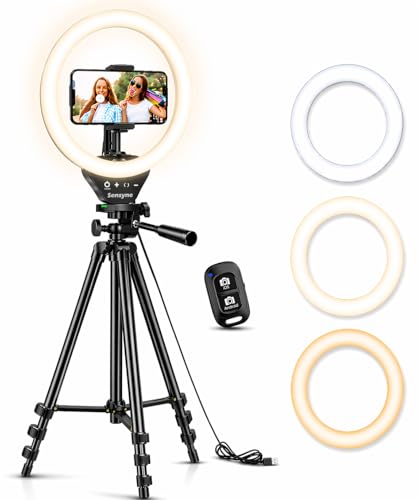
Sensyne Ring Light with Stand, 50" Phone Tripod for iPhone & Android, LED Ring Light with Remote, 3 Color Modes & 10 Brightness Levels for TikTok, Zoom & Video Recording
- Lighting Modes: 3 color modes with 10 brightness levels
- Adjustable Tripod: Extends from 15.7" to 50"
- 360° Rotation: Flexible angles for versatile shooting
As an affiliate, we earn on qualifying purchases.
As an affiliate, we earn on qualifying purchases.

INIU Portable Charger, Smallest 20000mAh 22.5W Fast Charging Power Bank
- Pocket-Sized 20000mAh Capacity: Compact power for on-the-go charging
- Detachable Nylon Lanyard: Built-in durable USB-C cable for convenience
- 22.5W Fast Charging: Rapidly charges devices in minutes
As an affiliate, we earn on qualifying purchases.
As an affiliate, we earn on qualifying purchases.
Baby shower & registry season Picks
baby registry must-haves
As an affiliate, we earn on qualifying purchases.