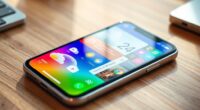
To boost productivity, organize your home screen by grouping similar apps into folders like Work or Social to reduce clutter. Place essential widgets such as your calendar and weather where you can see them quickly and customize their size for better fit. Keep only the necessary apps and reorganize as your needs change. A clean, focused layout helps you stay on track. To discover more tips that make your phone work for you, keep exploring how to optimize your screen.
Listen free for 30 days with Audible
Thousands of audiobooks and originals — cancel anytime.
As an affiliate, we earn on qualifying purchases.
Key Takeaways
- Prioritize essential apps and widgets, placing them prominently for quick access.
- Use folders to group similar apps, reducing clutter and simplifying navigation.
- Customize widget sizes and positions to display vital information at a glance.
- Limit the number of widgets and apps to maintain a clean, focused home screen.
- Regularly review and reorganize to align with your evolving productivity needs.

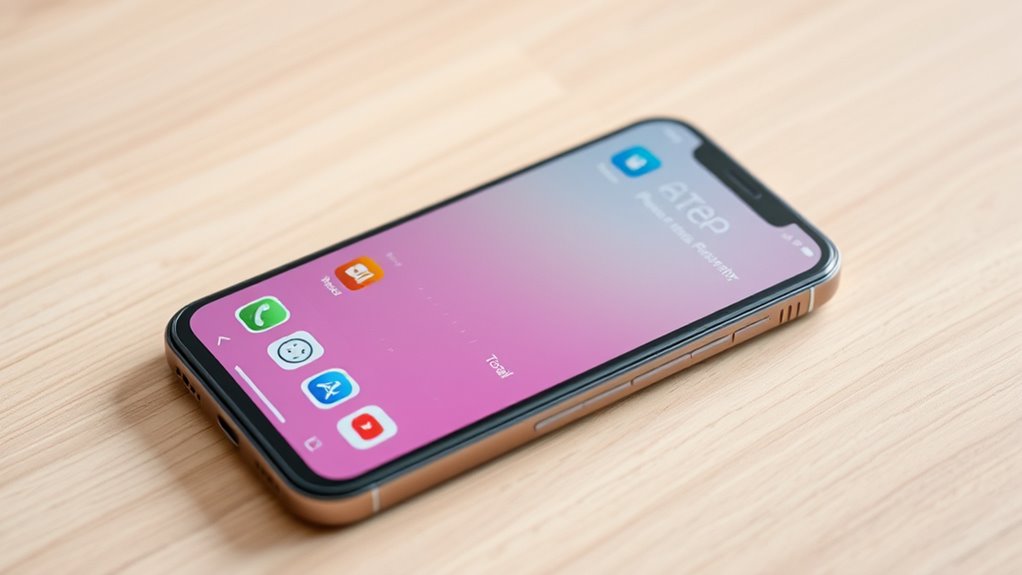
Your phone’s home screen is your gateway to quick access and productivity, so organizing it efficiently can save you time and frustration. One of the best ways to do this is through widget customization. Widgets give you at-a-glance information—like weather updates, calendar events, or news feeds—without opening apps. By customizing widgets to display only what you need, you streamline your workflow and reduce clutter. For example, place a calendar widget prominently so you can see upcoming appointments at a glance, or set up a weather widget if you start your day checking the forecast. Most phones allow you to resize and reposition widgets easily, so experiment until they fit your habits. Keep your home screen clean by limiting the number of widgets, focusing only on those that add immediate value to your daily routine. Additionally, consider the European cloud innovation that promotes energy-efficient solutions, which can inspire you to optimize your device usage and storage for better sustainability.
Another key to an organized home screen is app grouping. Instead of scattering apps across multiple pages, group similar apps into folders. For instance, combine all your social media apps into a “Social” folder, or put all your productivity tools—like email, notes, and task managers—in a “Work” folder. This reduces visual clutter and makes it easier to locate what you need quickly. When creating app groups, choose clear, descriptive names that allow you to identify the folder’s contents instantly. Make a habit of regularly reviewing and reorganizing these groups as your needs evolve. For example, if you stop using a particular app, remove it from the folder and delete it if necessary. This keeps your home screen manageable and relevant to your current priorities.

EVEO Screen Cleaner Spray - Large Screen Cleaner Bottle - TV Screen Cleaner, Computer Screen Cleaner, for Laptop, Phone, Ipad - Computer Cleaning kit Electronic Cleaner (1 Pack)
- Versatile Electronic Screen Cleaner: Suitable for TVs, laptops, phones, and tablets
- Effective Streak-Free Cleaning: Removes dust, fingerprints, and smudges
- Gentle on Sensitive Screens: Safe for LCD, LED, OLED, CRT screens
As an affiliate, we earn on qualifying purchases.
Frequently Asked Questions
How Often Should I Reorganize My Home Screen?
You should reorganize your home screen every few weeks to maintain ideal home screen aesthetics and keep things efficient. Regular reorganizing frequency helps you stay on top of app updates, declutter, and guarantee your most-used apps are accessible. If your routines change or you notice clutter piling up, don’t hesitate to do it sooner. Staying consistent with this habit keeps your phone organized and boosts your productivity.
What Are the Best Apps to Declutter My Screen?
To declutter your screen, focus on app grouping and widget customization. Use folders to organize similar apps, making your home screen cleaner and easier to navigate. Customize widgets to display only essential info, reducing visual clutter. Choose minimalistic widgets and group related apps together, so everything stays accessible but unobtrusive. Regularly reassess your layout to keep your home screen streamlined and boost your productivity.
How Can I Customize App Icons for Better Organization?
You can customize app icons for better organization by using custom icon packs available in your app store. Install a launcher that supports icon customization, then select app icon shortcuts to replace default icons with those from your chosen packs. This way, you create a visually cohesive and organized home screen, making it easier to find your apps quickly. Custom icon packs add style, while app icon shortcuts streamline your setup.
What Widget Placements Improve Productivity?
Position widgets strategically for a productivity boost. Place your calendar widget at the top for quick access to upcoming events. Keep your task list widget nearby to stay focused on daily priorities. Use weather and news widgets on the side to stay informed without distraction. Arranging widget placement thoughtfully helps you navigate your day efficiently, reduces app searches, and keeps essential info within easy reach, maximizing your productivity every time you access your phone.
How Do I Prevent Apps From Cluttering My Home Screen?
You prevent apps from cluttering your home screen by practicing effective folder management and app grouping. Regularly review your apps and organize them into folders based on categories like work, social, or entertainment. This keeps your home screen tidy and makes it easier to find what you need quickly. Don’t hesitate to delete unused apps or move rarely used ones to a dedicated folder or secondary screen, maintaining a clean, productive space.

iO CLEAN Screen Cleaner Spray (16oz - 473ml) – Best Large Cleaning Kit
- Versatile Device Compatibility: Works on all electronic screens and devices
- Gentle, Advanced Formula: Removes dust, fingerprints, grime without scratches
- Protective, Streak-Free Shine: Leaves screens smudge-free and like new
As an affiliate, we earn on qualifying purchases.
Conclusion
By prioritizing, placing, and pinpointing your apps, you create a clutter-free, calming, and convenient home screen. This simple system saves time, reduces stress, and boosts your productivity. The more mindful your mobile layout, the more manageable your multitasking becomes. So, set, sort, and streamline your screens today—making your phone a perfect partner for productivity rather than a distracting dilemma. A tidy, tailored home screen transforms tech trouble into a triumphant tool.

Motorola Moto G Stylus 5G | 2024 | Unlocked | Made for US 8/256GB | 50MP Camera | Caramel Latte
- Built-in Stylus: Enhanced stylus for notes and sketches
- Large Display: 6.7-inch pOLED with Dolby Atmos
- High-Resolution Camera: 50MP Ultra Pixel with OIS
As an affiliate, we earn on qualifying purchases.
Labor Day sales Picks
labor day deals
As an affiliate, we earn on qualifying purchases.