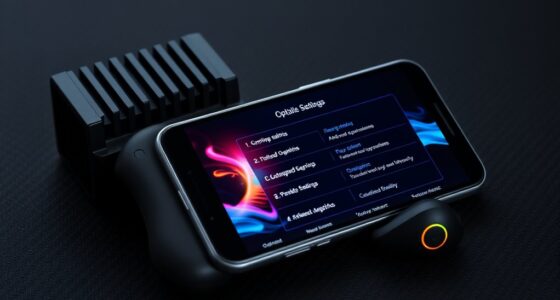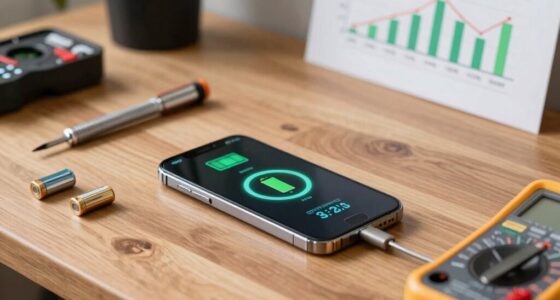

To make your new phone feel right in 15 minutes, start by exploring the home screen and customizing it with your favorite apps and wallpapers. Adjust privacy and security settings, like enabling biometric locks and reviewing app permissions. Connect to Wi-Fi, enable automatic updates, and set up backups for data safety. Personalize notifications and display settings for comfort. Spending a few minutes on these steps will set you up for smooth daily use—if you keep going, you’ll reveal even more tips.

Get the latest gadgets delivered free with Prime
- Fast, free delivery on millions of items
- Prime Video, Amazon Music and more included
- Member-only deals all year
Key Takeaways
- Personalize your home screen by changing wallpapers and adding favorite apps for quick access.
- Organize apps into folders and set up widgets like weather or calendar for easy info.
- Adjust privacy and security settings, including locks and permissions, for peace of mind.
- Connect to Wi-Fi, enable automatic updates, and back up data to ensure smooth operation.
- Explore device features, customize notifications, and review settings to align with your preferences.
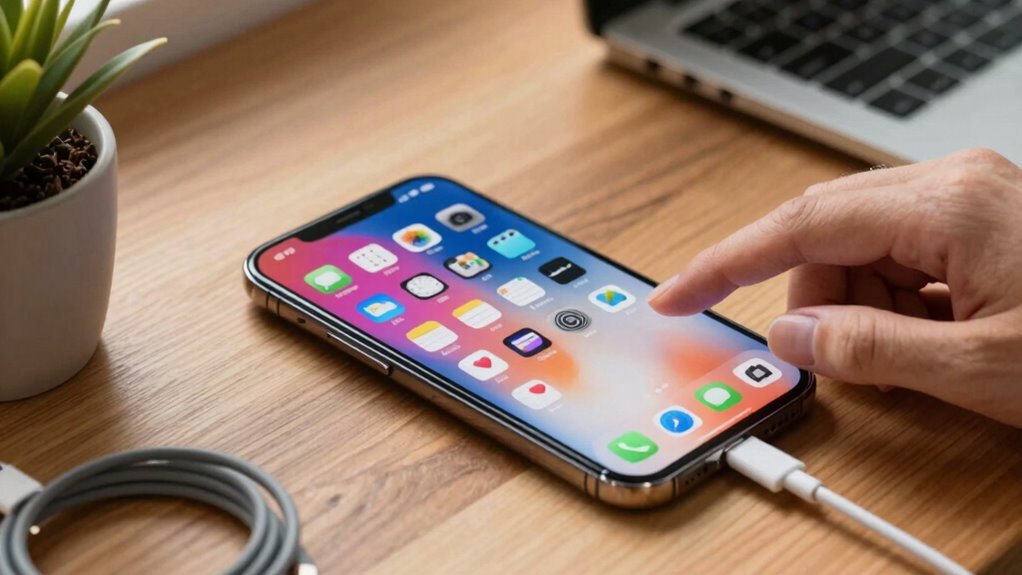
Getting your new phone to feel familiar and functional quickly can make all the difference in starting off on the right foot. When you first power up your device, take a few moments to explore the home screen and basic settings. This initial familiarity helps you navigate more confidently and start customizing right away. To make your phone truly feel like your own, dive into customization tips. Change your wallpaper to something personal or inspiring, add your favorite apps to the home screen, and organize them in a way that makes sense to you. Rearranging icons and creating folders for similar apps can save time and reduce clutter. Also, consider setting up widgets for weather, calendar, or notes so that vital information is readily accessible at a glance.
Equally important is setting your privacy preferences early on. Head into the privacy settings to control what data your apps can access and what information you want to keep private. Disable permissions that aren’t necessary—like location access for apps that don’t need it—and review app-specific permissions periodically. Activating features like two-factor authentication, biometric locks, or PIN codes adds an extra layer of security, giving you peace of mind as you start using your device. Most phones also include options to manage ad preferences and limit tracking, which you should configure based on your privacy comfort level. Making informed choices about your content management can help protect your data and enhance your user experience. Additionally, understanding the importance of color accuracy can help you optimize your screen settings for the best visual clarity and color fidelity.
Within your first few minutes, it’s also smart to connect your phone to Wi-Fi, so you can download updates and apps without draining your mobile data. Enable automatic updates to keep your system secure and running smoothly, and consider turning on cloud backups if you haven’t already. This way, your data stays safe and easily recoverable if needed. Remember, setting up your preferred notification sounds, ringtones, and vibration patterns is a quick way to personalize your device further, making it more comfortable to use daily.
Finally, spend a couple of minutes exploring the settings menu to familiarize yourself with features like battery management, display options, and accessibility tools. This exploration helps you tailor the device to your usage habits and ensures you’re not missing out on helpful features. In just 15 minutes, with some simple customization tips and privacy settings adjustments, your new phone will not only feel more familiar but also aligned with your preferences and security needs, setting you up for a smoother, more enjoyable experience from the start.
best phone wallpapers for customization
As an affiliate, we earn on qualifying purchases.
As an affiliate, we earn on qualifying purchases.
Frequently Asked Questions
How Do I Transfer All My Data Quickly?
To transfer all your data quickly, start with your phone’s built-in data transfer feature, which uses Wi-Fi or a cable for fast transfer. Make certain you’ve backed up your data first using reliable backup solutions like cloud services or external drives. Once backed up, connect your new phone, select the transfer option, and follow prompts. This method guarantees a seamless, speedy data transfer with minimal hassle.
What’s the Best Way to Secure My New Phone?
Your new phone is a treasure chest of personal info, so securing it is essential. Start by adjusting your privacy settings to limit data sharing and enable two-factor authentication. Install reliable security apps that scan for malware and protect against threats. Regularly update your OS and apps to patch vulnerabilities. These simple steps turn your device into an impenetrable fortress, ensuring your data stays safe, even if the digital world throws everything at it.
How Can I Customize My Home Screen Efficiently?
To customize your home screen efficiently, start by selecting a wallpaper that reflects your style and sets the mood. Then, focus on widget customization—add useful widgets like weather, calendar, or quick notes to stay organized. Arrange your app icons neatly for easy access. Use folders to declutter, and experiment with different layouts until your home screen feels personalized and functional, making your phone truly yours in just minutes.
Which Apps Should I Install First?
Think of your new phone as a blank canvas—start with essential downloads that set the foundation. Install app recommendations like messaging, email, and navigation first; these are your daily essentials. Consider security apps, social media, and streaming services next. Prioritize apps that boost productivity and keep you connected. This way, your phone quickly feels familiar and ready to support your daily routines, just like a trusted tool in your hands.
How Do I Optimize Battery Life Immediately?
To optimize battery life immediately, start with a quick battery calibration by fully charging your phone to 100%, then use it until it drains completely. Apply power-saving tips like dimming the screen, turning off Bluetooth and Wi-Fi when not in use, and limiting background apps. This helps your battery stay healthy longer, ensuring your phone runs smoothly and lasts throughout the day.
biometric security phone accessories
As an affiliate, we earn on qualifying purchases.
As an affiliate, we earn on qualifying purchases.
Conclusion
In just 15 minutes, you’ve transformed your new phone from a stranger into a trusted companion. Think of it as planting a seed—you’ve laid the groundwork for a strong relationship. With a few simple steps, your device now feels familiar and ready to serve your needs. Remember, patience and personalization are the roots of a lasting bond. Soon, your new phone will feel like an extension of yourself, always ready to support your daily adventures.
smartphone app organizer folders
As an affiliate, we earn on qualifying purchases.
As an affiliate, we earn on qualifying purchases.
As an affiliate, we earn on qualifying purchases.
Halloween Picks
halloween
As an affiliate, we earn on qualifying purchases.