To automate tasks with Siri Shortcuts and Google Assistant routines, start by creating personalized shortcuts that combine multiple actions, like adjusting lights or playing music. For Siri, use the Shortcuts app to customize commands and link them to specific actions. For Google Assistant, set up routines in the app to trigger multiple tasks with a simple voice prompt. Exploring these tools further will help you tailor routines that save time and boost productivity effortlessly.
Key Takeaways
- Create personalized routines in Siri Shortcuts and Google Assistant, combining multiple actions for automation.
- Connect compatible apps and devices to enable seamless workflows across ecosystems.
- Assign custom voice commands or trigger phrases to activate routines effortlessly.
- Test and refine routines to ensure reliability and smooth operation.
- Use app integrations and shortcuts to streamline daily tasks and enhance smart assistant capabilities.
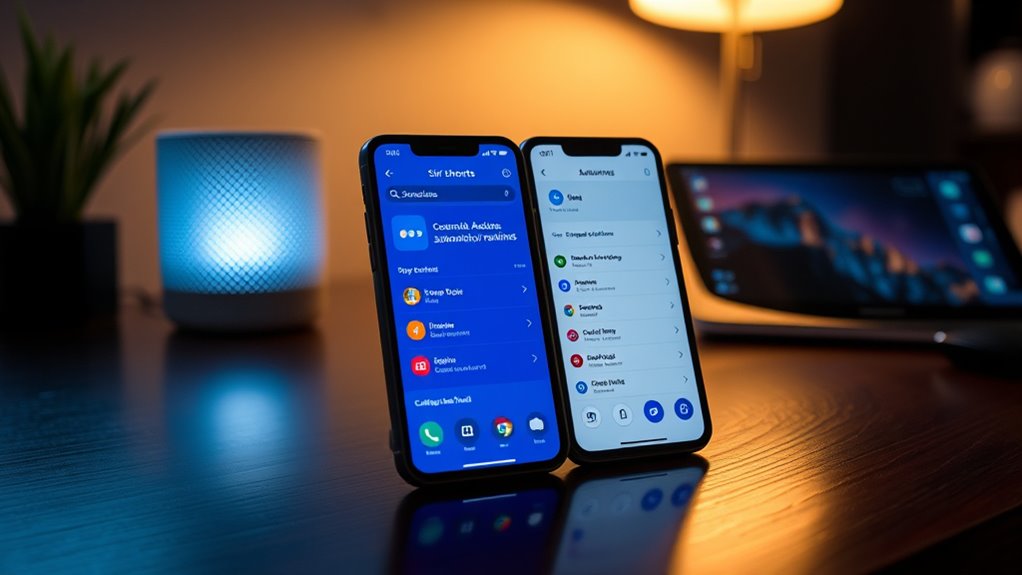
Smart assistants like Siri and Google Assistant have made managing daily tasks easier than ever, especially when you leverage their customizable routines and shortcuts. These tools allow you to streamline your day by setting up voice command customization that fits your specific needs. Instead of repeating the same instructions, you can create personalized phrases that trigger complex actions with a single command. For example, you might say, “Good morning,” and have your assistant turn on the lights, read your calendar, and play your favorite morning playlist. This level of customization empowers you to tailor your smart assistant experience, saving time and reducing effort.
Customize your smart assistant with personalized commands to simplify daily routines and save time.
To get started, explore the app integration techniques that enable your device to connect with a wide array of services and apps. With Siri Shortcuts, you can link apps like Maps, Music, and HomeKit, creating seamless workflows. Google Assistant routines work similarly, allowing you to combine multiple app actions into one routine. When you set up these routines, you’re essentially programming your assistant to perform several tasks with a single voice command. For instance, a “Leaving Home” routine could turn off all smart lights, lock the doors, and adjust the thermostat. By mastering app integration techniques, you guarantee your routines are extensive and work smoothly across your ecosystem.
Voice command customization is vital because it makes your interactions more natural and intuitive. Instead of sticking to preset commands, you can personalize phrases that feel more like everyday speech. This not only increases convenience but also reduces errors caused by misinterpretation. When customizing commands, think about how you naturally speak and what triggers you’d genuinely use. For example, rather than a generic “Start workout,” you might say, “Time to hit the gym,” which your assistant recognizes as a shortcut to launch your fitness app, start a playlist, and turn on the smart gym equipment. Additionally, understanding the essential oils for health benefits can enhance your overall wellness routines, making your environment more supportive of your daily activities.
As you develop your routines and shortcuts, keep in mind the importance of testing and refining them. Sometimes, small tweaks improve reliability and user experience. With Siri Shortcuts, you can assign specific voice commands to individual shortcuts, making them easy to activate. Similarly, with Google Assistant routines, you can customize the trigger phrases to suit your style. The key is to make these routines as seamless and personalized as possible, so they become an effortless part of your daily routine. By mastering voice command customization and app integration techniques, you’ll maximize the potential of your smart assistants, making your life more organized and efficient.

Amazon Basics Smart Dimmer Switch and Remote for Music and Routines, Works with Alexa Only, Compatible Echo Devices Required, Easy Setup, No Wiring Required, Handheld
- Smart Device Control: Control lights, music, blinds, and more
- Powerful Automations: Create automations with multiple devices
- Portable and Battery-Powered: Use remotely anywhere in your home
As an affiliate, we earn on qualifying purchases.
As an affiliate, we earn on qualifying purchases.
Frequently Asked Questions
Can I Customize Siri Shortcuts for Third-Party Apps?
Yes, you can customize Siri Shortcuts for third-party apps. Many third-party apps support integration, allowing you to create personalized shortcuts that trigger specific app functions. You’ll find customization options within the Shortcuts app, where you can add actions from compatible apps. This way, you tailor your experience, streamlining tasks and making your device work more efficiently with third-party integration and personalized commands.
How Do I Troubleshoot Routine Failures in Google Assistant?
Imagine your routine as a well-oiled machine, but suddenly it stalls. When troubleshooting routine failures in Google Assistant, start by checking for routine errors—like misconfigured commands or disconnected devices. Follow troubleshooting steps: verify your internet connection, ensure device compatibility, and review routine settings. Restart your device if needed, and test the routine again. Staying methodical helps you pinpoint issues quickly and keeps your automation running smoothly.
Are There Privacy Concerns With Automating Tasks Using These Tools?
Yes, there are privacy concerns when automating tasks with Siri Shortcuts and Google Assistant routines. You should be aware of data security risks, like personal information being stored or transmitted without your full control. To protect your user privacy, review app permissions, disable unnecessary data sharing, and keep software updated. Being cautious helps guarantee your data remains secure while enjoying the convenience of automation.
Can I Share My Shortcuts or Routines With Others?
Ever notice how you often wish you could share your smart routines with friends? You can! Both Siri Shortcuts and Google Assistant routines offer sharing options, making it simple to export and import them. This fosters collaborative workflows, allowing others to benefit from your automation setups. Just use the share feature within the app, send the shortcut file or link, and you’re all set to streamline tasks together effortlessly.
What Are the Best Practices for Naming and Organizing Routines?
You should use clear, descriptive routine naming to easily identify each task, like “Morning Alarm” or “Workout Setup.” Keep your routines organized with folder organization, grouping similar routines together such as “Home,” “Work,” or “Fitness.” Regularly review and update your naming conventions and folder structure to maintain clarity, especially as you add more routines. This way, you’ll quickly find what you need and keep your automation system streamlined.

Linkind Matter Smart Light Bulb, Smart Bulbs Work with Apple Home, Siri, Alexa, Google Home, SmartThings, Color Changing Light Bulbs RGTBW Music Sync, Mood Lights, 2.4Ghz WiFi A19 E26 60W 800LM 3 Pack
- Universal Matter Compatibility: Works with all Matter platforms
- App Control & Privacy: Control via app without cloud services
- Long-lasting & Energy Efficient: Lasts 22 years, saves 80% energy
As an affiliate, we earn on qualifying purchases.
As an affiliate, we earn on qualifying purchases.
Conclusion
By mastering Siri Shortcuts and Google Assistant Routines, you harness the power to transform your daily tasks into a seamlessly flowing river of efficiency. These tools act as your digital compass, guiding you through a landscape of automation with ease. As you weave them into your routine, you’ll find your day running smoother than ever—making technology work for you like a loyal second wind, propelling you forward with effortless grace.

ecobee Smart Thermostat Essential – WiFi Thermostat, Energy Star Certified
- Energy Savings: Save up to 23% annually on energy costs
- System Compatibility: Compatible with 85% of HVAC systems
- Easy Temperature Control: Adjust temperature via touchscreen or app
As an affiliate, we earn on qualifying purchases.
As an affiliate, we earn on qualifying purchases.

Linkind Matter Smart Plug, Work with Apple Home, Alexa, Siri, Google Home
- Easy Setup with Matter: Control via major smart home platforms
- Offline Device Communication: Operate without internet connection
- Remote Control Access: Manage devices remotely from anywhere
As an affiliate, we earn on qualifying purchases.
As an affiliate, we earn on qualifying purchases.