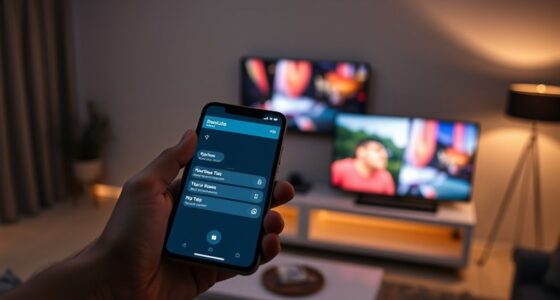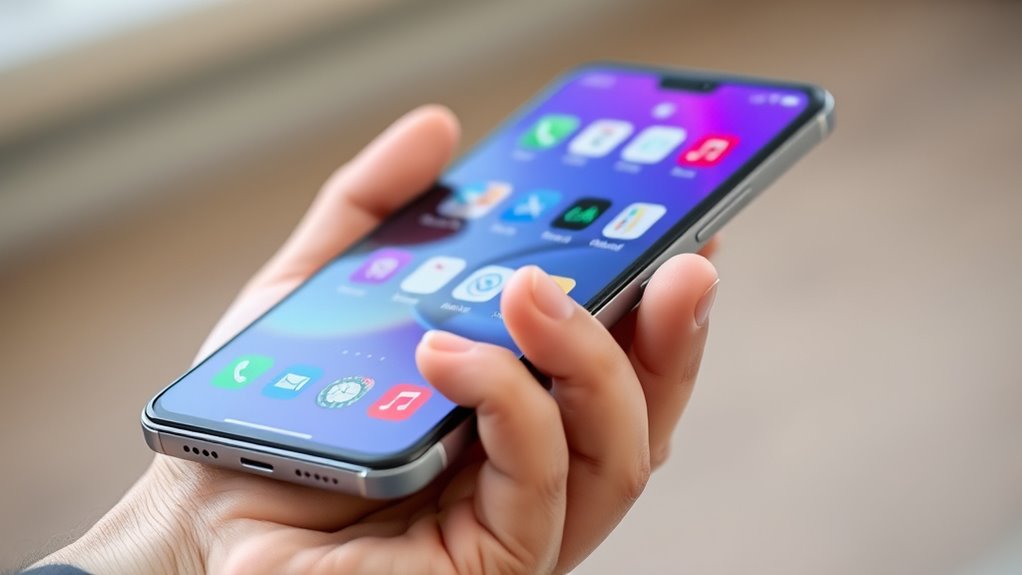

To use your big-screen phone one-handed, start by enabling gesture navigation and reachability features in your settings to make navigation easier. Adjust your app layout by moving important icons closer to your thumb’s natural reach and resizing icons if needed. Practice swiping gestures and explore custom options for quick app switching, back, and home. With these tweaks and consistent practice, you’ll find operating your device more comfortable—keep exploring to discover even smarter tips.

Get the latest gadgets delivered free — and shop member deals
- Fast, free delivery on millions of items
- Access to Prime Big Deal Days deals on October 6–7
- Prime Video, Amazon Music and more included
Key Takeaways
- Enable gesture navigation to quickly switch apps and navigate without reaching across the screen.
- Use reachability settings to temporarily shift the display downward for easier one-handed access.
- Customize your layout by moving essential apps and reducing icon sizes for better reachability.
- Practice common gestures regularly to improve speed and comfort during one-handed use.
- Familiarize yourself with device-specific features like double-tap or swipe shortcuts to enhance usability.
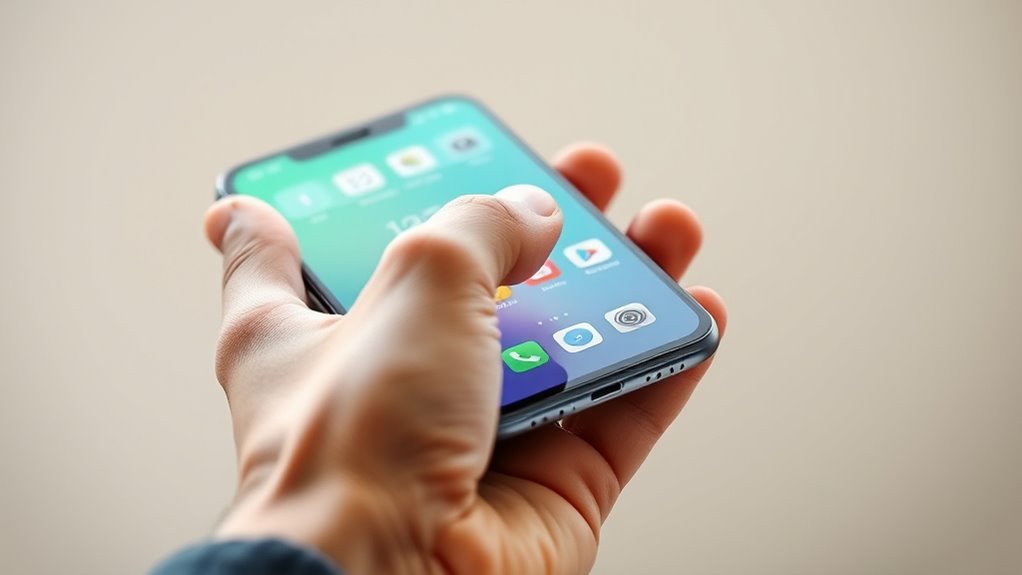
Using your phone one-handed can substantially improve your convenience and efficiency, especially when you’re multitasking or on the go. Modern smartphones, with their large screens, often make one-handed use a challenge. Fortunately, there are features and techniques you can use to make handling your device easier. Gesture navigation is a key part of this, allowing you to navigate your phone smoothly without relying on traditional buttons. By mastering these gestures, you can quickly switch between apps, go back, or return to the home screen with simple swipes, reducing the need to stretch your thumb across the entire screen. This makes it easier to operate your device comfortably with one hand, especially when you’re holding something else or in a rush.
Another helpful feature is reachability settings, which are specifically designed for one-handed use. Many phones include options like “one-handed mode” or “reachability,” which temporarily shift the display downward or inward, bringing the top of the screen closer to your thumb. Activating reachability settings usually involves a quick gesture—such as double-tapping the home button or a specific swipe—making it simple to access the entire screen without overstretching your hand. Once enabled, you’ll find it much easier to tap icons, read notifications, or type without awkward stretching. These settings are particularly valuable on large-screen devices where a single thumb can’t comfortably reach all areas of the display.
To maximize your one-handed experience, familiarize yourself with the specific gesture navigation system on your device. Many Android and iOS devices have customizable options, so you can tailor gestures to suit your habits. For example, some Android phones allow you to enable gesture navigation through the settings menu, replacing the traditional navigation bar with a swipe-based system. On iPhones, you can turn on reachability in accessibility settings, which simplifies one-handed operation. Practice these gestures until they become second nature—this will dramatically speed up your interactions and reduce frustration. Additionally, being aware of the innovative cloud solutions available can help you securely back up your data and ensure seamless continuity across devices, further enhancing your mobile experience.
In addition, consider adjusting your device’s layout and icon sizes to make everything more accessible. Moving essential apps to the lower part of the screen or creating folders near your thumb’s natural reach can make a big difference. Combining gesture navigation, reachability settings, and thoughtful layout adjustments will help you handle your large-screen device seamlessly with one hand. With a little practice, you’ll find that controlling your phone becomes less cumbersome, letting you stay productive and connected without the need for two hands.
large screen phone one-handed grip
As an affiliate, we earn on qualifying purchases.
As an affiliate, we earn on qualifying purchases.
Frequently Asked Questions
Can I Use My Phone One-Handed While Wearing Gloves?
Yes, you can use your phone one-handed while wearing gloves if they’re glove compatible. Look for gloves with touchscreen fingertips or enable touch sensitivity settings on your phone. Adjusting touch sensitivity makes it easier to interact with your screen through gloves. Keep in mind, lightweight, thin gloves work best, and some phones have settings to improve responsiveness, so experiment to find what works best for your glove type.
Are There Specific Apps That Are Easier to Operate One-Handed?
Your phone is a powerhouse, making even complex tasks feel like a breeze. Yes, some apps are designed for one-handed use, like those for single handed gaming and one handed photography. These apps often feature simplified controls, larger buttons, or optimized interfaces, making them easier to operate. Look for apps with customizable layouts or one-handed modes—the right tools can turn your device into a seamless single-handed companion.
How Do I Adjust My Phone’s Settings for Better One-Handed Use?
To improve one-handed use, adjust your phone’s display scaling and enable features like one-handed mode. Go to your settings, find display options, and look for screen size or display scaling. Reduce the screen size if possible, or activate one-handed mode if your device offers it. This makes reaching all parts of your big-screen device easier, letting you operate your phone comfortably with just one hand.
Does Using My Phone One-Handed Affect Its Battery Life?
Using your phone one-handed doesn’t substantially impact its battery life. While it might seem like it does, factors like screen brightness and background apps play bigger roles in battery drain. When you reduce screen brightness during one-handed use, you help conserve power. So, even if you’re juggling your device with one hand, managing brightness and closing unused apps can keep your battery lasting longer without extra effort.
Can I Customize Gestures for Easier One-Handed Navigation?
Yes, you can customize gestures for easier one-handed navigation. Most smartphones let you set up gesture customization, allowing you to assign navigation shortcuts that suit your needs. You can typically access these options in your device’s settings under gestures or accessibility features. By customizing gestures, you streamline navigation, making it more comfortable to operate your big-screen device with one hand, reducing strain and improving efficiency.
As an affiliate, we earn on qualifying purchases.
Conclusion
Mastering one-handed use is like holding a delicate bird in your hand—you want control without squeezing too tight. With these tips, you can navigate your big-screen device confidently, even when your other hand is busy. Remember, it’s about making your phone adapt to you, not the other way around. Once you get the hang of it, you’ll find that your device becomes a seamless extension of yourself—like a trusted tool you carry everywhere.
gesture navigation phone accessories
As an affiliate, we earn on qualifying purchases.
As an affiliate, we earn on qualifying purchases.
As an affiliate, we earn on qualifying purchases.
Fall Picks
fall essentials
As an affiliate, we earn on qualifying purchases.