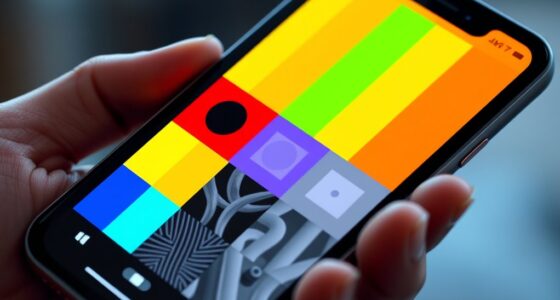

To use widgets effectively on your iPhone and Android, start by customizing your home screen with the right-sized widgets for quick access to essential info like weather, calendar, or app links. Organize similar widgets into folders or smart stacks to save space, and experiment with placement and resizing to suit your routines. Regularly review and adjust your widgets to keep your interface efficient and personalized—there’s more to discover to truly optimize your device experience.
Listen free for 30 days with Audible
Thousands of audiobooks and originals — cancel anytime.
As an affiliate, we earn on qualifying purchases.
Key Takeaways
- Activate jiggle mode by holding empty space, then add widgets via the plus icon on iPhone or widget menu on Android.
- Choose appropriate widget sizes and placements to optimize accessibility and utility on your home screens.
- Organize widgets into folders or use smart stacks to streamline your interface and prioritize important info.
- Customize widget settings for real-time updates or periodic refreshes to keep information current.
- Regularly review and adjust widgets to ensure they align with your daily routines and preferences.

Ever wondered how to make your device more functional and personalized? Using widgets effectively is a great way to do that. Widgets are small app extensions that sit on your home screen or lock screen, giving you quick access to information, tools, or shortcuts. To get started, you need to understand the customization options available to you. Both iPhone and Android offer a variety of ways to tweak widgets to suit your needs. On iPhone, you can add, resize, and organize widgets in the Today View or directly on your home screen, depending on your iOS version. Android, on the other hand, provides even more flexibility, allowing you to place widgets anywhere on your home screen and resize them with simple gestures. Managing these widgets is straightforward once you familiarize yourself with the process. On iPhone, you tap and hold an empty space on your home screen or the Today View to activate jiggle mode. From there, you tap the plus icon to open the widget gallery, where you can browse available options. Once you find a widget you want, you select its size and tap “Add Widget.” You can then drag it to your preferred position and tap “Done” to finalize the layout. For better widget management, consider grouping similar ones into folders or stacking them using the smart stack feature, which automatically rotates widgets based on your usage patterns. Android users will find widget management even more versatile. To add a widget, long-press on an empty space on your home screen, then select “Widgets” from the menu. A list of available widgets appears—these can be from your installed apps or system tools. Drag your chosen widget to the desired spot on your screen, where it can be resized by dragging its edges. Android also allows you to create widget stacks or use third-party launcher apps for more advanced customization options, making it easier to manage multiple widgets efficiently. You can even set widgets to update periodically or in real-time, enhancing their utility without cluttering your interface. Both platforms support widget management features that help you keep your home screen organized and functional. Regularly reviewing and adjusting your widgets ensures they stay relevant and useful. Whether it’s a weather forecast, calendar, or quick access to your favorite apps, well-managed widgets can transform your device into a personalized powerhouse. By exploring the customization options and honing your widget management skills, you’ll find that your device becomes more intuitive and tailored to your daily routines. Incorporating widget customization techniques can further improve your user experience. So, take a few moments to experiment with placement, resizing, and grouping—your optimized, personalized home screen awaits.

EVEO Screen Cleaner Spray - Large Screen Cleaner Bottle - TV Screen Cleaner, Computer Screen Cleaner, for Laptop, Phone, Ipad - Computer Cleaning kit Electronic Cleaner (1 Pack)
- Versatile Electronic Screen Cleaner: Suitable for TVs, laptops, phones, and tablets
- Effective Streak-Free Cleaning: Removes dust, fingerprints, and smudges
- Gentle on Sensitive Screens: Safe for LCD, LED, OLED, CRT screens
As an affiliate, we earn on qualifying purchases.
Frequently Asked Questions
Can I Customize Widget Sizes on My Device?
Yes, you can customize widget sizes on your device through widget customization options. On Android, press and hold the widget, then select resize handles to adjust the size by dragging. On iPhone, some widgets allow size adjustment in the widget gallery or when editing the home screen. Keep in mind, not all widgets support size adjustment, so check if the widget offers size options for better size customization.
Do Widgets Drain My Battery Faster?
Widgets can slightly increase battery consumption because they frequently update data, but their impact on app performance is minimal if used wisely. If you notice faster battery drain, consider removing unnecessary widgets or limiting their refresh frequency. You can also optimize your device settings to balance widget updates and battery life. Overall, with mindful use, widgets shouldn’t substantially affect your device’s performance or battery longevity.
How Do I Remove Unwanted Widgets Easily?
To eliminate unwanted widgets, simply tap and hold the widget until a menu appears, then select “Remove” or drag it to the trash icon. This widget customization helps declutter your screen and may reduce battery impact. You’ll find it easy to manage widgets this way, making your device more organized. Regularly reviewing and removing unused widgets ensures your home screen stays tidy and optimizes battery life.
Are Widgets Available for All App Types?
Think of your home screen as a bustling city, where each app is a different building. Widgets act as windows into those buildings, but not every app has a window available. App integration varies, so some app types offer rich widgets, while others face widget limitations. You can explore compatible apps to maximize widget use, but remember, not all apps are designed to display widgets, so flexibility depends on each app’s integration.
Can I Create a Widget for a Specific App?
Yes, you can create a widget for a specific app through app-specific customization. On Android, you can use widget development tools like Android Studio to design custom widgets tailored to your app’s features. On iPhone, app developers can add widget support with SiriKit and WidgetKit, enabling more personalized and functional widgets. If you’re a developer, exploring these tools allows you to enhance user experience with custom widgets for your app.

iO CLEAN Screen Cleaner Spray (16oz - 473ml) – Best Large Cleaning Kit
- Versatile Device Compatibility: Works on all electronic screens and devices
- Gentle, Advanced Formula: Removes dust, fingerprints, grime without scratches
- Protective, Streak-Free Shine: Leaves screens smudge-free and like new
As an affiliate, we earn on qualifying purchases.
Conclusion
By customizing your widgets, organizing your home screen, and exploring new options, you open a world of convenience, clarity, and control. You streamline your day, simplify your tasks, and enhance your experience. You make your phone work for you, adapt it to your needs, and transform your routine. With every tap, swipe, and arrangement, you create a personalized digital space that’s efficient, engaging, and uniquely yours. Embrace your widgets, empower your phone, and elevate your everyday.

T-Mobile eSIM USA 1 Month | 5G/4G LTE Unlimited High Speed Data/Calls/Texts (US Mainland/Hawaii) Prepaid eSIM (1Month)
- Unlimited 5G Data: High-speed 5G connectivity
- Hotspot Tethering: Unlimited 3G mobile hotspot
- US Phone Number: Includes US number with unlimited calls and texts
As an affiliate, we earn on qualifying purchases.
Grilling season Picks
grills
As an affiliate, we earn on qualifying purchases.