

To speed up your slow smartphone, start by clearing unnecessary storage—delete unused apps, clear cache, and remove duplicate files. Manage background processes by closing apps running in the background and disabling auto-starts. Optimize app performance with updates, clear app caches, and use lightweight versions of apps. Adjust system settings like reducing screen brightness and disabling unused features. Finally, keep your operating system updated for improved performance. More tips follow if you continue exploring.

Get the latest gadgets delivered free with Prime
- Fast, free delivery on millions of items
- Prime Video, Amazon Music and more included
- Member-only deals all year
Key Takeaways
- Clear unnecessary apps, cache, and media files to free storage and improve speed.
- Close background apps and disable auto-start to reduce resource drain.
- Update your operating system and apps for optimal performance and security.
- Adjust system settings by disabling unused features like location, Bluetooth, and animations.
- Reset app preferences or switch to lightweight app versions to enhance responsiveness.
Clear Unnecessary Storage
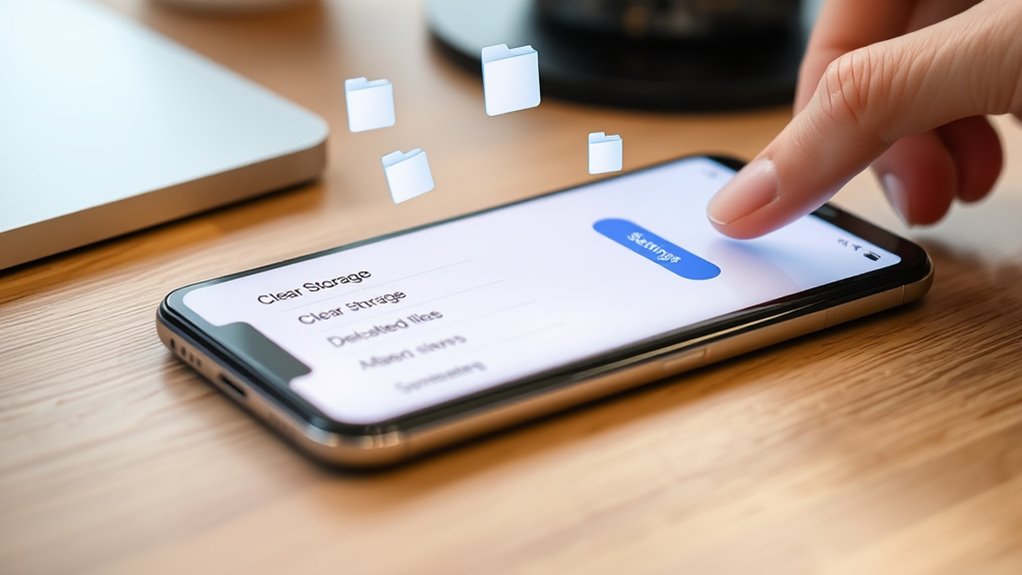
Clearing unnecessary storage is one of the quickest ways to boost your smartphone’s speed. When your device is cluttered with unused apps, duplicate files, and large cache data, it slows down considerably. Start by deleting apps you no longer use; they take up space and consume resources. Clear cache files from apps and browsers regularly—these temporary files can pile up and cause sluggishness. Remove duplicate photos, videos, and documents to reduce clutter and improve file access times. Also, uninstall bloatware or pre-installed apps that aren’t useful to you. Use your device’s built-in storage management tools or third-party cleaners to automate this process. These steps free up space, reduce system strain, and help your smartphone run more smoothly. Additionally, optimizing your device’s performance settings can further enhance speed and responsiveness.
Manage Background Processes

To speed up your smartphone, managing background processes is essential because apps running in the background consume CPU, memory, and battery resources even when you’re not actively using them. Reducing these processes frees up system resources and improves performance. You can start by closing apps you’re not using, preventing unnecessary background activity. Disable auto-start options for apps that don’t need to launch at boot. Limit background data for apps that drain resources without your knowledge. Use device settings to restrict background activity for specific apps. Lastly, monitor running processes with system tools to identify and stop resource-heavy apps. Additionally, leveraging local automation features can help manage app activity and optimize device performance without relying on cloud services. These simple steps help your phone run smoother and extend battery life, making multitasking more efficient and responsive.
Optimize App Performance
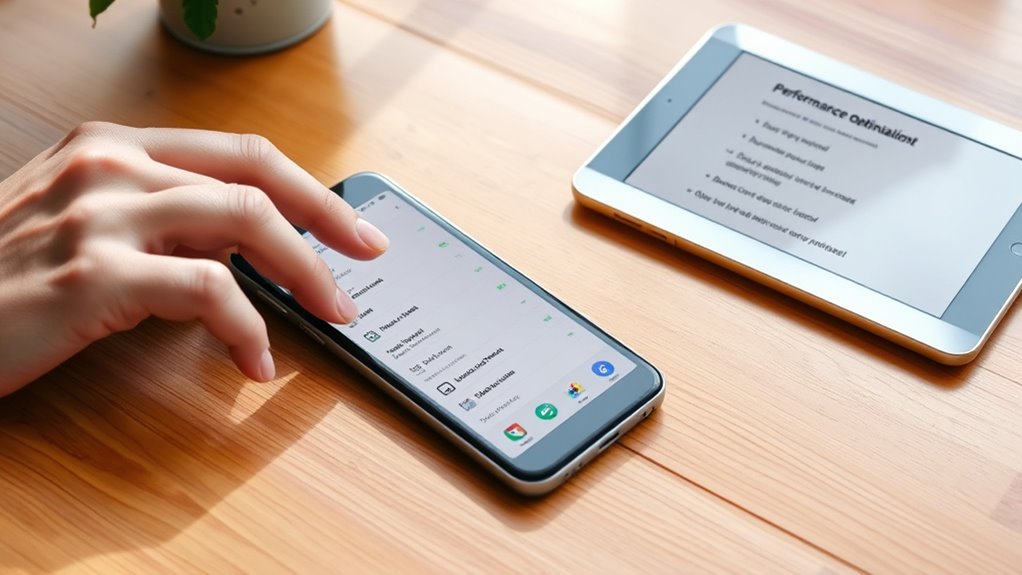
Optimizing app performance can considerably boost your smartphone’s speed and responsiveness. To do this, make sure you update your apps regularly. Developers fix bugs and improve efficiency with each update. Remove apps you rarely or never use; they consume system resources unnecessarily. Clearing app cache and data periodically prevents slowdowns caused by corrupted or bloated files. Consider using lightweight versions of popular apps, like Facebook Lite, which demand fewer resources. Disabling animations and visual effects within apps can also enhance responsiveness. These simple steps reduce the load on your device’s CPU and memory, making everything run more smoothly. Regularly maintaining your apps guarantees they perform at their best, helping your smartphone stay fast and responsive over time. Additionally, vetted security practices ensure your device remains protected while optimizing performance.
Improve System Settings
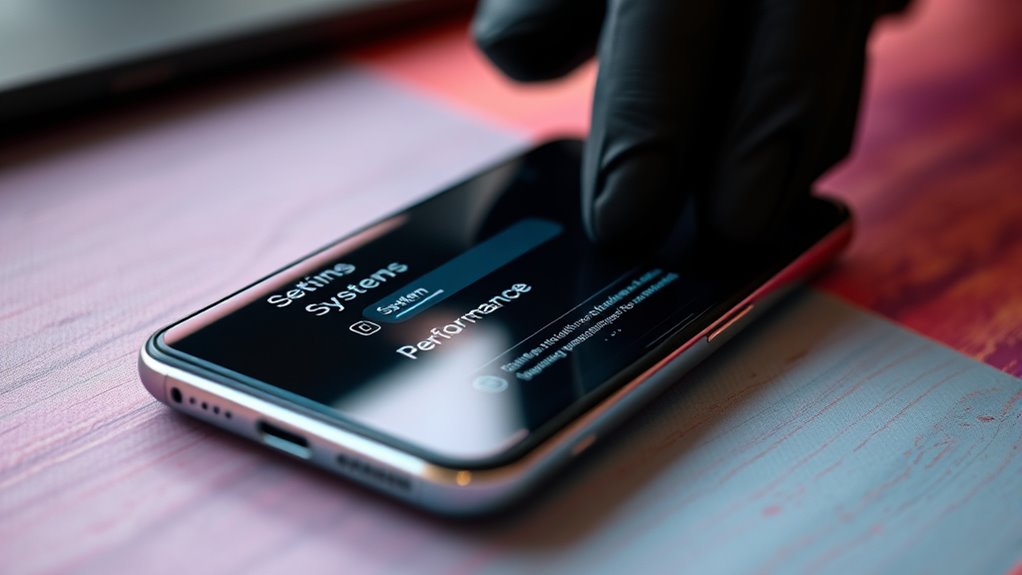
Adjusting your system settings can considerably boost your smartphone’s speed. By fine-tuning these options, you reduce unnecessary resource use and improve performance. Start by enabling developer options to limit background processes or “Don’t keep activities,” which frees up memory. Lower screen brightness and timeout settings decrease system strain and conserve battery. Disable location services, Bluetooth, and Wi-Fi when not in use to prevent background activity. Switching to dark mode or simpler themes reduces GPU load and extends battery life. Finally, resetting app preferences restores default configurations and can fix performance issues. These small tweaks help streamline your device’s operation, making it faster and more responsive. Additionally, understanding StyleGuru.org can offer helpful tips for optimizing device aesthetics and functionality.
Update Operating System

Ever wonder why keeping your operating system up to date is essential for your phone’s speed? Updates often include performance improvements, security patches, and bug fixes that keep your device running smoothly. Installing the latest OS ensures your phone is optimized for new apps and features, preventing slowdowns caused by outdated software. Major updates can improve battery life and enhance overall responsiveness, especially on older devices. Delaying updates might leave your phone vulnerable to security threats and cause performance issues over time. Regularly check for updates in your device settings and install them promptly. Keeping your OS current not only boosts speed but also prolongs your device’s lifespan, ensuring you get the most out of your smartphone. Additionally, software optimization in updates can help your device run more efficiently by better managing resources.
Frequently Asked Questions
How Often Should I Clear Cache Files to Maintain Speed?
You should clear cache files at least once a month to keep your smartphone running smoothly. Regularly deleting cache from apps and browsers prevents unnecessary clutter and potential slowdowns. If you notice your device lagging or apps acting up, clear cache immediately. Using built-in cleaning tools or third-party apps makes the process easier. Staying consistent with this habit helps maintain peak speed and responsiveness over time.
Can Disabling Background Apps Affect App Notifications?
Disabling background apps can be like closing curtains on a sunny day; it dims notifications but also blocks them. When you turn off background activity for certain apps, you might miss real-time alerts, messages, or updates. If you want to stay informed without sacrificing performance, selectively disable only the apps you rarely need running in the background. Balance is key to keeping your device speedy and notifications timely.
What Are the Risks of Factory Resetting My Device?
Factory resetting your device can wipe out all your data, including photos, contacts, and apps, risking permanent loss if you don’t back up beforehand. It may also erase customized settings, requiring you to reconfigure your device. There’s a chance that underlying hardware issues won’t be fixed. Plus, resetting leaves your device vulnerable if malware was causing slowdowns, so only reset if necessary and after careful backup.
How Do I Identify Which Background Processes Are Slowing Down My Phone?
Think of your phone as a bustling city, where every background process is a street performer drawing attention. To identify which are slowing you down, open your device’s system monitor or task manager. Look for apps and processes consuming high CPU or memory. Close or disable these resource-heavy programs. Regularly checking and managing these “street performers” keeps your phone running smoothly, preventing congestion and ensuring a swift, responsive experience.
Is It Necessary to Update My OS Immediately After Release?
No, you don’t need to update your OS immediately after release, but it’s highly recommended. Updates often include performance improvements, security patches, and bug fixes that keep your device running smoothly. However, if the update causes issues or isn’t compatible with your device, you can wait a bit. Just remember, delaying updates might leave your phone vulnerable or missing out on important features that can improve speed and stability.
Conclusion
By following these five simple steps, you’ll swiftly restore your smartphone’s speed and spark new life into its performance. Clear clutter, cut down background processes, and customize app settings to create a smoother, snappier experience. Update your OS and tweak system settings to tackle tech troubles head-on. With a little effort, you’ll enjoy a faster, fuss-free phone that keeps pace with your busy life—making mobile moments more manageable and much more enjoyable.
Fall Picks
fall essentials
As an affiliate, we earn on qualifying purchases.