To use your phone as a TV remote, start by downloading a universal remote app compatible with your TV brand or enable your TV’s built-in voice control features. Connect your phone and TV to the same Wi-Fi network, or use an IR blaster if available. You can also use voice commands with assistants like Google or Siri for hands-free control. Keep exploring to discover how to set up and optimize your phone for seamless playback control.
Key Takeaways
- Download a universal remote app compatible with your TV brand and connect via Wi-Fi or IR blaster.
- Enable voice recognition features on your smart TV and smartphone to control via voice commands.
- Ensure your phone and TV are connected to the same Wi-Fi network for seamless control.
- Set up device pairing or IR connection as required by the remote app or TV specifications.
- Use the app’s interface or voice commands to change channels, adjust volume, and access content effortlessly.

Many people find it convenient to use their smartphones as TV remotes, especially since most modern TVs and phones support seamless connectivity. Instead of juggling multiple remotes or trying to find the right one, your phone can become a versatile control device, making your entertainment setup simpler and more streamlined. To get started, you’ll want to explore the options for using voice commands or installing universal remote apps. Both methods can turn your phone into an effective remote, with voice commands offering hands-free control and universal remotes providing broad compatibility across different brands and models.
Using your smartphone as a remote simplifies entertainment with voice commands or universal apps.
If you prefer voice commands, many smart TVs and smartphones have built-in voice recognition features. You can simply speak to your phone or TV to change channels, adjust volume, or even search for shows. For example, if your TV supports voice control, you might say, “Change to CNN,” or “Turn up the volume,” and your TV will respond accordingly. Many smartphones also come with voice assistants like Siri, Google Assistant, or Bixby, which can be integrated with compatible smart TVs. Once set up, you can control your TV just by speaking, which is especially handy when your hands are full or you want quick access. These voice commands often work more smoothly when your phone and TV are connected to the same Wi-Fi network.
Alternatively, universal remote apps are a popular choice for controlling multiple devices with a single app. These apps are designed to work with a wide variety of brands and models, making them ideal if you have a mixed device setup. You typically need to download the app on your phone and connect it to your TV through Wi-Fi or infrared (if your phone supports IR blasters). Once connected, the app replicates the functions of a traditional remote, allowing you to change channels, adjust volume, and switch inputs easily. Many of these apps also support custom macros, so you can perform multiple actions with a single tap—like turning on the TV, launching a streaming app, and setting the volume—all at once. Additionally, integrating smart home technology can enable you to control your TV along with other connected devices in your home for a more unified entertainment experience.
Both voice commands and universal remotes offer intuitive ways to control your TV from your phone. They eliminate the clutter of multiple remotes and make it quicker to access your favorite content. With just a few simple steps, your phone can become the central hub for your entertainment system, providing convenience and efficiency. Whether you prefer speaking commands or tapping through an app, controlling your TV from your phone is a smart, practical solution that enhances your viewing experience.
Frequently Asked Questions
Can I Use My Phone as a Remote for All TV Brands?
You can’t use your phone as a remote for all TV brands, but many do offer universal compatibility through apps. Check if your TV brand has a specific app, like Samsung Smart View or LG ThinQ, for seamless control. For other brands, third-party universal remote apps might work, but compatibility isn’t guaranteed. Always verify if your phone and TV are compatible before downloading any app.
Do I Need an Internet Connection to Connect My Phone and TV?
Think of your phone and TV as dance partners needing the right rhythm. You don’t always need an internet connection—Wi-Fi requirements depend on your setup. If your TV supports Bluetooth connectivity, you can pair directly without Wi-Fi. However, many smart TV apps do require Wi-Fi. So, check your TV’s features; sometimes, a simple Bluetooth handshake is enough for a seamless remote control dance.
How Do I Troubleshoot Connection Issues Between Phone and TV?
To troubleshoot connection issues between your phone and TV, first check Bluetooth pairing if you’re using Bluetooth. Make sure both devices are within close range and paired correctly. Next, verify Wi-Fi stability by restarting your router and reconnecting both devices to the same network. Disable and re-enable Wi-Fi on your phone, and update your TV’s firmware if needed. These steps usually resolve most connectivity problems.
Are There Any Security Risks When Using My Phone as a Remote?
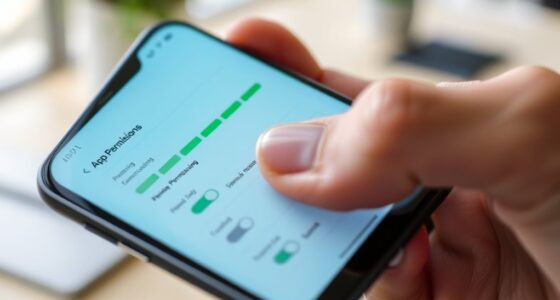
Smartphone security concerns can cause caution, but you can protect yourself. While remote hacking and app vulnerabilities are potential risks, they’re manageable with mindful measures. Use trusted apps, keep your software updated, and avoid connecting to unsecured Wi-Fi networks. Regularly review app permissions, enable two-factor authentication, and disable remote features when not in use. These steps help shield your device, ensuring safe, secure screen-sharing without sacrificing convenience.
Can I Control Multiple TVS With One Phone?
Yes, you can control multiple TVs with one phone using apps that offer universal compatibility and multi-device control. These apps allow you to switch between different TVs easily, making managing multiple devices convenient. Just make certain your phone and TVs are connected to the same Wi-Fi network. With the right app, you can seamlessly control all your TVs from a single device, simplifying your entertainment setup.
Conclusion
Using your phone as a remote is a simple way to enhance your entertainment experience. Did you know that over 60% of smart TV users prefer using their phones for control due to convenience? With just a few taps, you can easily switch channels, adjust volume, or browse content. So, next time you reach for your traditional remote, consider trying your phone instead — it might just become your new favorite way to control your TV effortlessly.