Before upgrading your phone, make certain your data is protected by backing up all important files to a secure location, like cloud services or external drives. Encrypt your data to keep sensitive information safe during transfer, especially for banking or confidential files. Verify that your backup is complete and secure with encryption keys or passwords. Carefully restore your data onto the new device and double-check that everything transferred correctly. Continuing will guide you through more security tips for a smooth upgrade.
Key Takeaways
- Create a complete backup using cloud services or external storage before upgrading.
- Encrypt sensitive data and ensure backup files are securely protected with passwords or encryption keys.
- Verify the backup’s completeness, including all essential files and app data.
- Restore data carefully during setup and confirm all information is correctly transferred.
- Keep recovery credentials secure to prevent data lockout and protect your privacy.

Upgrading your phone can be exciting, but it also poses risks to your data if you’re not prepared. Before you make the switch, it’s vital to protect your personal information from potential loss or theft. One of the most effective ways to do this is by guaranteeing your data is encrypted. Data encryption transforms your information into a secure format that only you can access with a password or key. This extra layer of security is essential, especially if your old device contains sensitive data like banking details, personal photos, or confidential work files. By encrypting your data before upgrading, you make it considerably harder for anyone to misuse it if your device is lost or stolen during the changeover.
Encrypt your data before upgrading to protect sensitive information from theft or misuse during device transition.
Alongside data encryption, implementing reliable backup solutions is equally important. Backups act as your safety net, allowing you to restore your information quickly if something goes wrong during the upgrade process. You can choose from various backup options, such as cloud services or external storage devices. Cloud backups, like those from Google Drive or iCloud, automatically sync your data to the internet, making it accessible from your new device once you sign in. External drives or computers offer offline backups, giving you control over your data without relying on internet connection. Whichever method you prefer, guarantee your backup is complete and up-to-date before you start transferring files. This step helps prevent data loss due to unforeseen issues like interrupted transfers or hardware failures.
Before initiating the upgrade, double-check that your backup contains everything you need. Photos, contacts, app data, and documents should all be included. Many devices have built-in options to perform full backups, so take advantage of these tools to streamline the process. Additionally, consider verifying that your data is properly encrypted, which adds an extra layer of security during the transfer. Understanding the technology behind encryption can help you better appreciate how your data remains protected from unauthorized access. Ensuring that you are aware of the privacy implications also reinforces your control over your personal information. Proper encryption practices can also be strengthened by understanding the security measures involved, ensuring your data remains protected from unauthorized access. Once you’ve secured your data with encryption and a thorough backup, you’re ready to move to the new device with confidence. Remember to keep your recovery passwords or encryption keys safe, as losing them could lock you out of your own data. When setting up your new phone, restore your backup carefully and verify that all your information appears correctly. This way, you avoid the hassle of missing files or incomplete transfers, guaranteeing a smooth changeover.
Protecting your data before upgrading isn’t just about avoiding inconvenience; it’s about safeguarding your privacy and peace of mind. Taking the time to encrypt your data and create all-encompassing backups sets a strong foundation for a seamless upgrade process.
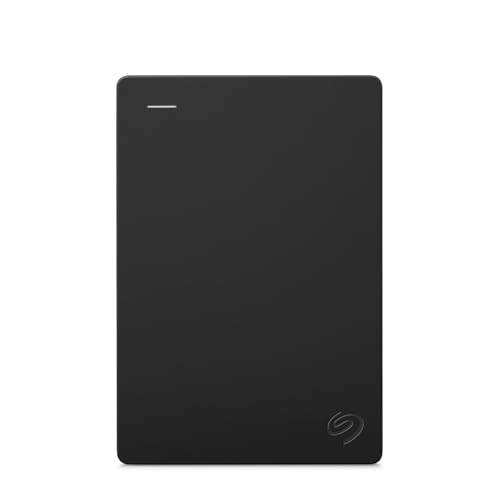
Seagate Portable 2TB External Hard Drive HDD — USB 3.0 for PC, Mac, PlayStation, & Xbox -1-Year Rescue Service (STGX2000400)
- Storage Capacity: 2TB portable external hard drive
- Compatibility: Works with Windows and Mac
- Easy Backup: Drag-and-drop file transfer
As an affiliate, we earn on qualifying purchases.
As an affiliate, we earn on qualifying purchases.
Frequently Asked Questions
Can I Recover Deleted Data After Upgrading My Phone?
Yes, you might recover deleted data after upgrading your phone, but chances depend on how quickly you act. Data recovery options include using backup files, cloud services, or specialized recovery software. The sooner you attempt recovery, the higher the chances of success, as new data can overwrite deleted files. Keep in mind, some data might be permanently lost, so always back up essential info before upgrading.
What Are the Best Apps for Data Backup?
Think of your backup apps as your digital safety net. The best apps, like Google Drive, Samsung Cloud, or OneDrive, guarantee your data stays protected with data encryption and seamless app compatibility. These apps automatically back up photos, contacts, and settings, giving you peace of mind. Choose one that fits your device and needs, and make regular backups a habit to keep your data safe during upgrades.
How Long Does Data Transfer Typically Take?
Data transfer speed varies depending on your devices and connection method, but it usually takes between a few minutes to an hour. The transfer process duration depends on the amount of data you’re moving—larger files take longer. Using wired connections or high-speed Wi-Fi can speed things up. Keep in mind, patience is key; rushing may cause errors or incomplete transfers, so allow ample time for a smooth and secure data transfer.
Is Cloud Backup Safer Than Physical Storage?
Cloud backup can be safer than physical storage because it uses encryption protocols to protect your data during transfer and storage. Plus, cloud services often offer storage redundancy, ensuring your data stays safe even if one server fails. With physical storage, risks include theft, damage, or data corruption. So, cloud backups provide a more reliable and secure option, especially when combined with strong encryption and redundancy measures.
What Security Measures Should I Take During Data Transfer?
Think of your data transfer as crossing a busy highway—you need safety measures in place. Use strong encryption protocols to lock your data tight, preventing prying eyes. Employ authentication methods like two-factor authentication to verify identities and keep intruders out. Always connect over secure Wi-Fi or a trusted cable, avoiding public networks. These steps act as your safety barriers, ensuring your information moves securely from old to new device.

Nero BackItUp – Data Backup Software | Automatic Backup, Data Recovery, Cloud Backup, Fully Automated | Lifetime License | 1 PC | Windows 11/10/8/7
- Lifetime License: One-time payment for lifetime use
- Complete Backup & Recovery: Automated backup and restore of data
- Multiple Backup Destinations: Backup to drives, NAS, DVDs, or cloud
As an affiliate, we earn on qualifying purchases.
As an affiliate, we earn on qualifying purchases.
Conclusion
By taking these simple steps, you’re gently ensuring your digital memories stay safe and sound. Think of it as giving your data a little extra hug before the exciting journey of a new phone. With just a bit of preparation, you can smoothly shift to your shiny new device, knowing your cherished information is quietly tucked away and ready for your next adventure. Embrace the process—you’ve got this, and your data will thank you.
![Express Rip Free CD Ripper Software - Extract Audio in Perfect Digital Quality [PC Download]](https://m.media-amazon.com/images/I/41xx28xHa+L._SL500_.jpg)
Express Rip Free CD Ripper Software – Extract Audio in Perfect Digital Quality [PC Download]
- High-Quality Digital Audio Extraction: Perfect digital quality ripping
- Fast Ripping Speed: Quickest CD ripper available
- Multiple Audio Formats: Extract to WAV or MP3
As an affiliate, we earn on qualifying purchases.
As an affiliate, we earn on qualifying purchases.

for mini USB SIM Card Reader Writer Copier Backup Kit for for windows PC, Edit Phonebook SMS Contacts Data Transfer Tool, Blue
- Compact and Portable: Fits easily in your pocket for on-the-go use
- Multi-OS Compatibility: Works with Windows 98, XP, Vista systems
- Easy SIM Card Access: Read and backup contacts and SMS messages
As an affiliate, we earn on qualifying purchases.
As an affiliate, we earn on qualifying purchases.