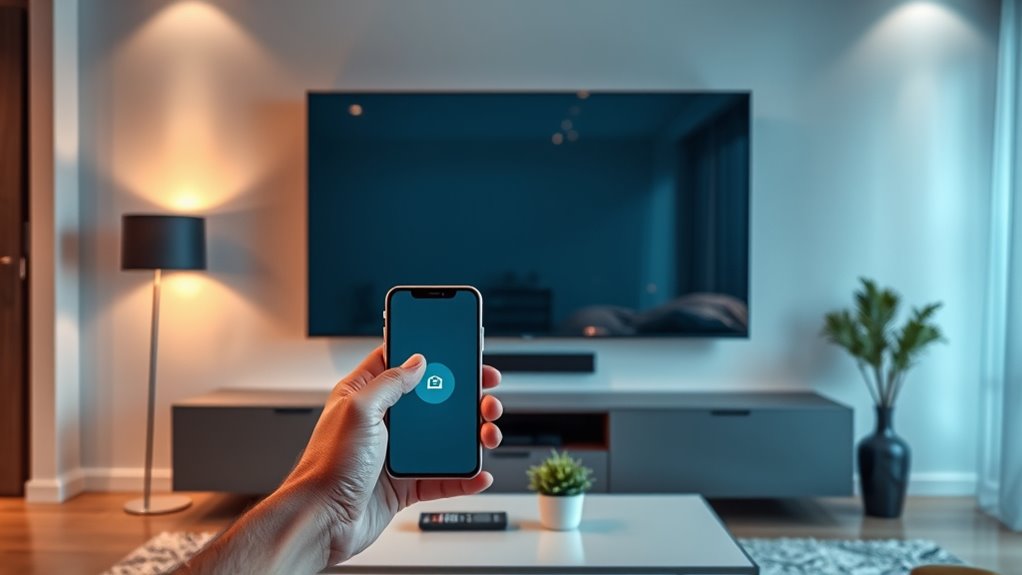
To connect your phone to your TV for screen mirroring, start by checking which wireless protocols your devices support, like Miracast, Chromecast, or AirPlay. Make sure both devices are on the same Wi-Fi network. For Android phones, use the cast option, and for iPhones, access Screen Mirroring through Control Center. If your devices are compatible, the connection should be quick and easy. Keep reading to discover detailed steps and troubleshooting tips to get the best experience.
Key Takeaways
- Verify your phone and TV support the same wireless protocol (e.g., Miracast, AirPlay, Chromecast).
- Connect both devices to the same Wi-Fi network for seamless screen mirroring.
- Access the screen mirroring or cast option on your phone’s settings or control center.
- Select your TV or compatible device from the available list to initiate connection.
- Ensure device firmware is up to date and use built-in solutions for better compatibility and performance.
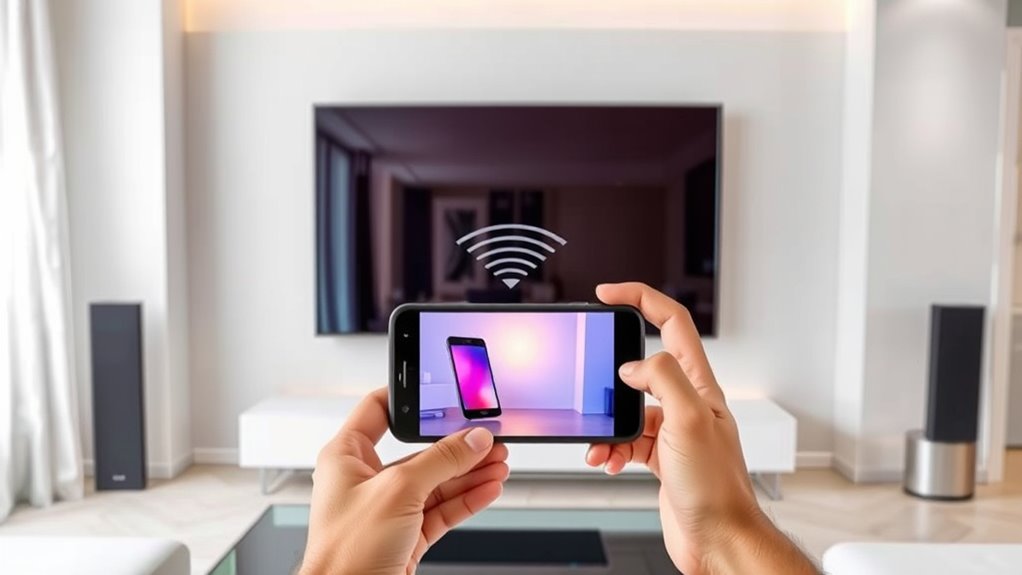
Connecting your phone to your TV can turn your big screen into a powerful extension of your device, making it easy to share photos, stream videos, or play games. The key to a smooth connection lies in understanding wireless protocols and compatibility issues. Different devices support various wireless standards like Wi-Fi Direct, Miracast, Chromecast, or AirPlay, so knowing which one your TV and phone support is essential. If your devices use incompatible protocols, they won’t connect seamlessly, leading to frustration. Before you start, check your phone’s settings and your TV’s specifications to verify they support the same wireless protocols. This step helps you avoid compatibility issues that could block your screen mirroring efforts.
Once you’ve confirmed compatibility, choose the right method based on your device. For Android phones, Miracast is a common option, especially if your TV supports it. Many smart TVs have Miracast built-in, so you can mirror your screen wirelessly without extra apps or devices. To use it, go to your phone’s settings, find the screen mirroring or cast option, and select your TV from the list. If your TV doesn’t support Miracast directly, consider using a Chromecast device. With Chromecast, you can cast content from your phone through compatible apps or mirror your entire screen via the Google Home app. For iPhones, AirPlay is the go-to wireless protocol. If you have an Apple TV or a compatible smart TV, enabling AirPlay allows you to easily mirror your screen. Just swipe down to access the Control Center, tap Screen Mirroring, then select your TV or Apple TV.
Keep in mind that wireless protocols vary in terms of latency and quality. For instance, Miracast and Chromecast typically provide good streaming quality, but you might experience occasional lag depending on your Wi-Fi network’s strength. To minimize issues, use a stable Wi-Fi connection, ideally on a 5 GHz band, which offers faster data transfer and less interference. Compatibility issues often stem from outdated firmware or unsupported devices, so verify your TV and phone are updated. Sometimes, third-party apps can help bridge compatibility gaps, but they might introduce security concerns or reduce performance. Always prefer built-in solutions supported by your device manufacturers. Additionally, modern wireless protocols have significantly improved connection stability and quality, making screen mirroring more reliable than ever.
Frequently Asked Questions
Can I Connect Multiple Phones to One TV Simultaneously?
Yes, you can connect multiple phones to one TV simultaneously if it supports multi device management and simultaneous streaming. Use a compatible app or device that allows multiple connections, like a smart TV with multi-user features or a streaming device that supports this. Keep in mind, not all TVs or apps support multi-device streaming at once. Check your TV’s specifications and app capabilities to guarantee seamless multi-phone connections.
What Should I Do if the Screen Mirroring Is Lagging?
If your screen mirroring is lagging, start troubleshooting lag by reducing the distance between your phone and TV, ensuring a strong Wi-Fi signal. Optimize your connection by closing background apps on your phone and disconnecting other devices from the network. Restart both your phone and TV, and update your device software if needed. These steps can help improve performance and give you a smoother mirroring experience.
Is There a Difference Between Screen Mirroring and Casting?
Sure, there’s a difference between screen mirroring and casting—think of it as the difference between shouting your secrets across the room versus politely handing over a note. Screen mirroring duplicates your device’s display, needing compatible connection protocols, while casting sends a specific file or app to your TV. You’ll want to verify device compatibility to guarantee smooth operation, or risk turning your viewing experience into a game of digital charades.
Will Connecting My Phone Drain Its Battery Quickly?
Yes, connecting your phone can drain its battery quickly. Screen mirroring or casting uses more power because your phone works harder to transmit the display. To minimize battery drain, enable power management features, lower screen brightness, and disconnect when not in use. Using your phone while mirroring also increases battery consumption. Keep an eye on your battery level and consider plugging in your device if you plan to mirror for extended periods.
Are There Security Risks With Wireless Screen Sharing?
Wireless screen sharing can pose security risks if you’re not careful. Hackers might exploit vulnerabilities in wireless security or data encryption, risking unauthorized access to your device or data. To stay safe, make certain your Wi-Fi network has strong wireless security, use devices with robust data encryption, and disable screen sharing when not in use. Keeping your software updated also helps protect against potential security threats.
Conclusion
Now that you know how easy it is to connect your phone to your TV, don’t worry if your devices aren’t perfectly compatible at first. Most methods work with a wide range of models, and troubleshooting is simple. Remember, taking a few extra minutes to set up guarantees you’ll enjoy streaming your favorite content on a bigger screen. So go ahead, give it a try—connecting your devices is more straightforward than you think!