
TL;DR

Get the latest gadgets delivered free with Prime
- Fast, free delivery on millions of items
- Prime Video, Amazon Music and more included
- Member-only deals all year
Android and iPhone settings can automatically use mobile data when Wi-Fi is weak, sometimes without an obvious change in the status bar. Turning off the relevant network-assist feature can prevent that fallback, but your phone may then stay on a slow or unreliable Wi-Fi connection.
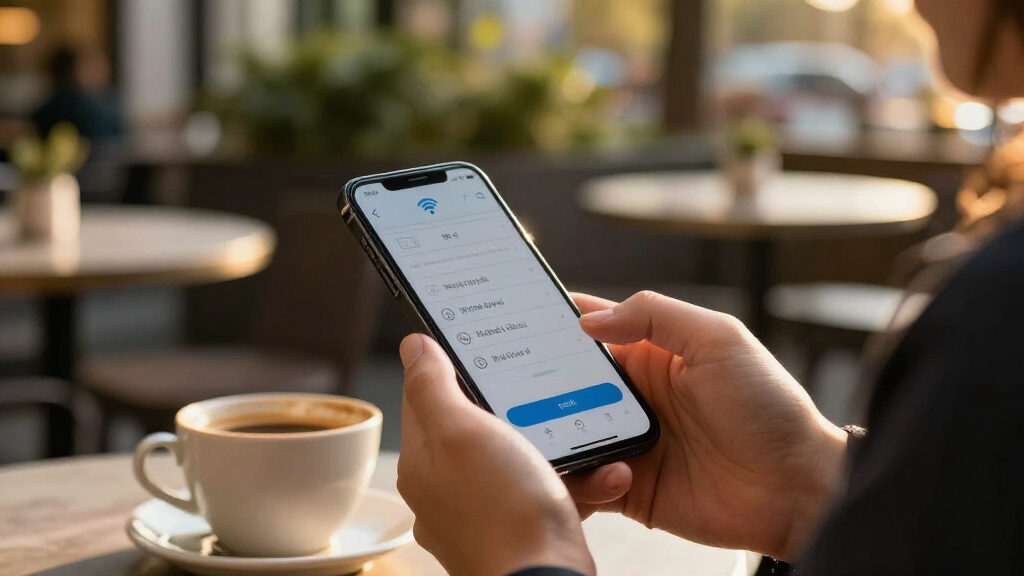
Phones can use mobile data while still showing a Wi-Fi connection, because network-assist features may move traffic to cellular service when a Wi-Fi signal weakens. An XDA Developers guide published November 10 explains how to disable those features on Android and iPhone, giving people with limited data plans more control over which connection their phones use at home.
On Android, the feature may appear under names such as Adaptive Wi-Fi, Wi-Fi Assistant or Intelligent Wi-Fi. The guide gives one OnePlus path as Settings > Wi-Fi > Wi-Fi Assistant > Auto-switch to mobile network, while noting that Pixel and Samsung devices use different labels and menus. Users should look for a setting that describes automatic switching or mobile-network backup in their phone’s Wi-Fi or connectivity options.
For iPhones, the guide lists Wi-Fi Assist under Settings > Cellular on iOS 26 and older. It gives Settings > Wi-Fi > Connectivity Assist for iOS 27. Menu locations can depend on the operating-system version, so those paths may not match every phone or software release exactly.
Turning the feature off stops that automatic fallback when Wi-Fi is weak; it does not mean the phone can never use cellular service. The phone can still connect to mobile data when it is outside Wi-Fi coverage. At home, however, it may hold on to a weak or slow Wi-Fi signal rather than switch to a stronger cellular connection, leaving users to change rooms, reconnect or choose a network themselves.
Stop hidden cellular fallback <span class=”hz-grad>Keep control on Wi-Fi
Phones can use mobile data when Wi-Fi weakens, even while the Wi-Fi symbol stays visible. Turning off network assistance gives you more control, with a possible tradeoff in connection quality.
Find the network-assist setting
Names and menus vary by device and software version.
- Look for Adaptive Wi-Fi, Wi-Fi Assistant or Intelligent Wi-Fi.
- OnePlus path: Settings > Wi-Fi > Wi-Fi Assistant > Auto-switch to mobile network.
- iOS 26 and older: Settings > Cellular > Wi-Fi Assist.
- iOS 27: Settings > Wi-Fi > Connectivity Assist.
Choose your tradeoff
Disabling automatic fallback can limit this source of cellular use at home.
| Setting | What to expect |
|---|---|
| Assist off | More control over data; weak Wi-Fi may feel slow or unreliable. |
| Assist on | May keep activity working by switching to cellular when Wi-Fi is weak. |
Check it in your home
Try the setting, then see how your connection behaves in rooms with weaker coverage.
Search Wi-Fi or connectivity settings for assist or automatic switching.
Test whether Wi-Fi remains usable where its signal is weak.
Check your phone’s cellular-data settings or carrier usage information.
If Wi-Fi is still weak
Switch rooms, reconnect, manually use cellular when needed, or consider improving home Wi-Fi coverage. The guide mentions mesh systems but provides no cost or performance comparisons.
Avoiding Cellular Use at Home
The setting matters most for people whose plans have tight data allowances or who reserve mobile internet for use away from home. A brief switch may be hard to notice, particularly when the Wi-Fi symbol remains visible, but repeated periods of weak coverage can add to a user’s cellular consumption. The guide does not quantify how much data this uses; the amount will depend on signal conditions and what the person is doing on the phone.
Disabling automatic switching is a choice between data control and connection continuity. Someone trying to avoid cellular charges may prefer a slower Wi-Fi connection over an unnoticed data handoff. Someone who values uninterrupted service may prefer to leave the feature enabled. Neither option fixes poor Wi-Fi coverage itself.
Products Worth Considering

Bose Lifestyle Ultra Wireless Home Speaker, White Smoke

Logitech MX Ergo S Advanced Wireless Trackball Mouse USB-C – Graphite

Bose Lifestyle Ultra Compact Wireless Smart Home Speaker Bundle, Black
As an affiliate, we earn on qualifying purchases.
How Network Assistance Works
Phones are designed to maintain usable connections, and network-assist settings can use mobile service when Wi-Fi performance is poor. This can help keep online activity working in a room where the router’s signal is weak, but it can also make the phone’s connection choice less visible to the user. The Wi-Fi indicator alone may not tell someone whether all traffic is using Wi-Fi.
The XDA Developers article frames the setting as optional rather than inherently harmful. Its author says the feature is useful in some situations, while describing a preference for controlling network use and addressing Wi-Fi dead zones directly. The guide also points to better home Wi-Fi coverage, including mesh systems, as another possible way to reduce dead zones. It does not provide comparative performance or cost data for those options.
““Your phone will continue to cling to a weaker Wi-Fi signal instead of switching and providing you a faster connection in the moment.””
— XDA Developers
Settings Differ Across Phones
The exact setting name and menu path depend on the phone manufacturer and software version, and the paths listed in the guide may change with updates. The article does not establish that every device has the same feature or behaves identically. It also gives no measured estimate of how much data automatic switching consumes, since that depends on coverage and usage.
It may not be obvious from the Wi-Fi icon alone when a phone has moved some activity to cellular service. Users concerned about data use should check their phone’s cellular-data settings or carrier usage information after changing the option, rather than assume the setting accounts for every possible source of mobile-data use.
Check the Setting and Signal
Users who want to limit cellular use at home can locate the relevant assist or auto-switch option in their phone’s settings and turn it off, then see whether the Wi-Fi connection remains usable in rooms with weaker coverage. If performance suffers, they can re-enable the feature, manually use cellular service when needed, or look into improving their home Wi-Fi coverage. The next practical step is to compare the phone’s connection experience and data-usage readings; no broader product or policy change is announced in the guide.
Key Questions
Can a phone use mobile data while connected to Wi-Fi?
Yes. Network-assist features can use cellular service when Wi-Fi is weak, even if the Wi-Fi symbol remains visible. The precise behavior varies by device and settings.
How do I stop an Android phone from switching to mobile data?
Look in Wi-Fi or connectivity settings for Adaptive Wi-Fi, Wi-Fi Assistant, Intelligent Wi-Fi or an auto-switch-to-mobile-network option. Menu names and locations vary by manufacturer and model.
Where is Wi-Fi Assist on an iPhone?
The guide lists Settings > Cellular > Wi-Fi Assist for iOS 26 and earlier, and Settings > Wi-Fi > Connectivity Assist for iOS 27. Check the menus on your installed version, as paths can vary.
What happens after I turn automatic switching off?
The phone should stop using mobile data as an automatic fallback for weak Wi-Fi. It may instead remain on a slow or unreliable Wi-Fi connection; cellular service can still be used when you leave Wi-Fi coverage.
Will turning it off reduce all mobile-data use?
No. It can prevent this particular automatic fallback, but it does not prevent other apps or phone functions from using cellular data when Wi-Fi is unavailable or when cellular use is otherwise enabled.
Source: XDA Developers