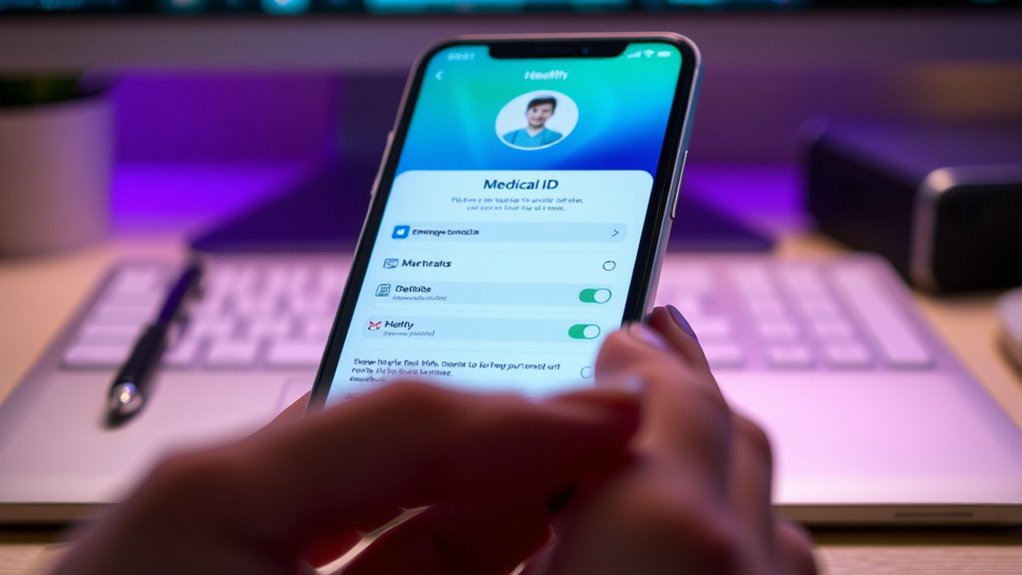
To set up your Medical ID or emergency contacts, start by opening the Health app on your iPhone or the Medical ID section on your Android device. Enter your important health details like allergies, medications, blood type, and add emergency contacts. Make sure to enable the “Show When Locked” option so first responders can access your info without unblocking your phone. Continue, and you’ll find tips to optimize your Medical ID for safety and privacy.
Key Takeaways
- Access the Health or Medical ID app on your device, typically through the Health app on iPhone or the Health & Safety settings on Android.
- Enter essential health information such as allergies, medical conditions, medications, blood type, and emergency contacts.
- Set your Medical ID to be visible from the lock screen to allow first responders quick access in emergencies.
- Review and update your emergency contacts regularly to ensure they are current and reachable.
- Adjust privacy and security settings to control who can view your Medical ID details when your phone is locked.
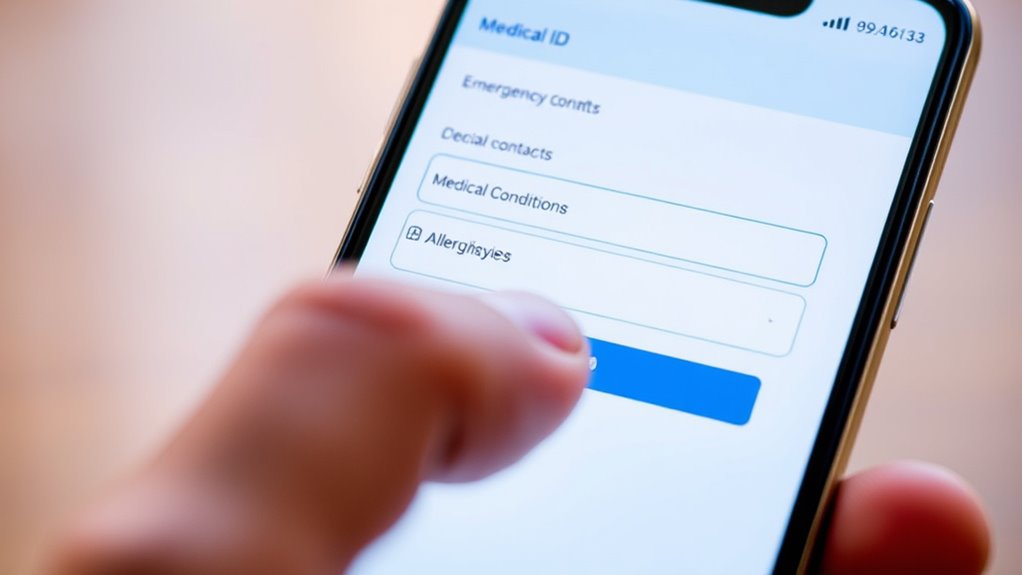
Having your Medical ID set up on your phone can be a lifesaver in emergencies. It provides first responders with essential information about your health conditions, allergies, medications, and emergency contacts, often before they even access your device fully. To guarantee your Medical ID is effective, you need to consider two key aspects: safeguarding your medical data privacy and keeping your emergency contact updates current.
Set up your Medical ID to protect your privacy and keep emergency contacts updated for quick help.
First, when setting up your Medical ID, you should be cautious about what information you share. Your phone’s Medical ID feature allows you to include sensitive health details, but you want to strike a balance between helpfulness and privacy. Avoid listing overly detailed or personal data that you wouldn’t want accessed by anyone besides medical professionals. Keep it relevant—such as allergies, chronic conditions, medications, and blood type—so that in an emergency, responders can quickly access the essential info without exposing more than necessary. Remember, your medical data privacy is important, so review what you include and consider whether it’s appropriate for public access when your phone is locked. Also, understanding your device’s security settings can help you better control who can see your Medical ID.
Next, updating your emergency contacts regularly is essential. Life changes quickly—people move, relationships change, and contacts become outdated. You should routinely review and update your emergency contact list to ensure responders reach the right people. When you add emergency contacts, choose individuals who are likely to be available and willing to respond promptly. Confirm their contact info is current and inform them of their designated role, so they’re prepared if they ever need to be contacted under urgent circumstances. This simple step can make all the difference in getting help to you swiftly and efficiently.
Frequently Asked Questions
Can I Customize My Medical ID for Specific Allergies?
Yes, you can customize your Medical ID for specific allergies. You should add allergy alerts and details about your medical history, including any food, medication, or environmental allergies. This way, first responders can quickly see your allergy information, potentially saving your life. Make sure to update your Medical ID regularly to reflect any new allergies or medical changes, ensuring your emergency contacts and health info are always accurate.
Is Medical ID Visible Without Unlocking My Phone?
Imagine a safety net hanging just beneath your fingertips, ready to catch you in an emergency. Your Medical ID is designed to be visible without revealing your phone, ensuring quick access for first responders. However, privacy considerations come into play—your sensitive health info is protected, so only essential details like allergies or emergency contacts are accessible. You control what’s visible, balancing safety with your privacy.
How Do I Update Medical ID Information Securely?
To update your medical ID securely, open your phone’s health app or settings, then locate your Medical ID. Make sure to use secure login credentials to protect your medical data security. When editing, double-check that emergency contact privacy remains intact by choosing contacts carefully. Always update your info in a private setting and avoid sharing sensitive details publicly, ensuring your medical data stays safe and your emergency contacts’ privacy is maintained.
Does Setting up Medical ID Affect My Privacy?
Setting up Medical ID doesn’t compromise your privacy if you manage it properly. Your privacy concerns are valid, but your data security is protected because emergency information is only accessible from your lock screen, not your entire phone. You control what details you share, and only emergency personnel can view this info. Be mindful to update your Medical ID regularly and review your privacy settings to keep your data secure.
Can I Add Multiple Emergency Contacts on My Device?
Yes, you can add multiple emergency contacts on your device, making your Medical ID a safety net with many threads. When customizing your Medical ID, you’ll see options to include several emergency contacts, ensuring visibility when needed. Think of it as creating a safety net with multiple strings—each contact can be seen during emergencies, giving you peace of mind that help is just a glance away.
Conclusion
Now that you’ve set up your Medical ID and emergency contacts, you’re better prepared for the unexpected. But what if your information isn’t as complete as it could be? Take a moment to review and update your details regularly—because in an emergency, the smallest detail could make all the difference. Stay vigilant, stay prepared, and remember: your most important contact might just be a tap away when it matters most.