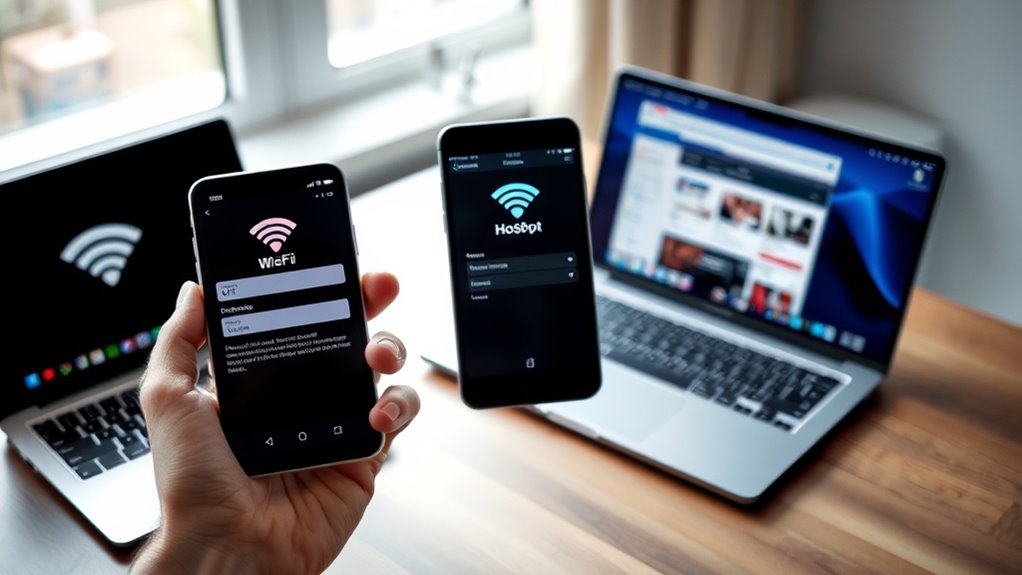

To use your phone as a Wi-Fi hotspot without burning through data, first check your data plan limits and enable hotspot in settings, setting a strong password. Monitor your usage regularly via your carrier’s app or your phone’s data settings, and lower video and media quality to save data. Manage background apps and auto-updates, turn off the hotspot when not in use, and consider extra data passes or better plans if needed. If you keep these tips handy, you’ll stay connected without excess charges.
Key Takeaways
- Enable your phone’s hotspot feature in settings and set a strong, secure password to prevent unauthorized access.
- Use data-saving modes and lower streaming quality to reduce data consumption during hotspot use.
- Monitor your data usage regularly via carrier apps or your device’s settings to avoid exceeding limits.
- Disable auto-updates, background app refresh, and push notifications for devices connected to the hotspot.
- Consider using data add-ons or flexible plans for extra data during high-usage periods to prevent overage charges.
Understanding Your Data Limits and Plans
Understanding your data limits and plans is essential to managing your hotspot usage effectively. You need to know how much data your plan allows each month and what happens if you exceed that limit. Some plans automatically throttle your speed or charge extra fees once you hit your cap, so staying informed helps you avoid surprises. Check your carrier’s app or website regularly for detailed usage reports, and monitor your data consumption through your phone settings. Be aware of your plan’s specific features—whether it offers unlimited data with throttling or strict caps. Adjust your hotspot activity accordingly, especially during heavy usage, to prevent unexpected charges or slowdowns. Knowing your plan details empowers you to make smarter choices and keep your data usage under control. Additionally, understanding AI detection methods can help you recognize potential content restrictions or issues related to data security when using certain platforms.
Activating Your Hotspot Feature Properly
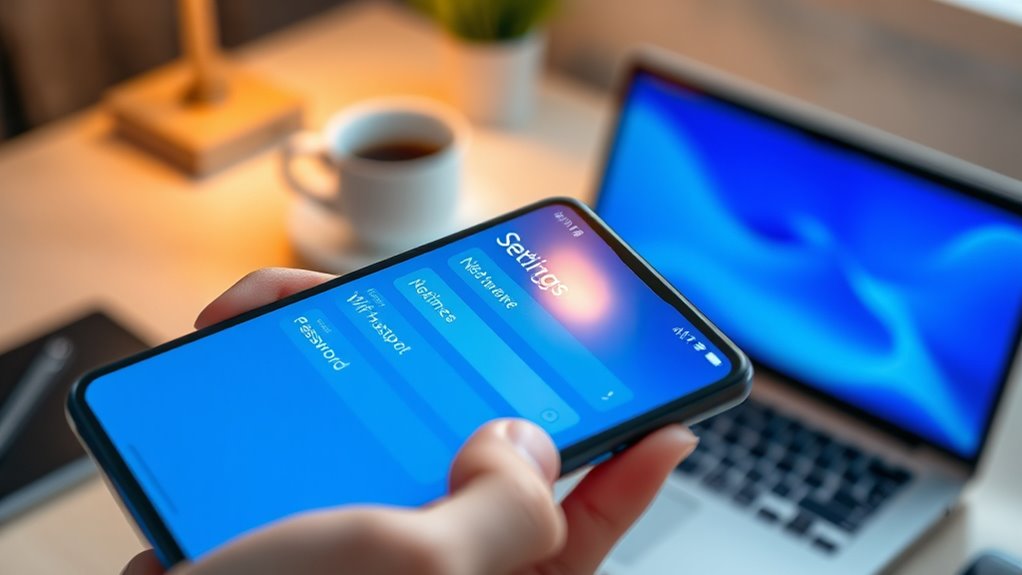
To activate your hotspot correctly, start by enabling the feature in your phone’s settings. Make sure to set a secure password to prevent unauthorized access. You should also choose the appropriate connection band to optimize speed and stability for your devices. Utilizing energy-efficient hardware can further enhance your experience by reducing power consumption during hotspot use.
Enable Hotspot Settings
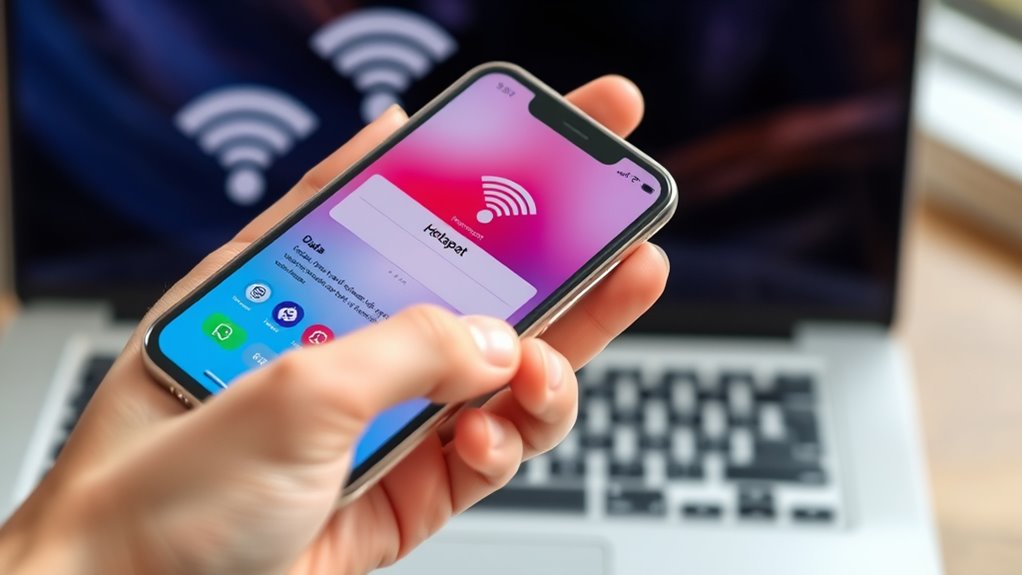
Enabling your phone’s hotspot feature is a straightforward process, but it’s important to make sure you do it correctly to ensure a stable connection and avoid wasting data. On most smartphones, go to Settings and look for Mobile Hotspot, Personal Hotspot, or Tethering. Toggle the switch to turn it on. Some devices may prompt you to confirm or set up initial options. Check that your device is connected to a cellular network with sufficient signal strength. Once activated, your phone will broadcast a Wi-Fi network that other devices can connect to. Remember, some carriers might require you to activate hotspot features through a specific app or plan. Confirm the hotspot is active and working before connecting other devices. Additionally, understanding the role of contrast ratio can help optimize your device’s display settings for better visibility during hotspot use.
Set Secure Password
Have you ever considered how easily someone could access your hotspot if you don’t set a secure password? Leaving your hotspot with the default or a weak password makes it an open invitation for unauthorized users. To prevent this, set a strong, unique password that combines uppercase and lowercase letters, numbers, and symbols. Avoid common words or phrases that hackers can easily guess. Once you activate your hotspot, navigate to the security settings and create your password. Remember, a complex password not only keeps strangers out but also helps protect your data from potential breaches. Regularly update your password if you notice suspicious activity or if many devices are connected. Securing your hotspot is a simple but vital step in managing your data and privacy. Additionally, understanding the concept of Free Floating can help you optimize your backyard space without fixed structures, providing more flexibility for outdoor privacy and security.
Choose Connection Band
Choosing the right connection band when activating your hotspot is crucial for balancing speed and data usage. Most smartphones offer 2.4 GHz and 5 GHz bands. The 2.4 GHz band provides wider coverage and better penetration through walls, making it suitable for basic browsing or low-bandwidth activities. However, it tends to be slower and more crowded, which can lead to lag. The 5 GHz band offers faster speeds and less interference, ideal for streaming, video calls, and data-heavy tasks. But it has a shorter range and may struggle to connect through obstacles. To minimize data consumption and optimize performance, select the band based on your activity and device proximity. Switching to the appropriate band ensures a smoother experience without unnecessarily draining your data.
Monitoring Hotspot Data Usage Effectively
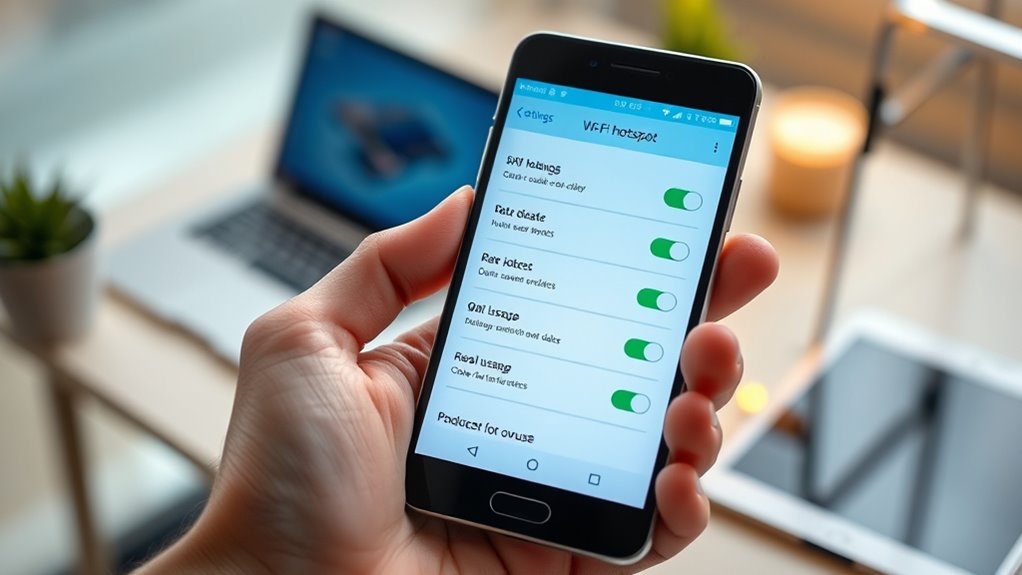
To keep your data usage in check, you need to track it regularly. Most carriers offer tools or apps that make monitoring easy and quick. Using these, you can stay aware of your consumption and avoid unexpected overages. Additionally, many study techniques and exam preparation resources can help you better understand your data needs and manage your usage more effectively.
Track Usage Regularly
Monitoring your hotspot data regularly is essential to avoid unexpected overages and manage your usage effectively. By keeping an eye on your data, you can catch early signs of excessive consumption and adjust accordingly. Here are three ways to stay on top of your hotspot usage:
- Check your phone’s data usage stats in settings—on iPhones go to Settings > Cellular, on Android, Settings > Connections > Data Usage.
- Use your carrier’s app or website for detailed reports and alerts when nearing your limit.
- Set reminders or weekly checks to review your data patterns, ensuring you catch any spikes before overage fees kick in.
- Understanding astrological signs and how they relate to personal habits can help in setting realistic data limits based on your typical usage patterns.
Staying proactive helps you control your data, extend your plan’s lifespan, and avoid surprises at the end of the month.
Use Carrier Tools
Ever wonder how you can keep track of your hotspot data without constantly checking your phone? Carrier tools make it simple. Most carriers offer dedicated apps or online portals where you can monitor your data usage in real-time. Download your carrier’s app or visit their website, log in, and locate your hotspot usage details. These tools often show current usage, historical data, and alerts for approaching limits. Some carriers send automatic notifications when you’re nearing your plan’s cap, helping you avoid overages. Regularly reviewing this data lets you adjust your hotspot activity accordingly. Using carrier tools provides a clear, centralized way to stay informed and manage your data efficiently, giving you peace of mind while staying connected. Vetted – wave and wind
Adjusting Streaming and Download Settings

Adjusting your streaming and download settings can considerably reduce hotspot data consumption. To do this effectively, focus on optimizing your media quality and download preferences.
- Lower video quality: Switch streaming apps to standard or low definition to cut data use while still watching content.
- Limit auto-downloads: Disable automatic downloads for podcasts, updates, or large files that can run in the background.
- Use data-saving modes: Enable data saver options in browsers and apps to restrict high-bandwidth activities.
- Be aware of passive voice usage in your content, as it can make instructions less direct and harder to follow.
These adjustments guarantee you stay connected without quickly draining your hotspot data. By controlling the quality and download habits, you can enjoy browsing, streaming, and downloading with less worry about overages.
Managing Background Apps and Automatic Updates
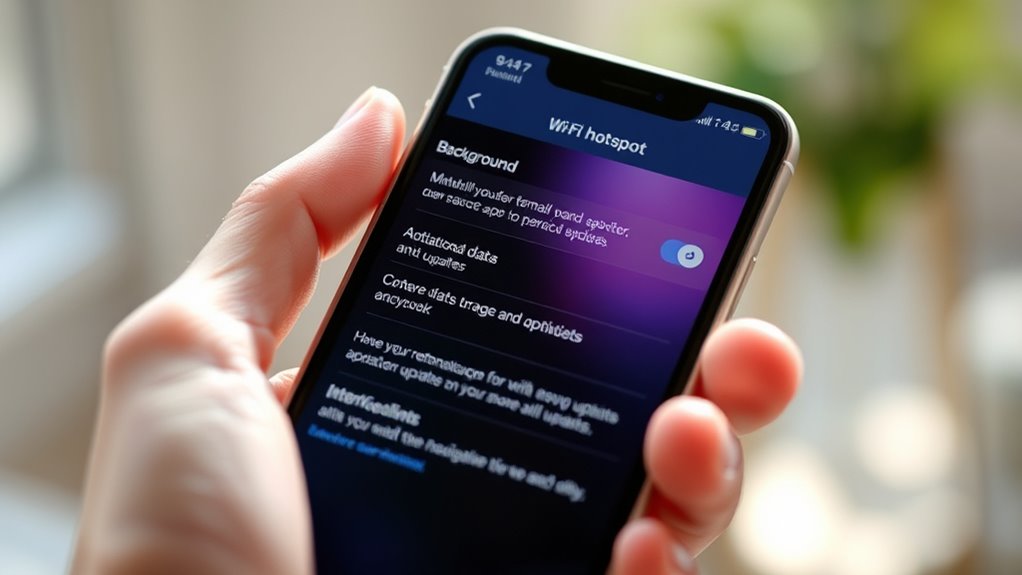
To save your hotspot data, you should limit background app activity and disable automatic updates. These processes often run without your knowledge and can drain data quickly. Managing push notifications also helps prevent unnecessary data use from apps invigorating in the background.
Limit Background App Activity
Background apps and automatic updates can silently drain your hotspot data without you noticing. They run in the background, using data for syncing, downloads, or updates, even when you’re not actively using your phone. To prevent this:
- Close unused apps regularly. Swipe away or force stop apps that aren’t needed.
- Disable auto-updates in app settings to avoid downloads during hotspot use.
- Restrict background data for apps in your device settings, especially for those that consume large amounts without your knowledge. Managing background apps and automatic updates can significantly help conserve your data.
Disable Automatic App Updates
Disabling automatic app updates is an effective way to prevent unexpected data consumption when using your phone as a hotspot. When auto-updates are enabled, your device downloads app updates in the background, often without your knowledge. These updates can use a significant amount of data, quickly draining your hotspot plan. To avoid this, go into your device settings and turn off automatic updates. On iPhone, disable updates in the App Store settings; on Android, turn off auto-updates in the Google Play Store. Instead, manually update apps when you’re connected to Wi-Fi and have ample data. This control helps you manage your data more efficiently, ensuring that background updates don’t consume your hotspot data unexpectedly. It’s a simple step to help you stay within your limits. Being aware of privacy considerations related to background app activity can further help you optimize your data usage.
Manage Push Notifications
Managing push notifications effectively can considerably reduce unnecessary data use when your phone acts as a hotspot. Notifications often trigger background data downloads, syncing, or app refreshes without your knowledge. To minimize this:
- Disable non-essential notifications in app settings to prevent continuous data transfers.
- Turn off background app refresh for apps that don’t need real-time updates.
- Restrict automatic updates by setting apps to manual update mode or scheduling updates when you’re on Wi-Fi.
- Nanotechnology’s advancements are also inspiring more efficient ways to manage data and optimize device performance.
Using Data-Saving Modes and Browser Features
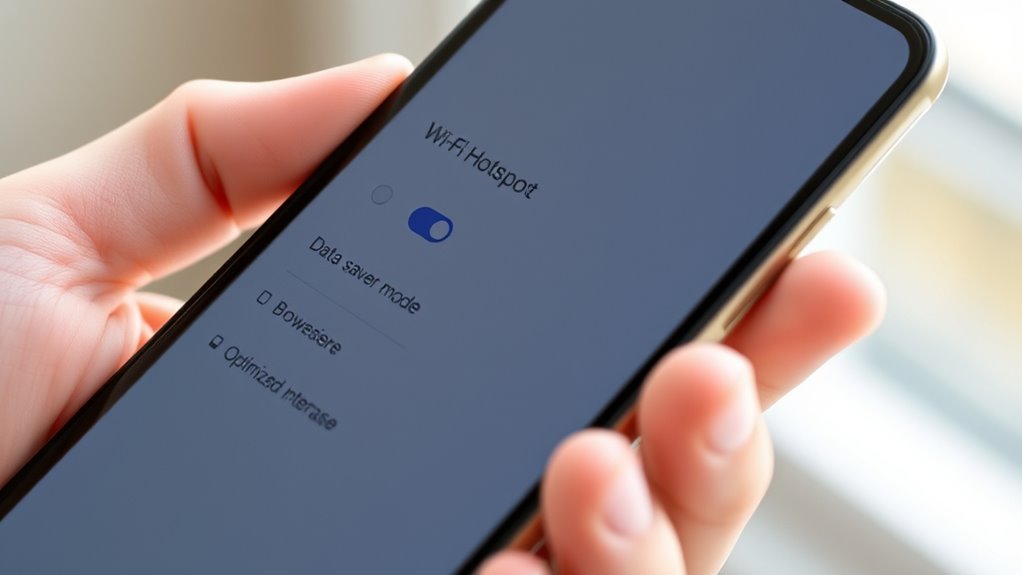
Using data-saving modes and browser features is an effective way to minimize your hotspot data consumption without sacrificing too much functionality. Enable data-saving or lite modes on your phone and browser to compress images and reduce the amount of data loaded on each page. Use browser extensions or built-in features that block ads and prevent auto-playing videos, both of which can drain your data quickly. Adjust settings in streaming apps to lower video quality to standard or low definition, which cuts data usage without losing essential content. When browsing, disable automatic media playback and background refreshes for apps. These simple steps help you stay connected longer on your hotspot, saving your data for more important tasks. Additionally, content optimization techniques can further enhance your browsing efficiency and reduce unnecessary data use.
Limiting Hotspot Tethering Duration
Limiting the duration of your hotspot tethering sessions is one of the most straightforward ways to control your data consumption. By setting time limits, you prevent prolonged, unnecessary usage that can quickly drain your data plan. To do this effectively:
- Use built-in device timers or third-party apps to schedule specific tethering periods.
- Keep track of active sessions and manually disable the hotspot once your time is up.
- Establish routines, like turning off the hotspot after finishing a task or at a set hour daily, to avoid accidental overuse.
These strategies help ensure you don’t stay tethered longer than needed, saving your data for essential activities and reducing the risk of unexpected overages.
Turning Off Hotspot When Not in Use
Turning off your hotspot when you’re not actively using it is one of the simplest ways to prevent unnecessary data consumption. Devices connected to your hotspot can sync updates, download files, or run background apps without you realizing it, quickly draining your data. By turning off the hotspot, you guarantee no data is used when you don’t need it, helping you stay within your plan limits. It’s a quick step that can considerably reduce unexpected overages, especially if your connected devices tend to run automatic updates or background processes. Make it a habit to disable your hotspot when you’re finished using it. Not only does this save data, but it also helps conserve your phone’s battery life and enhances security by limiting access to your network. Understanding network security is also crucial to protect your devices from unauthorized access when your hotspot is active.
Exploring Data Add-Ons and Extra Packages
When your hotspot data runs low or you anticipate heavy usage, exploring data add-ons and extra packages can provide a flexible solution. These options let you boost your data temporarily or regularly, avoiding overage charges or throttling. Using reliable network hardware and understanding your plan’s capabilities can help optimize your connection and prevent unexpected disruptions. Here are three key options:
When data runs low, add-ons and packages offer flexible ways to stay connected without overage charges.
- Pay-as-you-go packages: Purchase additional data for a specific period, perfect for occasional heavy use.
- Monthly add-ons: Add extra data to your existing plan, ideal if you frequently hit your limit.
- Unlimited plans with data boost: Upgrade to plans offering unlimited data, often with options to prioritize hotspot speeds during peak times.
Choosing the Right Data Plan for Your Needs
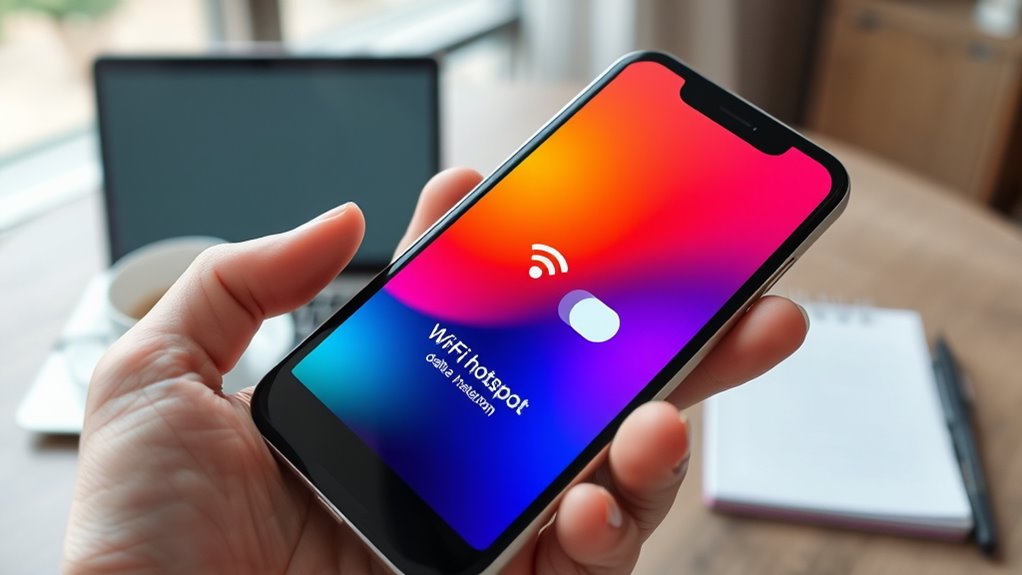
Choosing the right data plan for your needs guarantees you stay connected without overspending or experiencing frustrating slowdowns. First, estimate your typical hotspot usage based on your activities—whether web browsing, streaming, or video calls. If you mostly check emails and social media, a plan with 5-10 GB may suffice. For streaming videos or working remotely, consider plans with higher caps or unlimited data to avoid throttling. Compare carrier options, paying attention to speed throttling policies and extra charges for overages. If your data needs fluctuate, look for plans that offer data passes or flexible add-ons. Regularly monitor your usage to adjust plans proactively, preventing costly surprises and ensuring reliable connectivity whenever you need it. Additionally, understanding water consumption in relation to your device usage can help optimize your data plan and avoid unnecessary charges.
Frequently Asked Questions
How Can I Track Hotspot Data Usage Across Multiple Devices?
You can track hotspot data usage across multiple devices by checking your phone’s built-in settings, like Settings > Cellular > Personal Hotspot on iPhones or Settings > Connections > Data Usage on Androids. Many carrier apps or websites also offer detailed reports and alerts. Regularly reviewing these reports helps you stay aware of each device’s data consumption, so you can manage your hotspot usage effectively and avoid overages.
What Activities Consume the Most Hotspot Data?
Imagine streaming a 4K movie on your hotspot, and suddenly, your data is gone in just an hour. Activities like high-definition video streaming, online gaming, and video calls consume the most hotspot data, with 4K videos using up to 7 GB per hour. These bandwidth-heavy activities drain your data quickly, so be mindful—lowering video quality or limiting these activities can save your hotspot data.
Are There Apps to Help Monitor and Control Hotspot Data Automatically?
Yes, there are apps that automatically monitor and control your hotspot data. You can use apps like My Data Manager, Data Usage, or Carrier-specific tools to track your usage in real-time. These apps alert you when you’re nearing your limit and can even restrict background data or disable hotspot sharing automatically. Installing and configuring them helps you avoid unexpected overages without constantly watching your data manually.
How Does Video Quality Impact Hotspot Data Consumption?
Lowering your video quality considerably reduces hotspot data consumption. Streaming in standard or low definition uses less bandwidth, helping you save data while still watching videos. High-definition and 4K streaming can use up to 7 GB per hour, which drains your data quickly. So, if you’re mindful of your data limits, always choose lower quality settings, especially during prolonged streaming, to prevent unexpected overages.
Can I Set Alerts for Hotspot Data Limits on My Phone or Carrier?
Yes, you can set alerts for your hotspot data limits—think of it as having a personal traffic cop on your digital highway. On iPhones, go to Settings > Cellular > Personal Hotspot or use carrier apps that often include data warnings. Android users can find similar options in Settings > Connections > Data Usage. Many carrier apps or websites also send alerts when you’re nearing your data cap, helping you stay in control and avoid unexpected charges.
Conclusion
Now that you know how to use your phone as a Wi-Fi hotspot without burning through your data, imagine the freedom of staying connected whenever you need it—without surprises. But the real question is, how will you manage your data when the unexpected happens? Will you be ready to adjust on the fly or face the shock of overage charges? Stay vigilant, and your hotspot will serve you well when it matters most.