
To mirror your phone’s screen on a PC or laptop, make certain both devices are connected to the same Wi-Fi network. Use built-in features like Windows Connect, AirPlay, or apps such as ApowerMirror or Reflector for wireless streaming. Simply select the mirroring option, and your phone’s display will appear on your computer. These tools also let you record your screen easily, so keep going to discover more tips and tricks for a smooth setup.
Key Takeaways
- Ensure both your phone and PC are connected to the same Wi-Fi network for seamless mirroring.
- Use built-in features like Windows Connect or AirPlay, or third-party apps like ApowerMirror or Reflector.
- Enable wireless screen mirroring on your phone through settings or quick access menus.
- Select your PC from the list of available devices to establish a connection and mirror your screen.
- Use compatible screen recording tools to capture your mirrored content if needed.
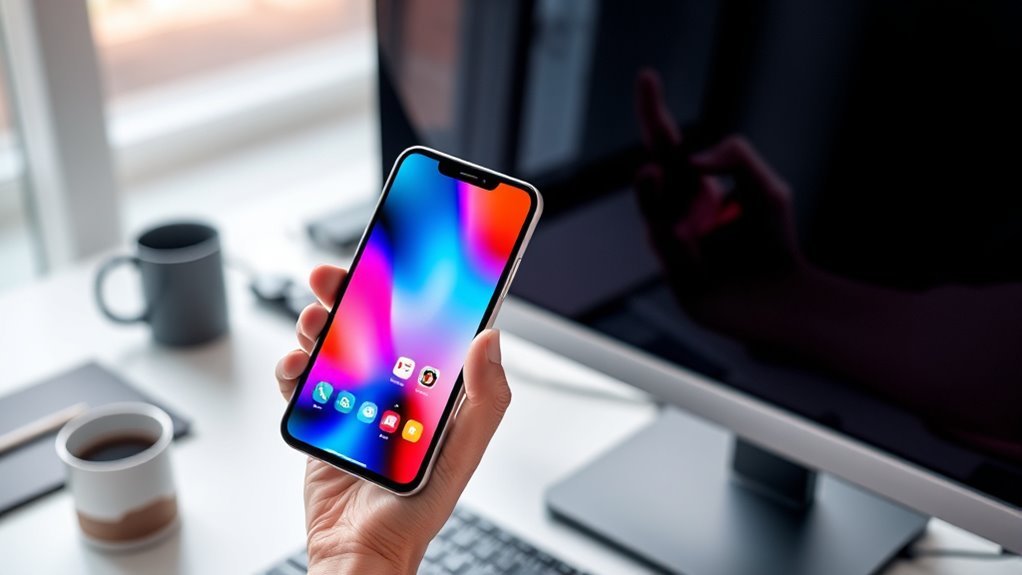
Mirroring your phone screen on a PC or laptop can enhance productivity and make sharing content easier, whether you’re giving a presentation, troubleshooting, or simply enjoying your favorite apps on a larger display. Wireless streaming plays a key role here, allowing you to connect your device seamlessly without the clutter of cables. Most modern smartphones support wireless mirroring options through protocols like Miracast, AirPlay, or proprietary apps, making it straightforward to project your screen onto your computer. Once connected, you can view everything from videos and photos to apps and notifications in real time. This setup is especially handy during meetings or when you want to showcase your work without physically connecting your phone every time. Additionally, innovative European cloud servers are advancing secure and sustainable solutions that can support these kinds of wireless streaming and recording setups with reliable performance. Screen recording is another useful feature that complements mirroring. When you project your phone onto your PC, you can easily record the mirrored content for tutorials, presentations, or troubleshooting guides. Many screen recording tools available for PCs can capture the streaming content directly from the mirrored display, saving you from needing external cameras or complicated setups. This way, you can create professional-looking recordings of app demos, gameplay, or presentations with just a few clicks. Combining wireless streaming and screen recording allows you to document your phone activities effortlessly, whether for personal reference or sharing with colleagues. Getting started is simple. First, ensure both your phone and PC are connected to the same Wi-Fi network. Next, choose a compatible app or built-in feature on your device—such as Windows Connect, AirPlay, or third-party apps like ApowerMirror or Reflector. These tools facilitate wireless streaming, enabling your PC to act as a mirror for your phone. Once connected, your phone’s screen will appear on your computer, and you can interact with it directly from your laptop or desktop. Many of these apps also support screen recording with a single click, making it easy to capture and save your sessions without complicated setups.
Frequently Asked Questions
What Are the Best Free Screen Mirroring Apps for PC?
You can try free screen mirroring apps like LetsView, ApowerMirror, or AirDroid, which offer excellent wireless connectivity and broad app compatibility. These apps allow you to easily connect your phone to your PC without cables, making it simple to display your screen. They work smoothly across different devices and operating systems, giving you a reliable mirror experience without any cost. Just verify your devices support the app for seamless mirroring.
Can I Mirror My Phone Without Wi-Fi?
Think of it like the magic of Merlin—yes, you can mirror your phone without Wi-Fi. Wired connections, like USB, offer a more reliable, private alternative, avoiding data privacy concerns associated with wireless options. While wireless mirroring needs a network, wired methods let you cast your screen directly, ensuring your data stays secure. So, if Wi-Fi’s a no-go, try a USB cable for a seamless, private mirror experience.
How Secure Is the Screen Mirroring Process?
Screen mirroring can be quite secure if you use trusted apps that implement strong encryption methods, like end-to-end encryption. However, be aware of potential privacy concerns, especially with third-party tools or unsecured networks. You’re responsible for choosing reliable software and ensuring your Wi-Fi or connection is secure. When done correctly, the process keeps your data private, but always stay cautious to avoid exposing sensitive information.
Does Mirroring Drain My Phone’s Battery Quickly?
Yes, mirroring can drain your phone’s battery quickly because it increases battery consumption and causes power drain, especially during extended use. When you mirror your screen, your device works harder to transmit data, which uses more energy. To minimize this, keep your phone plugged into a charger or limit the duration of mirroring sessions. Monitoring your battery level regularly helps prevent unexpected shutdowns.
Can I Mirror My Phone to Multiple PCS Simultaneously?
Yes, you can mirror your phone to multiple PCs simultaneously, but it’s not straightforward. A multi-device setup often faces simultaneous display challenges, like lag or connectivity issues. You’ll need specialized software that supports multiple connections at once, and keep in mind that system resources and network stability play big roles. Be prepared for potential performance hiccups, and make sure each device meets the software’s requirements for smooth mirroring.
Conclusion
Now that you know how to mirror your phone’s screen on your PC or laptop, you’re equipped to unseal new possibilities. Whether for work, entertainment, or sharing moments, this skill bridges the gap between devices effortlessly. Imagine your screens dancing in harmony, transforming your experience from isolated to interconnected. So go ahead—connect, share, and elevate your digital world. After all, in the symphony of technology, seamless mirroring is the melody that brings everything together.