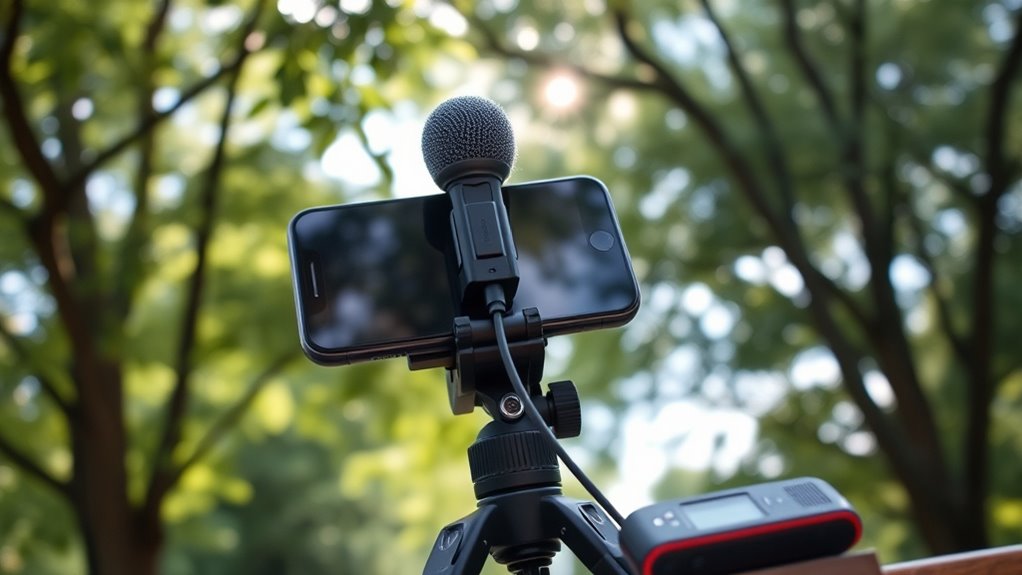

To get better audio when recording videos on your phone, place your device close to the sound source and point the microphone directly at it. Choose quiet environments and avoid noisy backgrounds by closing windows or turning off appliances. Consider using an external microphone for clearer sound. Keep your phone steady and review your recordings to make adjustments. If you want to learn more tips, discover simple ways to enhance your audio quality.

Get the latest gadgets delivered free — and shop member deals
- Fast, free delivery on millions of items
- Access to Prime Big Deal Days deals on October 6–7
- Prime Video, Amazon Music and more included
Key Takeaways
- Hold the phone close to the sound source and point the microphone directly at it.
- Record in quiet, sheltered environments away from external noise and distractions.
- Use external microphones with directional capabilities for clearer audio.
- Minimize background noise by turning off appliances and closing windows and doors.
- Review recordings and re-record if necessary, adjusting microphone placement for optimal sound.
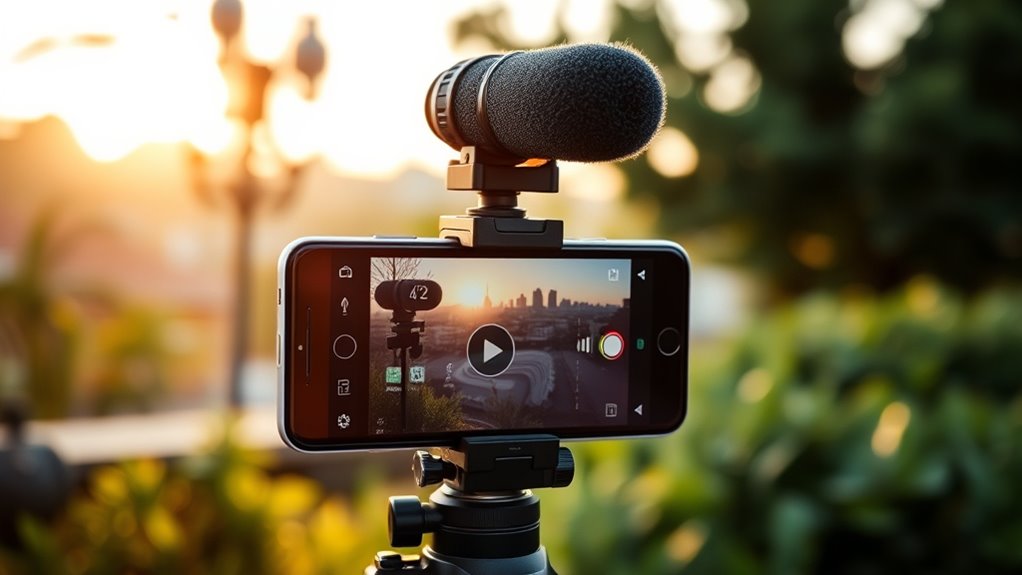
If you want your phone videos to sound as good as they look, improving audio quality should be a top priority. One of the most effective ways to do this is by paying close attention to microphone placement. When recording, hold your phone close to the subject’s mouth or the main sound source. This minimizes the distance sound has to travel, making your audio clearer and more focused. Avoid holding the phone too far away or at awkward angles, which can cause the audio to become muffled or distant. If possible, keep the microphone (your phone’s built-in mic) pointed directly at the sound source. This simple step can drastically improve clarity and reduce background noise that often plagues mobile recordings. Additionally, understanding and utilizing free floating sound principles can help you achieve more natural audio recordings. Background noise reduction is another critical factor. No matter how well you position your microphone, ambient sounds—like traffic, wind, or chatter—can still interfere with your audio. To combat this, try recording in quieter environments whenever you can. If you’re outdoors, find a sheltered spot away from busy streets or noisy crowds. When indoors, close windows and doors to block out external noise, and turn off appliances that generate background hums. You can also use the natural acoustics of the space to your advantage; recording in a room with soft furnishings, carpets, or curtains can help absorb sound reflections and reduce echo, resulting in cleaner audio. In addition to environmental adjustments, consider using external microphones designed for smartphones. These often have better directional capabilities, allowing you to focus on the sound source and cut down on background noise. If you don’t have an external mic, simple tips like speaking directly into the phone’s microphone and maintaining a consistent distance can make a big difference. When recording, keep your phone steady and avoid moving around excessively, as this can introduce handling noise and inconsistencies in audio quality. Finally, always review your recordings—listening carefully for background distractions or muffled sounds. If necessary, reposition yourself or your phone and re-record. Paying close attention to microphone placement and actively reducing background noise ensures your videos sound as professional as they look. With these adjustments, you’ll notice a significant improvement in audio clarity, making your phone videos more engaging and enjoyable to watch.
external microphone for smartphones
As an affiliate, we earn on qualifying purchases.
As an affiliate, we earn on qualifying purchases.
Frequently Asked Questions
Can I Use Bluetooth Microphones for Better Audio?
Yes, you can use Bluetooth microphones for better audio. Wireless audio options with Bluetooth connectivity make it easy to improve your sound quality without extra cables. Just ensure your phone supports Bluetooth microphones and pair it correctly. Keep in mind, some Bluetooth mics might introduce latency, so test beforehand. Using a Bluetooth microphone can considerably enhance your video’s audio clarity and professionalism, making your recordings sound much better.
How Does Phone Case Material Affect Audio Quality?
Your phone case material can substantially impact audio quality. Some cases, especially those made of metal or thick plastic, can cause audio interference, muffling or distorting sound. Soft silicone or thin rubber cases usually have minimal impact. To avoid degrading your audio, choose a case made from materials that don’t block or interfere with sound transmission, and consider removing the case if you notice audio issues during recording.
Are External Mic Adapters Compatible With All Phones?
External mic adapters aren’t compatible with all phones because of phone port compatibility issues. You need to check if your device has a standard headphone jack or a USB-C/Lightning port, as different external mic options require specific adapters. Some adapters work with most phones, but others are designed for certain models. Always verify your phone’s port type and compatibility before purchasing an external mic adapter to guarantee seamless use.
What’s the Best Way to Reduce Background Noise?
Think of background noise as a noisy neighbor—you want to keep it out. To reduce ambient noise, choose a quiet location and use wind reduction accessories or dead cats on your mic to block wind and outdoor sounds. Close windows, turn off fans, and hold your phone steady. These steps help improve audio clarity, making your recordings sound professional and clear, free of distracting ambient noise.
How Do I Fix Audio Sync Issues in Videos?
To fix audio sync issues, first identify the audio delay by playing your video and noting where the sound is out of sync. Use editing software like Adobe Premiere or iMovie to manually adjust sound synchronization by shifting the audio track until it lines up perfectly with the video. This quick fix guarantees your audio match your visuals, creating a seamless viewing experience. Always preview before exporting to confirm perfect sound synchronization.
directional microphone for phone recording
As an affiliate, we earn on qualifying purchases.
As an affiliate, we earn on qualifying purchases.
Conclusion
Remember, great audio isn’t just about equipment—it’s about finding the right balance and paying attention to your environment. By being mindful and making small adjustments, you can unseal clearer, more professional sound in your videos. Sometimes, it’s the quiet moments you capture that speak the loudest. So, keep experimenting, stay patient, and trust that your efforts will gently lead to better recordings. After all, the best sound often comes when you least expect it.
As an affiliate, we earn on qualifying purchases.
noise cancelling microphone for phone
As an affiliate, we earn on qualifying purchases.
As an affiliate, we earn on qualifying purchases.
Fall Picks
fall essentials
As an affiliate, we earn on qualifying purchases.