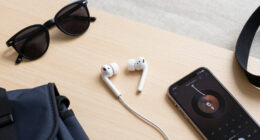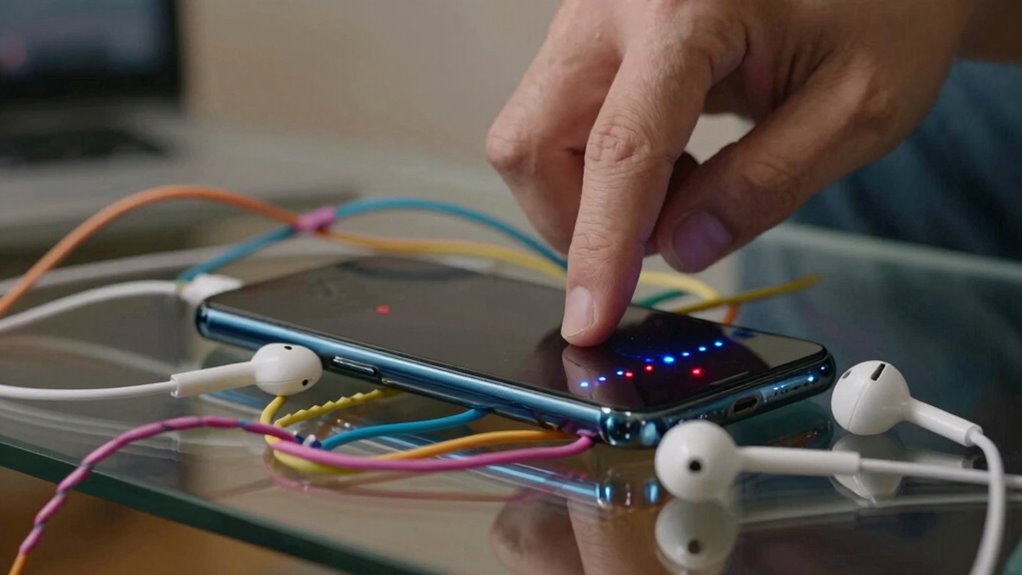
Bluetooth problems never feel simple because they involve many factors like interference from Wi-Fi, microwaves, or crowded spaces that disrupt signals unexpectedly. Compatibility issues can arise if devices don’t support the same Bluetooth version or profiles, making connection attempts frustrating. Troubleshooting is often a process of trial and error, as fixing one problem may trigger another. To truly understand why your Bluetooth keeps disconnecting, you need to explore the environmental and device-specific details involved.
Key Takeaways
- Wireless interference from multiple electronic devices complicates consistent Bluetooth connections.
- Compatibility issues between different Bluetooth versions or profiles often require complex troubleshooting.
- Identifying and mitigating interference sources is challenging, making problem resolution unpredictable.
- Firmware or software updates are necessary but can be difficult to implement or find.
- Multiple factors like environment, device specifications, and updates create a layered, non-linear troubleshooting process.
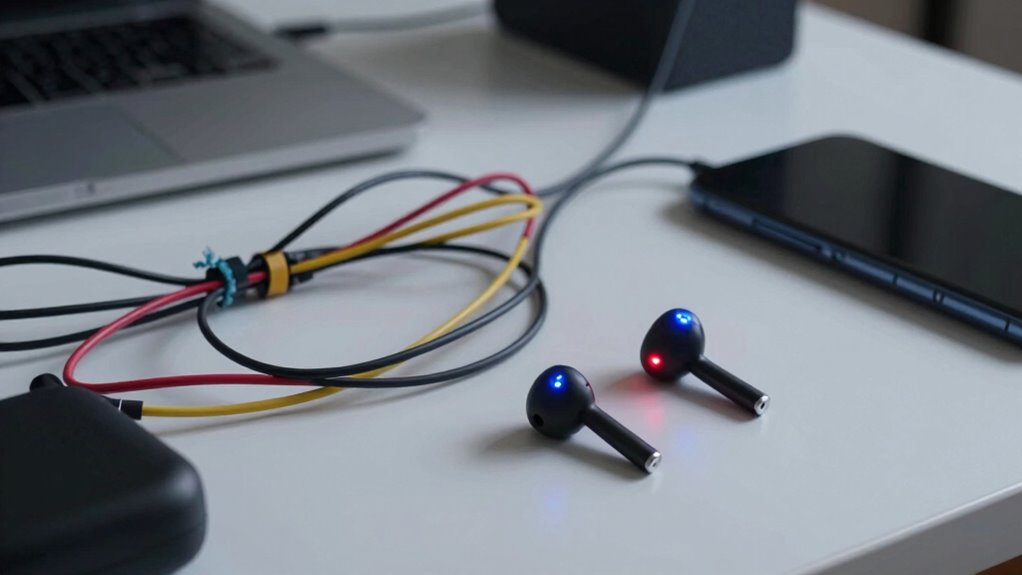
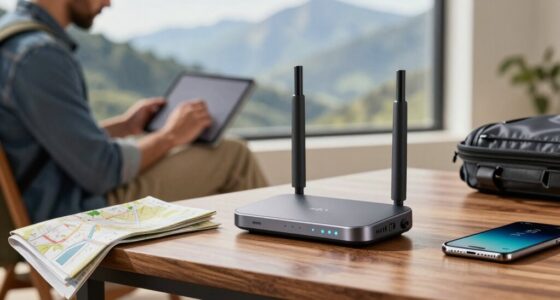
Have you ever experienced frustrating Bluetooth issues that disrupt your connection? You’re likely familiar with that sinking feeling when your device suddenly stops playing audio or refuses to pair altogether. The truth is, Bluetooth problems rarely stem from a single cause, which makes troubleshooting feel like steering a maze. One common culprit is wireless interference, which can come from a variety of sources like Wi-Fi routers, microwaves, or even other Bluetooth devices operating nearby. These signals can clash, causing interruptions or drops in your Bluetooth connection, especially in crowded environments or spaces filled with electronic gadgets. Because wireless interference is unpredictable, it’s frustrating to pin down and fix, often leading to repeated attempts at reconnecting without success. Additionally, high refresh rates can sometimes cause compatibility issues with certain devices, impacting connection stability. Device compatibility also plays a major role in why Bluetooth problems never feel simple. Not all devices are created equal, and some may lack the necessary Bluetooth version or support for certain profiles needed for seamless pairing. For example, an older smartphone might struggle to connect reliably to a newer Bluetooth headset that uses advanced features. Sometimes, firmware or software updates are required on either device to guarantee compatibility, but these updates aren’t always straightforward or readily available. Compatibility issues can also arise when devices have different Bluetooth profiles, which are basically the languages they speak to communicate effectively. If the profiles don’t match, your devices won’t connect or will have limited functionality, adding another layer of complexity to an already frustrating problem. Being aware of wireless interference sources and their potential impact can help you troubleshoot more effectively. Additionally, understanding the Bluetooth version compatibility between devices can save you time and prevent unnecessary frustration.

UCandy Faraday Fabric, 43" × 100" Faraday Fabric EMP Proof Military Grade, Faraday Cloth can Block Cellular Signals,WiFi, Bluetooth, GPS, and RF Signals and electromagnetic Interference
- High-Protection Material: Copper, nickel, polyester fibers block 99% signals
- Military Grade Shielding: Protects from 10MHz to 5GHz frequencies
- Versatile Applications: Suitable for clothing, curtains, cases, and more
As an affiliate, we earn on qualifying purchases.
As an affiliate, we earn on qualifying purchases.
Frequently Asked Questions
How Can I Prevent Bluetooth Connection Issues Before They Happen?
To prevent Bluetooth connection issues, you should keep your device’s Bluetooth security updated, as outdated security can cause conflicts. Regularly turn off Bluetooth when not in use to save battery consumption and reduce potential disruptions. Also, make sure your devices are within close range and avoid interference from other electronics. These steps help maintain a stable connection and prevent problems before they start, making your Bluetooth experience smoother.
Are There Specific Devices More Prone to Bluetooth Problems?
Certain devices are more prone to Bluetooth problems, especially those with outdated firmware or poor device compatibility. You should check if your device’s firmware is up-to-date, as manufacturers often release updates to fix connectivity issues. Devices like older smartphones, budget headphones, or non-standard gadgets tend to struggle more with Bluetooth stability. Ensuring compatibility and keeping firmware current can greatly reduce your chances of encountering persistent Bluetooth problems.
How Do I Identify if a Bluetooth Problem Is Hardware or Software Related?
You can identify if a Bluetooth issue is hardware or software related by first checking device compatibility and ensuring your firmware updates are current. If your device pairs but disconnects frequently or has poor audio quality, it’s likely a hardware issue. Try restarting devices or resetting Bluetooth settings. If problems persist after updates and resets, it might be hardware failure. Testing with another device can also help pinpoint the problem.
Can Bluetooth Interference Be Completely Avoided?
While you can’t entirely escape wireless congestion and signal interference, you can minimize their impact. To do so, keep your Bluetooth devices away from Wi-Fi routers, microwaves, and other electronics that cause interference. Using newer Bluetooth versions and avoiding crowded environments also helps. Though total avoidance isn’t realistic, these steps make your Bluetooth experience smoother and more reliable, letting you enjoy your devices without constant troubleshooting interruptions.
What Are the Best Tools to Troubleshoot Bluetooth Problems?
To troubleshoot Bluetooth problems, you should use tools that analyze Bluetooth signal strength and device compatibility. Apps like Bluetooth Scanner or LightBlue help you check signal strength and identify interference sources. Updating device drivers and firmware can improve compatibility. You can also try resetting Bluetooth settings or restarting devices. These steps help you pinpoint issues, ensuring better connection stability and reducing frustration from weak signals or incompatible devices.

TP-Link USB Bluetooth Adapter for PC – Bluetooth 5.4 Dongle Receiver, Plug and Play, Nano Design, EDR & BLE, Supports Windows 11/10/8.1/7 for Desktop, Laptop, Keyboard, Mouse, etc (UB500)
- Bluetooth Version: Bluetooth 5.4 with backward compatibility
- Data Transfer Speed: Up to 2x faster speeds
- Wireless Range: Four times broader coverage
As an affiliate, we earn on qualifying purchases.
As an affiliate, we earn on qualifying purchases.
Conclusion
Bluetooth problems can feel like trying to untangle a knot in your favorite pair of headphones, frustrating and endless. But remember, each glitch is a small storm passing through your device’s quiet sky. With patience and a gentle touch, you’ll find the right connection again, and the music will flow smoothly. Soon, the static clears, and you’re back in your world of sound—free to enjoy what truly matters, unbroken and clear.

TP-Link USB Bluetooth Adapter for PC, Bluetooth 5.3 Long Range Receiver, Plug and Play, Adjustable Antenna, Supports Windows 11/10/8.1/7 for Desktop, Laptop, Keyboard, Mouse, etc (UB500 Plus)
- Bluetooth Version: Supports Bluetooth 5.3 and backward compatibility
- Enhanced Data Rate: Improved transfer speed and efficiency
- Long Range Coverage: Up to four times the coverage of Bluetooth 4.0
As an affiliate, we earn on qualifying purchases.
As an affiliate, we earn on qualifying purchases.

Vgate iCar Pro Bluetooth 4.0 (BLE) OBD2 Fault Code Reader OBDII Code Scanner Car Check Engine Light for iOS/Android
- Vehicle Compatibility: Supports 12V gasoline and light-duty diesel vehicles
- Easy to Use: Works with iOS and Android devices, no manual pairing for iOS
- Low Power Consumption: Auto-sleep and auto-wake features save vehicle battery
As an affiliate, we earn on qualifying purchases.
As an affiliate, we earn on qualifying purchases.