
To determine if your connectivity problems are local or device-based, start by testing multiple devices on the same network. If several devices experience issues simultaneously, it’s likely a network-wide problem, possibly with the router or ISP. If only one device has trouble, it’s probably a device-specific issue, like outdated drivers or hardware glitches. Moving forward, you’ll find helpful tips that can pinpoint the root of your connectivity troubles.

Get the latest gadgets delivered free — and shop member deals
- Fast, free delivery on millions of items
- Access to Prime Big Deal Days deals on October 6–7
- Prime Video, Amazon Music and more included
Key Takeaways
- Test the connection on multiple devices; widespread issues suggest a network or router problem.
- Use an Ethernet cable to connect directly; stable wired connection indicates device or Wi-Fi issues.
- Restart devices and routers; persistent problems after restart point to hardware or configuration issues.
- Check for interference or congestion during peak hours; slowdowns may be network-wide rather than device-specific.
- Contact your ISP or check outage notifications; external outages affect all devices equally.
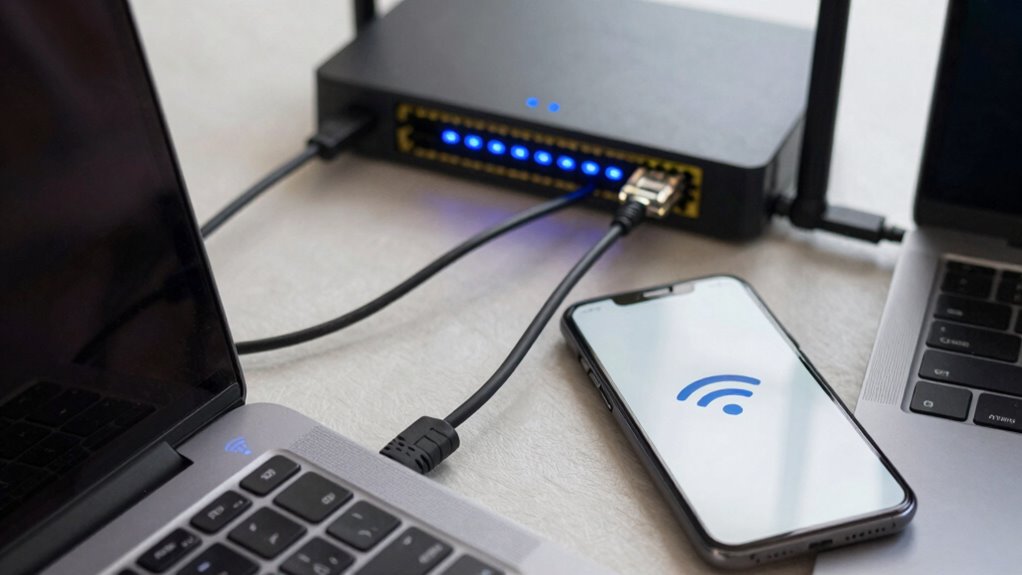
When your internet connection suddenly drops or slows down, it can be frustrating to pinpoint the cause. You might wonder whether the issue stems from your local network or the device you’re using. To figure this out, start by observing when the problem occurs. If multiple devices experience similar issues at the same time, it’s likely a network-wide problem rather than something specific to one device. On the other hand, if only one device struggles with connectivity, the issue is probably device-based.
Wireless interference is a common culprit for local connection problems. Devices like microwaves, cordless phones, or even neighboring Wi-Fi networks can interfere with your wireless signal. If your Wi-Fi suddenly becomes unreliable or drops intermittently, try changing your router’s channel or moving it away from other electronics. Network congestion can also cause slowdowns, especially during peak usage times when many people in your area are online. If your internet feels sluggish during busy hours but works fine at other times, network congestion might be the root cause.
Wireless interference and network congestion can cause intermittent Wi-Fi issues and slow internet during peak hours.
Next, check your device’s connection settings. Restart your device and see if the problem persists. Sometimes, software glitches or outdated network drivers can cause connectivity issues. Updating your device’s firmware or network adapters can resolve these problems. If you’re on Wi-Fi, test your device’s connection with an Ethernet cable if possible. A wired connection often provides a more stable and consistent signal, which helps you determine if the issue is with your Wi-Fi signal or the device itself.
Another step is to examine your router’s status lights and settings. If your router shows signs of trouble—like blinking or red lights—it might be experiencing a hardware or configuration problem. Resetting the router can sometimes clear temporary glitches and improve performance. If resetting doesn’t help, consider checking your router’s logs or performing a factory reset. If the problem persists across different devices after these steps, it points toward a network issue rather than a device-specific one.
Lastly, consider your internet service provider’s status. Sometimes, outages or maintenance work in your area can cause widespread disruptions. Contact your provider or visit their website for outage notifications. If your ISP confirms an outage, you’ll know the problem isn’t on your end. By methodically testing your devices, checking for interference, and observing network patterns, you can better determine whether your connectivity problems are local or device-based, saving you time and frustration. Understanding the role of emerging trends in digital publishing can also help you stay informed about the latest technology updates that might impact network performance.
Ethernet cable for stable internet connection
As an affiliate, we earn on qualifying purchases.
As an affiliate, we earn on qualifying purchases.
Frequently Asked Questions
How Can I Identify if My Internet Service Provider Is the Issue?
You can identify if your internet service provider is the issue by checking for signs of a network outage or service interruption. Visit your provider’s status page or social media accounts for real-time updates. If others in your area report issues or your service remains down despite restarting your device and router, it’s likely a provider problem. Contact your ISP to confirm and get instructions on next steps.
What Symptoms Suggest a Faulty Network Adapter?
If your network adapter is faulty, you’ll notice symptoms like frequent disconnects, limited or no network access, or slow speeds despite a strong connection. Running network adapter diagnostics can reveal issues, and faulty hardware symptoms include device errors in Device Manager or missing drivers. If updating or reinstalling drivers doesn’t fix the problem, replacing the adapter may be necessary. Keep an eye out for these signs to identify hardware failures early.
Can Interference From Other Devices Cause Connectivity Issues?
Yes, wireless interference from other devices can cause connectivity issues. Devices like microwaves, cordless phones, or Bluetooth gadgets create wireless interference that disrupts your Wi-Fi signal, leading to signal disruption. When these devices are nearby, your connection might drop or slow down. To fix this, move your router away from potential sources of wireless interference or switch to a less congested channel.
How Often Should I Reset My Router to Prevent Problems?
You should reset your router about once a month to prevent connectivity issues. Regular resets help clear wireless interference and improve signal strength. Additionally, make sure to check for firmware updates during these resets, as they fix bugs and enhance performance. If you notice persistent problems, more frequent resets might help, but usually, monthly resets combined with updated firmware keep your internet running smoothly.
Are There Specific Tools to Diagnose Device Connectivity Problems?
Yes, you can use tools like Wi-Fi analyzers to diagnose device connectivity problems. These tools help identify wireless interference and check signal strength, revealing if obstacles or interference are affecting your device’s connection. By analyzing the signal, you can determine if weak signal strength or interference from other devices is causing issues. This allows you to optimize your setup or troubleshoot specific problems more effectively.
As an affiliate, we earn on qualifying purchases.
Conclusion
Understanding whether your connectivity issues are local or device-based helps you troubleshoot more effectively. Often, a simple restart or checking your router can resolve most problems. Did you know that over 70% of device connectivity issues stem from local network problems rather than hardware failures? By identifying the root cause early, you save time and frustration. So, next time your internet acts up, remember to rule out local network issues before considering device repairs.
As an affiliate, we earn on qualifying purchases.
As an affiliate, we earn on qualifying purchases.
Evergreen bestsellers Picks
bestsellers
As an affiliate, we earn on qualifying purchases.