![[Invitation] Galaxy Unpacked July 2026: A New Shape Unfolds](https://thenewhandset.com/wp-content/uploads/2026/07/invitation-galaxy-unpacked-july-2026-a-new-shape-unfolds-featured-200x110.jpg)
You love RAW photos on phones because they give you the highest quality images with maximum detail and color. Shooting in RAW allows you to make better edits, like adjusting exposure and contrast, without losing quality. Though RAW files are larger, smart storage options help manage them easily. This gives you more control and professional-looking results, making your mobile photography stand out. If you keep exploring, you’ll discover even more tips to enhance your shots.

Get the latest gadgets delivered free with Prime
- Fast, free delivery on millions of items
- Prime Video, Amazon Music and more included
- Member-only deals all year
Key Takeaways
- RAW photos retain maximum detail and color, allowing for professional-grade edits on mobile devices.
- They offer greater flexibility for adjusting exposure, contrast, and colors without quality loss.
- RAW files future-proof images, enabling high-quality edits and enlargements later.
- Advanced editing tools on phones enhance the creative control over raw images.
- Enthusiasts appreciate the ability to produce high-quality, natural-looking photos directly from their smartphones.
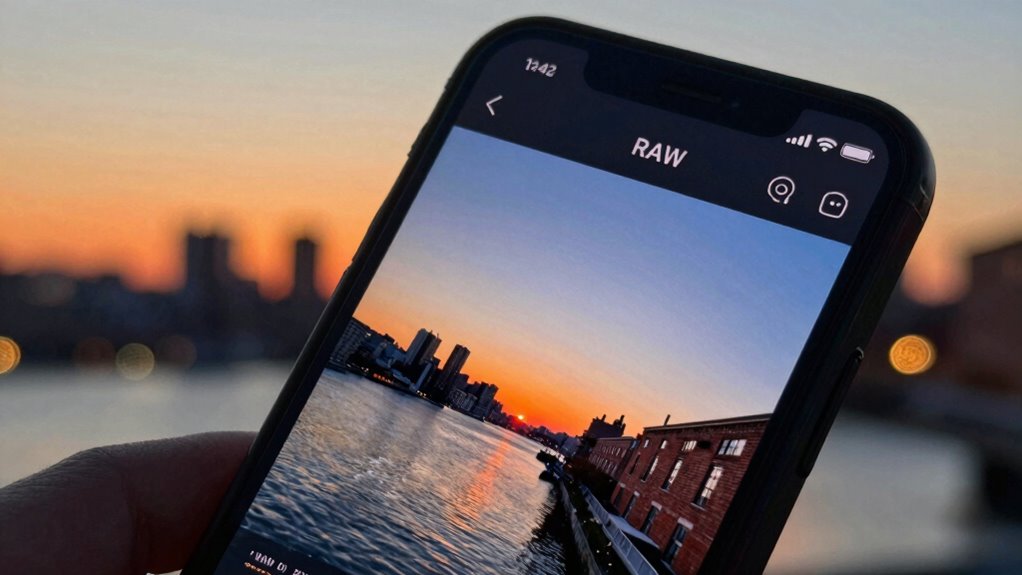
Have you ever wondered why professional photographers prefer shooting in RAW format? When you capture photos in RAW, you’re fundamentally saving all the unprocessed data from your camera’s sensor. On your phone, shooting in RAW gives you a much higher quality image that preserves the maximum detail, color range, and dynamic range. This is especially appealing for those who want more control over their photos during mobile editing. Instead of relying on compressed JPEGs that quickly lose quality when edited, RAW files provide a solid foundation for adjustments like exposure, contrast, and color correction without degrading the image. This means your edits look more natural and professional, making RAW a popular choice among photography enthusiasts even on mobile devices.
Shooting in RAW preserves all unprocessed sensor data for maximum detail, color, and editing flexibility.
However, capturing photos in RAW isn’t just about editing flexibility; it also impacts storage solutions. RAW files are considerably larger than their JPEG counterparts, often taking up several times the space. If you’re someone who loves to shoot a lot of photos on your phone, this can be a challenge. But many modern smartphones and apps now offer smart storage solutions to handle these large files efficiently. Cloud storage options like Google Photos, Dropbox, or specialized photo backup services allow you to offload RAW files to the cloud, freeing up space on your device. Some apps even have automatic organization systems that help you manage your RAW images, making it easier to access and edit them later without cluttering your phone’s internal storage. Additionally, storage management tools can help optimize your device’s capacity when working with large files. Using cloud storage can also provide a secure backup, ensuring your high-quality images are preserved even if something happens to your device. Moreover, being aware of file formats and their implications can help you choose the best options for your workflow. Incorporating file format knowledge into your habits can help you streamline your editing and storage process effectively.
This balance between high-quality images and storage management is a key reason why some people love shooting RAW on their phones. It’s a way to future-proof your photos, ensuring you have the highest quality version to work with, even if it means managing larger files. Mobile editing apps have also become increasingly sophisticated, allowing you to perform detailed adjustments directly on your device. You can tweak brightness, colors, and sharpness with precision, all while working with the original RAW data. Additionally, understanding yarn weight and stitch type can help you optimize your editing process for different photo styles and filters. This combination of advanced editing capabilities and smart storage solutions makes RAW photography more accessible and appealing for mobile users who want professional-quality results without carrying heavy equipment.
Ultimately, if you’re passionate about photography and want maximum control over your images, shooting in RAW on your phone is a smart choice. It offers the best possible starting point for edits and, with the right storage solutions, can seamlessly fit into your mobile workflow. The ability to capture and refine high-quality photos right from your device is what makes RAW photography on phones so compelling for many users.
smartphone RAW photo editing apps
As an affiliate, we earn on qualifying purchases.
As an affiliate, we earn on qualifying purchases.
Frequently Asked Questions
Can All Phones Shoot RAW Photos?
Not all phones can shoot raw photos. Your phone needs a capable smartphone sensor and fast processing speed to handle raw image files. Many flagship models and some mid-range phones support RAW capture through their camera apps, but budget devices often don’t have the hardware or software features necessary. Check your phone’s camera settings or specifications to see if RAW shooting is available, as it varies widely across devices.
Do RAW Photos Take up More Storage Space?
Raw photos do take up more storage space because they contain uncompressed, high-quality data. While some believe file compression can minimize this difference, RAW files still generally require more space than JPEGs. This impacts storage optimization, so you’ll need to manage your phone’s storage carefully if you shoot in RAW. Using cloud backups or external storage can help, ensuring you don’t run out of space while capturing detailed, editable images.
Is Editing RAW Photos Difficult for Beginners?
Editing RAW photos might seem challenging at first, but beginners can manage it with simple tools. You’ll find it easier to do color correction and noise reduction, improving your image quality considerably. While RAW files are larger, many editing apps offer user-friendly interfaces, making adjustments straightforward. With a little practice, you’ll gain confidence in editing RAW photos, enabling more creative control and producing professional-looking results on your phone.
How Do RAW Photos Affect Camera Performance?
Raw photos can impact your camera’s performance by allowing you to adjust sensor sensitivity and improve image processing. When shooting in RAW, your phone captures more detailed data, which helps in low-light situations and enhances overall image quality. However, it may slow down processing speed and storage. You’ll notice that your camera handles exposure and noise better, giving you more control over the final look of your photos.
Are RAW Photos Compatible With All Editing Apps?
Raw photos aren’t compatible with all editing apps, but many popular ones support them, especially those focused on professional editing. When you use apps that handle RAW files, you can perform advanced color grading and noise reduction without quality loss. Check your app’s specifications first, but generally, apps like Adobe Lightroom and Snapseed support RAW, giving you flexibility to enhance your images precisely the way you want.
As an affiliate, we earn on qualifying purchases.
Conclusion
Embracing raw photos on your phone is like opening a treasure chest of creativity. You get the freedom to fine-tune every detail, ensuring your images truly reflect your vision. Just as a painter appreciates blank canvas, a photographer loves the potential in raw files. So, next time you snap a shot, consider capturing it in raw—it’s your chance to turn a simple photo into a masterpiece, waiting to be perfected.
professional smartphone camera accessories
As an affiliate, we earn on qualifying purchases.
As an affiliate, we earn on qualifying purchases.
high capacity portable external hard drive
As an affiliate, we earn on qualifying purchases.
As an affiliate, we earn on qualifying purchases.
Columbus Day / Indigenous Peoples' Day Picks
long weekend sales
As an affiliate, we earn on qualifying purchases.