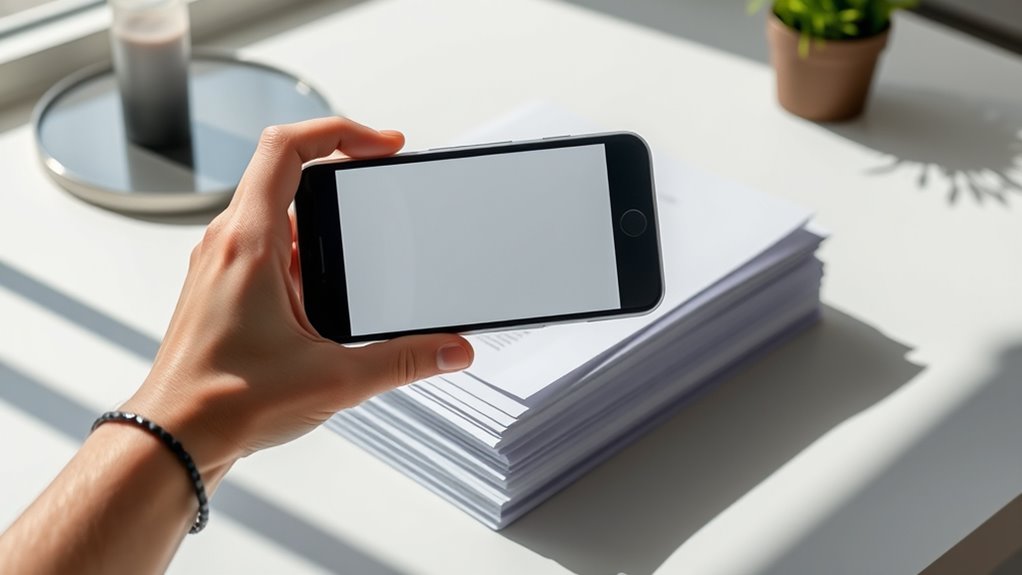

To get great results when scanning documents with your phone, start by organizing your papers into labeled folders for easy access. Use a trusted scanning app like Adobe Scan or CamScanner, which automatically detects edges and enhances images. Keep your phone steady, make sure good lighting, and align it properly over the document for clear, sharp scans. Cropping unnecessary background and adjusting brightness or contrast can improve quality—if you want to learn more, keep exploring these helpful tips.
Listen free for 30 days with Audible
Thousands of audiobooks and originals — cancel anytime.
As an affiliate, we earn on qualifying purchases.
Key Takeaways
- Organize documents beforehand using folders or labels for quick and efficient scanning.
- Use reputable mobile scanning apps like Adobe Scan or Office Lens for best results.
- Ensure proper lighting and keep the phone steady for clear, high-quality images.
- Adjust brightness, contrast, and crop images within the app to enhance clarity.
- Save and organize digital files systematically for easy access and management.
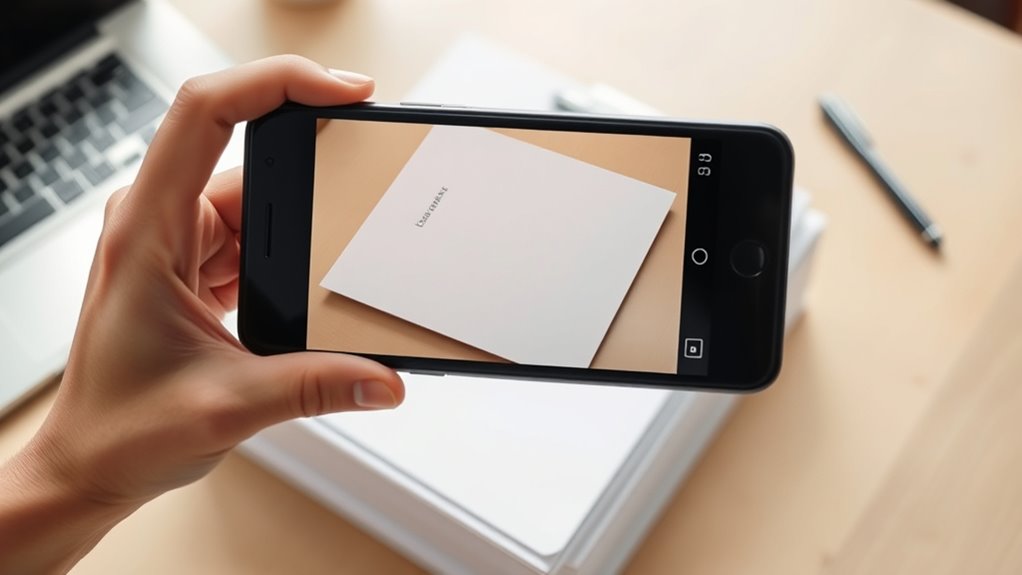
Have you ever needed to digitize a paper document quickly and without special equipment? If so, you’re not alone. Many people find themselves in situations where they must convert physical papers into digital files on the spot. The good news is that your smartphone can handle this task efficiently, especially when you use the right tools and techniques. One of the first things to consider is how you organize your documents before scanning. Keeping your papers well-arranged makes the process smoother and helps you find what you need quickly later. Use folders or labels to categorize different types of documents—receipts, contracts, notes—so you can easily locate and scan them when necessary. Proper document organization not only saves time during scanning but also ensures your digital files are easy to manage afterward.
When it comes to scanning with your phone, mobile scanning apps are your best friends. These apps are specifically designed to turn your device into a portable scanner, providing features like automatic edge detection, perspective correction, and image enhancement. Popular options include Adobe Scan, CamScanner, and Microsoft Office Lens. These apps are straightforward to use: you simply open the app, position your phone over the document, and capture the image. They automatically detect the document’s edges, crop out unnecessary background, and enhance the clarity of the scan. Many apps also allow you to save your scans as PDFs or images, share them via email or cloud storage, and even organize your files within the app for quick access later. To ensure your scans are of high quality, it’s also helpful to understand how contrast ratio affects image clarity and contrast.
To get the best results, make certain your lighting is even and bright, avoiding shadows and glare that can obscure details. Keep your phone steady and align it as squarely as possible over the document for a clean scan. Once you’ve captured the image, take a moment to review it. Most apps let you edit the scan, adjusting brightness, contrast, or cropping further if needed. This step guarantees your digital copy is clear, legible, and professional-looking. Remember, good document organization combined with the right mobile scanning app makes digitizing quick, simple, and effective. With just a few taps, you can convert stacks of paper into organized digital files, reducing clutter and making your documents accessible anytime, anywhere.

EVEO Screen Cleaner Spray - Large Screen Cleaner Bottle - TV Screen Cleaner, Computer Screen Cleaner, for Laptop, Phone, Ipad - Computer Cleaning kit Electronic Cleaner (1 Pack)
- Versatile Electronic Screen Cleaner: Suitable for TVs, laptops, phones, and tablets
- Effective Streak-Free Cleaning: Removes dust, fingerprints, and smudges
- Gentle on Sensitive Screens: Safe for LCD, LED, OLED, CRT screens
As an affiliate, we earn on qualifying purchases.
Frequently Asked Questions
Can I Scan Multiple Pages Into a Single PDF?
Yes, you can scan multiple pages into a single PDF for better document organization and multi-page management. Use your scanning app’s multi-page option, which allows you to add pages sequentially as you scan each one. Once finished, save or export the file as a single PDF. This makes it easier to keep all related documents together, ensuring efficient handling and sharing of your scanned materials.
How Do I Improve Scan Quality in Low Light?
To improve scan quality in low light, start by adjusting the lighting if possible; add more light or move to a brighter area. Use your phone’s camera stability features, like a tripod or steady surface, to prevent blurriness. Keep your camera steady and ensure the document fills the frame. Increasing exposure settings or turning on the flashlight can also aid, resulting in clearer, sharper scans even in dim conditions.
Are There Privacy Concerns When Using Phone Scanning Apps?
You might worry about privacy when using phone scanning apps, but many prioritize your data security through encryption and strict app permissions. Think of it like locking your house doors—encryption shields your scans from prying eyes, while app permissions control what info the app can access. As long as you choose reputable apps and review permissions carefully, you can scan confidently without sacrificing your privacy.
How Do I Edit or Annotate Scanned Documents?
You can easily edit or annotate scanned documents using your phone by leveraging digital markup tools within your scanning app. Use highlighting features to emphasize key points, add text boxes for notes, or draw directly on the document. Most apps let you access these tools after scanning, so you can customize your documents quickly and efficiently, making your digital workflow more organized and effective.
Can I Scan Documents Directly to Cloud Storage?
Absolutely, you can scan documents directly to cloud storage. Think of it as having a digital safe at your fingertips, making access seamless. Just verify your scanning app supports cloud options like Google Drive or Dropbox, and check app compatibility. Be mindful of security concerns; always use trusted apps and enable encryption when possible. This way, your documents stay protected while effortlessly reaching your preferred cloud destination.

iO CLEAN Screen Cleaner Spray (16oz - 473ml) – Best Large Cleaning Kit
- Versatile Device Compatibility: Works on all electronic screens and devices
- Gentle, Advanced Formula: Removes dust, fingerprints, grime without scratches
- Protective, Streak-Free Shine: Leaves screens smudge-free and like new
As an affiliate, we earn on qualifying purchases.
Conclusion
Now that you know how to scan documents with your phone, it’s almost like having a portable scanner in your pocket. It’s funny how a simple app can turn your phone into a powerful tool, saving you time and effort. So next time you need to digitize a document, remember—it’s not just about convenience, but also about being prepared for those unexpected moments where a quick scan can make all the difference.
Flea & tick season Picks
flea and tick prevention
As an affiliate, we earn on qualifying purchases.