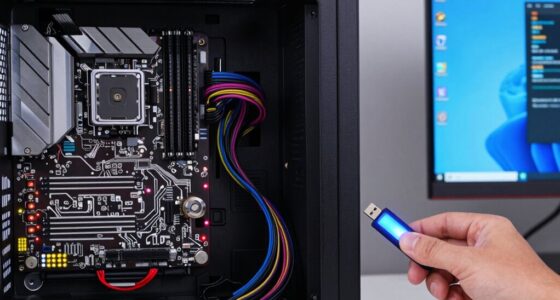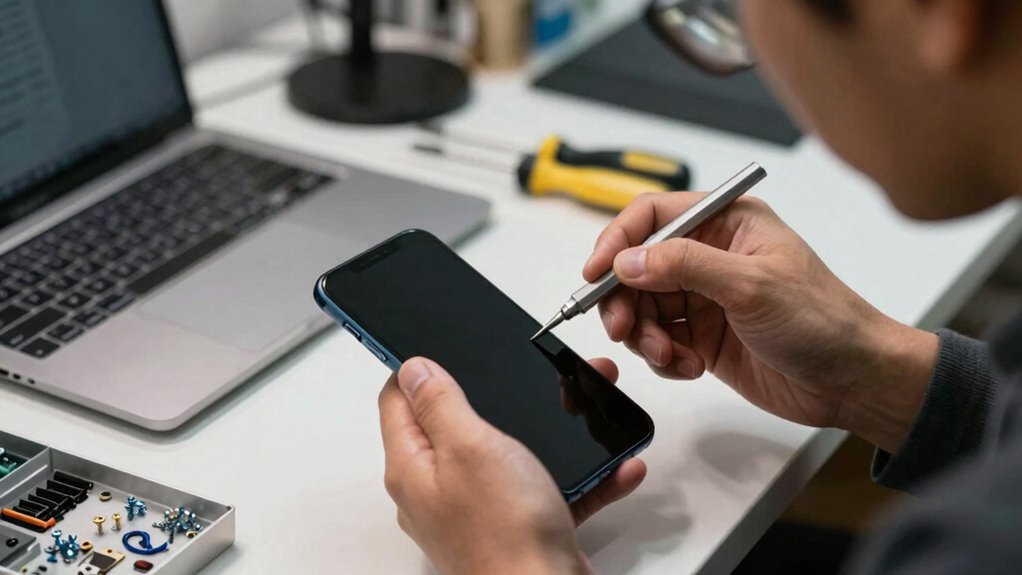

Before panicking over a phone problem, stay calm and start troubleshooting. Check your battery health and consider replacing it if it’s degrading. Restart your device and close all apps to resolve conflicts. Make sure your software and firmware are up to date, and free up storage space if it’s nearly full. Also, test your network connection and reset it if needed. If these steps don’t help, you’ll find more tips to fix your issue below.

Get the latest gadgets delivered free with Prime
- Fast, free delivery on millions of items
- Prime Video, Amazon Music and more included
- Member-only deals all year
Key Takeaways
- Check your battery health and replace it if degraded to prevent shutdowns and performance issues.
- Restart your device and close all apps to resolve potential conflicts or glitches.
- Ensure your software and firmware are up to date for stability and security.
- Free up storage space to prevent slowdowns or crashes caused by full memory.
- Troubleshoot network connections by toggling airplane mode or resetting network settings.
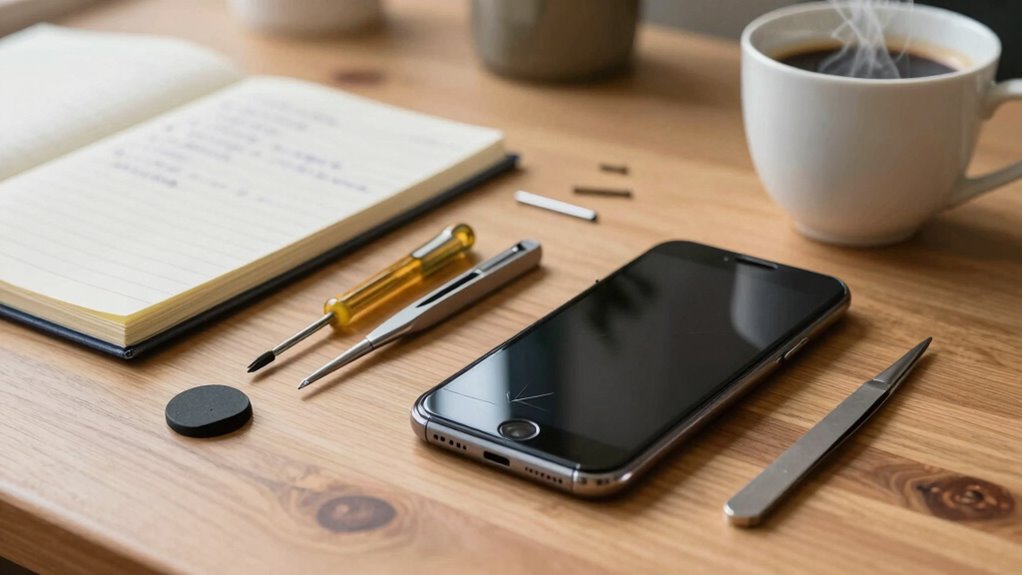
When your phone starts acting up, it’s easy to panic and jump to worst-case scenarios. You might worry that your device is about to die forever or that you’ve lost important data. Before you go down that rabbit hole, take a moment to breathe and consider some straightforward steps. Often, what’s bothering your phone isn’t as serious as it seems. Start by checking the battery health. If your phone’s battery isn’t holding a charge like it used to, it can cause unexpected shutdowns or sluggish performance. Many phones have built-in settings or apps that show battery health status; if not, consider installing a trusted battery monitor. If the battery is degrading, replacing it can restore your phone’s performance without needing a full repair or replacement.
Check your phone’s battery health first to prevent unexpected shutdowns and sluggish performance.
Next, consider the possibility of app conflicts. Sometimes, a recent app update or a new app installation can interfere with your device’s functioning. Think about any recent changes you made before the problems started. If you suspect an app conflict, try closing all open apps and restarting your device. If that doesn’t help, boot your phone into safe mode, which temporarily disables third-party apps. If the problem disappears in safe mode, it points to a specific app causing the trouble. Uninstall any recently added apps or those you suspect might be causing issues. Clearing cache data for problematic apps can also resolve conflicts without deleting the app entirely. Additionally, software updates are essential to fix bugs and improve stability, so ensuring your device is running the latest version can prevent many issues. Regularly reviewing your device’s software update history can help you stay aware of recent changes that might impact performance. Moreover, keeping your system’s firmware up to date can ensure compatibility and security enhancements. Staying informed about emerging trends in device updates can help you anticipate potential issues before they arise.
It’s also wise to check your storage space. When your phone’s storage is nearly full, it can slow down or crash unexpectedly. Free up space by deleting unnecessary files, old messages, or apps you no longer use. Sometimes, a simple restart after clearing storage can do wonders. Additionally, keep your operating system updated. Manufacturers often release updates that fix bugs, improve battery performance, and enhance overall stability. Skipping updates might leave your device vulnerable or prone to glitches. Regularly reviewing your device’s home design details can help you identify and address potential issues before they escalate.
Finally, don’t forget to review your network connections. Poor Wi-Fi or cellular signals can mimic device problems, causing apps to misbehave or loading issues. Toggle airplane mode on and off to reset your network connection, or reset network settings if problems persist. By systematically troubleshooting these aspects—battery health, app conflicts, storage, updates, and network—you can often solve the issue without panic. Remember, most phone problems are manageable with a little patience and some basic steps, so take a deep breath and approach the situation with a clear mind before rushing to any conclusions.
smartphone battery health monitor
As an affiliate, we earn on qualifying purchases.
As an affiliate, we earn on qualifying purchases.
Frequently Asked Questions
How Can I Tell if My Phone Is Physically Damaged?
You can tell if your phone is physically damaged by inspecting for screen cracks or unusual discoloration. Also, check if the screen responds normally to touch. Look for signs of battery swelling, like the phone feeling bulged or hot. If you notice any of these issues, avoid using your phone, as it could be unsafe. Seek professional repair or replacement to prevent further damage or hazards.
What Are Common Signs of Software Issues?
Software issues often show up as unexpected app crashes or rapid battery drain, making your phone feel unreliable. You might notice lagging or unresponsive screens, which indicate underlying problems. These symptoms contrast sharply with a well-functioning device, highlighting the importance of regular updates and troubleshooting. If your apps crash frequently or your battery drains faster than usual, it’s a sign to investigate software glitches before they worsen, ensuring smoother performance.
Should I Back up My Data Regularly?
Yes, you should back up your data regularly. This way, if your phone encounters a software issue or gets lost, your information stays safe. Use data encryption to protect sensitive files, and consider cloud storage options for easy access and automatic backups. Regular backups guarantee you won’t lose important photos, contacts, or documents, giving you peace of mind and quick recovery during any technical hiccups.
How Do I Check My Phone’s Warranty Status?
Think of checking your phone’s warranty status as opening a secret treasure chest. First, visit your device manufacturer’s website or app, then enter your serial or IMEI number, often found in settings or on the device. This helps you verify your warranty, especially if your battery health or app compatibility issues arise. If it’s still valid, you might get free repairs or replacements, saving you from panic.
When Is It Time to Visit a Professional Technician?
You should visit a professional technician when DIY fixes and troubleshooting tips don’t resolve your phone issues. If your phone won’t turn on, keeps crashing, or has hardware problems like a broken screen or battery issues, it’s time to seek expert help. Don’t force repairs that could cause further damage. A technician can diagnose and fix complex problems safely, saving you time and potentially expensive damage.
As an affiliate, we earn on qualifying purchases.
Conclusion
Before you panic over a phone issue, remember that most problems are fixable with a little patience and troubleshooting. Did you know that 70% of smartphone problems are resolved without professional help? Staying calm and following simple steps can save you time and money. So next time your phone acts up, take a deep breath, assess the situation calmly, and explore the solutions — you might be surprised how quickly you can fix it yourself.
Android iOS software update tool
As an affiliate, we earn on qualifying purchases.
As an affiliate, we earn on qualifying purchases.
As an affiliate, we earn on qualifying purchases.
Halloween Picks
halloween
As an affiliate, we earn on qualifying purchases.