
TL;DR

Get the latest gadgets delivered free with Prime
- Fast, free delivery on millions of items
- Prime Video, Amazon Music and more included
- Member-only deals all year
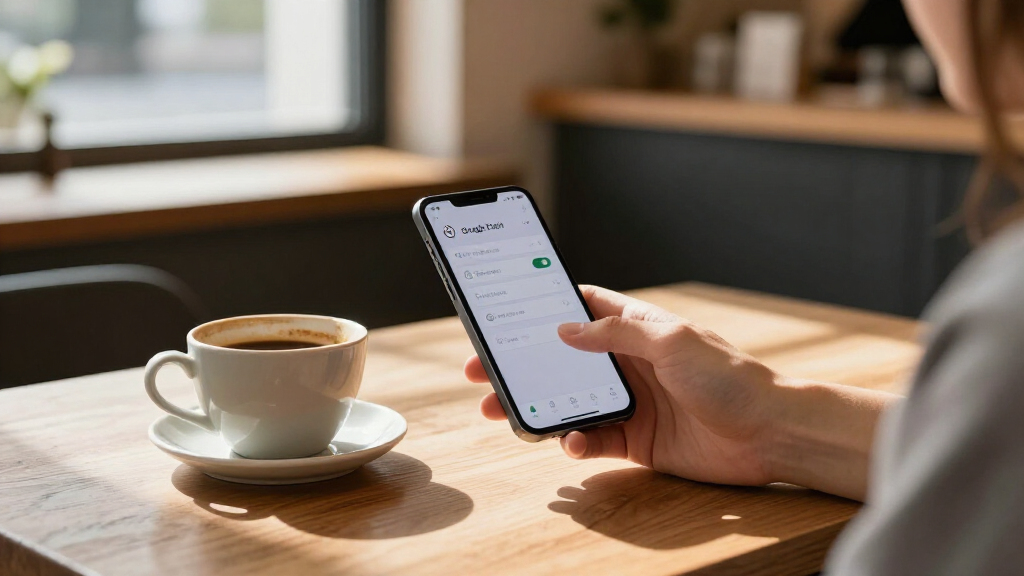
An XDA Developers writer says reducing or disabling three animation settings made her Pixel 8 Pro feel faster when opening apps and moving through menus. The change affects how quickly transitions appear, not the phone’s underlying processing speed, and the settings are in Android’s Developer options.
An XDA Developers writer says reducing or turning off Android’s interface animations made her Pixel 8 Pro feel faster when switching between apps and menus. The setting changes the time spent on visual transitions, not the phone’s processing power, and is available through Developer options.
The Nov. 8 report describes three controls: Window animation scale, Transition animation scale and Animator duration scale. They govern different interface effects, including pop-up windows, navigation between screens and general system animations such as opening apps or returning to the home screen. Android’s default scale is 1x; users can choose 0.5x or turn animations off.
The writer says the difference was immediate on her Pixel 8 Pro. With animations off, transitions proceed without the intermediate visual effect; at 0.5x, they remain visible but finish sooner. She recommends changing all three controls for a consistent result, while noting the animator duration setting covers a broad range of system effects. This is a personal experience, not a measured benchmark or claim that apps perform more work per second.
To reach the controls on a Pixel, open Settings, go to About phone, and tap the Build number seven times, then authenticate if prompted. Developer options will appear under System. In the Drawing section, users can select a scale for each animation control. The source also mentions Smooth Display as a separate option that can make scrolling appear smoother, but says its higher refresh rate can affect battery life.
A quicker-feeling Pixel through shorter animations
Changing three animation scales can make transitions feel faster. It changes what you see, not the phone’s processing power.
Three controls shape transitions
The XDA writer recommends applying the same choice to all three for a consistent feel.
Window animation scale
Changes effects such as pop-up windows.
Transition animation scale
Changes movement between screens.
Animator duration scale
Affects a broad range of system animations.
Choose the motion that suits you
- Transitions stay visible.
- Effects finish sooner.
- Removes transition effects.
- May feel abrupt to some users.
Find the settings
On Pixel, enable Developer options once; the menu then remains available in System settings.
In Settings, tap Build number seven times and authenticate if prompted.
Go to System, then find the controls in the Drawing section.
Try 0.5x or Animation off across your usual apps and menus.
Keep the claim in perspective
The reported result was a personal experience on a Pixel 8 Pro, not a measured performance benchmark.
A Faster Feel Without Faster Hardware
Animation scales offer a simple way to change how responsive a phone appears, without buying a newer device or installing an app. Shorter transitions can make ordinary actions feel quicker because the user waits less for visual effects to finish. That distinction matters: changing the setting does not fix an app that is slow to load, free up storage, or increase the phone’s actual computing capacity.
The trade-off is largely about preference. Some users may like quicker or absent transitions; others may find the abrupt movement less comfortable. The report says animation changes do not carry the battery cost associated with increasing display refresh rate, but it does not provide battery measurements. People who want fewer visual effects for accessibility reasons can also use the phone’s accessibility settings to reduce or disable animations, rather than relying on Developer options.
Products Worth Considering

Apple AirPods Pro (2nd Generation) Wireless Earbuds with USB‑C Charging, Up to 2X More Active Noise Cancelling, Transparency Mode, Adaptive

Apple AirPods Pro 3 Wireless Earbuds with Active Noise Cancellation

DJI Mini 4 Pro Fly More Combo Drone with DJI RC 2
As an affiliate, we earn on qualifying purchases.
Where Android Stores Animation Controls
The three controls are grouped in Android’s Developer options, a system menu that is hidden until enabled. On Pixel phones, the described process is to tap Build number seven times in About phone and confirm the device credential. The report says this is a one-time setup; after activation, the options remain accessible through System settings.
Each scale setting changes the duration of a visual effect, rather than changing the phone’s display refresh rate. Setting all three to 0.5x retains transitions in shorter form, while selecting Animation off removes those effects. The experience can vary by user and device, and the source’s firsthand test was specifically on a Pixel 8 Pro.
“My device immediately felt faster.”
— Megan, XDA Developers writer
What the Setting Cannot Fix
The source does not report timed measurements, tests across multiple Pixel models, or a comparison of app loading times before and after the change. Its finding is that the phone felt more responsive to the writer, not that the device’s underlying performance improved by a measured amount. It is also unclear how each user will respond to shorter or absent transitions.
The article does not quantify any battery effect from changing animation scales. It distinguishes those controls from Smooth Display, which can affect battery life, but supplies no figures for either setting. Animation changes also will not, by themselves, resolve slow apps or storage-related performance problems.
Try Both Speeds Before Settling
Pixel owners who want to test the change can try 0.5x first, then compare it with animations off across their usual apps and menus. Applying the same choice to all three controls avoids having some transitions remain slower than others. Users who find the effect uncomfortable can restore the default 1x setting; anyone seeking to reduce motion for accessibility can use the relevant accessibility controls instead.
No follow-up testing or broader device comparison was included in the source report. The practical next step is therefore a personal comparison, while treating any improvement as a change in perceived responsiveness rather than a repair for wider performance problems.
Key Questions
Does turning off animations make a Pixel’s processor faster?
No. It shortens or removes visual transitions, which can make the phone feel more responsive, but it does not increase processing power or directly fix slow apps.
Where are the animation scale settings?
After enabling Developer options by tapping Build number seven times in About phone, open Settings, then System, then Developer options. The controls are in the Drawing section.
Should I choose 0.5x or turn animations off?
The XDA writer recommends trying both. 0.5x keeps transitions but makes them shorter; Animation off removes them. Which feels better is a matter of preference.
Will changing animation scales improve battery life?
The source says these adjustments do not come at the cost of battery performance, but it provides no battery measurements. It separately warns that Smooth Display can affect battery life.
Can I reduce motion without Developer options?
Yes. The source says Android’s accessibility settings can disable animations across the device, offering another route for users who want fewer visual effects.
Source: XDA Developers