
To stop missing important notifications, customize your alert settings by prioritizing alerts from key contacts and critical apps. Use focus modes and “Do Not Disturb” options with exceptions for high-priority sources. Adjust notification sounds and enable banners or lock screen alerts for quick access. Regularly review and update your preferences to match your changing routines, ensuring you catch essential messages without overload. Keep going, and you’ll discover more tools to fine-tune your notifications effectively.
Open a free Amazon Business account
Business pricing, bulk buying and tax-exempt orders.
As an affiliate, we earn on qualifying purchases.
Key Takeaways
- Customize notification importance and prioritize alerts from key contacts and critical apps.
- Enable high-priority notifications in system and app-specific settings.
- Use focus modes with exceptions for essential notifications during work or rest periods.
- Regularly review and adjust notification preferences to match changing routines.
- Set distinct alert tones and utilize notification summaries for quick recognition of important alerts.
Have you ever missed an important notification just because your phone or computer didn’t alert you in time? It’s frustrating when essential messages slip through the cracks, especially when they could impact your work, safety, or personal life. The good news is you can take control by optimizing your notification system. Start with notification customization—most devices let you tailor how and when you receive alerts. Instead of a one-size-fits-all approach, you can prioritize notifications from your boss, family, or essential apps, and mute less critical ones. This way, you’re not overwhelmed by constant pings and still stay informed about what truly matters.
Prioritize important notifications and mute less critical alerts to stay informed without feeling overwhelmed.
Next, explore your app alert settings. Many apps have their own notification controls separate from your device’s main settings. Open each app and check their notification options—turn on alerts for those that are important and disable or limit those that aren’t urgent. For instance, you might want your email app to notify you only when you receive urgent messages, while social media apps can be set to silently update in the background. Adjusting these settings ensures you don’t miss critical updates without being constantly interrupted by less relevant alerts.
To further prevent missing notifications, consider setting priority levels within your device’s notification system. Many smartphones and computers allow you to set “Do Not Disturb” modes with exceptions. You can configure these modes to allow alerts from specific contacts or apps, ensuring you’re always aware of high-priority notifications even during focus times. Customizing your notification sounds can also help—assign distinct tones to different types of alerts, so you instantly recognize the importance without looking at your device. Understanding notification management can help you optimize these settings more effectively. Additionally, familiarizing yourself with system-level settings can provide even more control over how notifications are delivered and managed. Regularly reviewing your notification preferences and staying aware of privacy considerations can also help you manage notifications more securely and avoid exposing sensitive information unintentionally. Incorporating knowledge about sound therapy science suggests that properly designed notification sounds can enhance alert recognition and reduce stress, making it easier to stay attentive without feeling overwhelmed.
Another effective strategy is to regularly review and update your notification preferences. As your routines or priorities change, so should your settings. Don’t just set and forget; periodically go through your app alert settings and notification customization options to ensure they still serve your needs. Additionally, enabling banners, lock screen alerts, or desktop notifications can keep you informed without having to unlock your device every time. Using notification summaries or widgets that gather all alerts in one place can also streamline your notifications, giving you a quick overview and helping you decide what needs immediate attention. By fine-tuning your notification customization and app alert settings, you gain better control over your alerts, reducing the chances of missing something important while avoiding unnecessary disruptions. Taking these steps puts you in charge, making sure you never miss a critical notification again.

Off Switch: Reclaiming Your Brain from Notifications, Nudges, and Noise (The Anti‑Burnout Career Series: Book 6)
As an affiliate, we earn on qualifying purchases.
As an affiliate, we earn on qualifying purchases.
Frequently Asked Questions
How Can I Customize Notification Alerts for Different Apps?
To customize notification alerts for different apps, you can adjust notification sounds and enable app icon badges. Go to your device’s settings, select Notifications, then choose each app individually. Here, you can set unique notification sounds to distinguish alerts and toggle app icon badges to see at a glance if you have new notifications. Customizing these settings helps you prioritize alerts and reduces missed notifications.
What Should I Do if Notifications Are Delayed or Not Received?
Did you know that over 50% of users miss important notifications due to delays? To fix delayed or missed alerts, check your notification sounds and vibration settings. Make certain your device isn’t in Do Not Disturb mode and that your apps have permission to send notifications. Restart your device if needed, and update your apps and OS. These simple steps guarantee you receive timely alerts without missing essential updates.
How Do I Prioritize Urgent Notifications Over Less Important Ones?
To prioritize urgent notifications, set up a notification hierarchy by categorizing alerts based on importance. Use alert customization features on your device to assign high priority to critical notifications, like work emails or emergency alerts, and lower priority to less urgent ones. This way, your device will alert you promptly for the most important messages, helping you stay focused on what truly matters without missing critical updates.
Can I Mute Notifications During Specific Times or Events?
Yes, you can mute notifications during specific times or events by using Quiet Hours or Event Mode. Set Quiet Hours to block notifications during certain hours, like sleep or meetings, guaranteeing you’re not disturbed. Event Mode temporarily silences notifications during important events or presentations. Both features help you stay focused, avoid distractions, and ensure you only receive alerts when it’s truly necessary, keeping your notifications managed effectively.
How Do I Troubleshoot Notification Issues on My Device?
You simply check your notification settings and app permissions—sounds obvious, right? But often, the irony hits when you find notifications muted or permissions turned off without realizing. Start by ensuring your device’s notification settings allow alerts. Then, verify each app’s permissions to send notifications. Restart your device to refresh these settings. Doing this clears the confusion, so important alerts finally break through the silence and reach you.

iMusic – Ringtones, Relaxing Sounds, Notification Tones, Chat & Quizzes
- Ringtones: Variety of customizable ringtones
- Notification Tones: Unique alert sounds for notifications
- Relaxation Nature Sounds: Calming nature sound options
As an affiliate, we earn on qualifying purchases.
As an affiliate, we earn on qualifying purchases.
Conclusion
By taking these simple steps, you’ll turn your notifications from a scattered storm into a clear sky. Stay attentive and customize your alerts, so they work for you, not against you. Think of your notifications as loyal messengers—when managed well, they deliver the right message at the right time. Don’t let them slip through the cracks like sand—seize control, and stay connected to what truly matters.
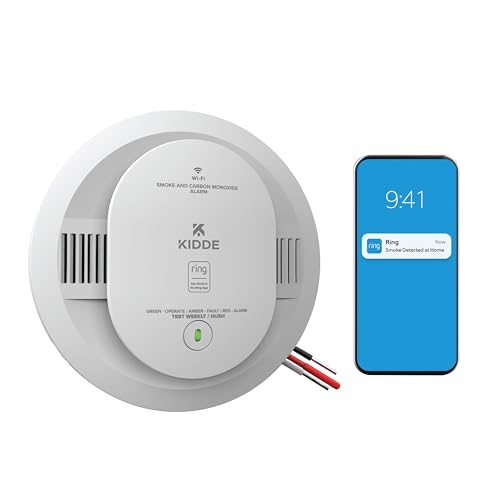
Kidde Smart Smoke & CO Detector with Ring, Hardwire & AA Battery, RGCUAR-RW
- Dual Detection: Detects smoke and CO
- App Notifications: Real-time alerts via Ring app
- Fast Smoke Detection: Over 25% quicker detection
As an affiliate, we earn on qualifying purchases.
As an affiliate, we earn on qualifying purchases.
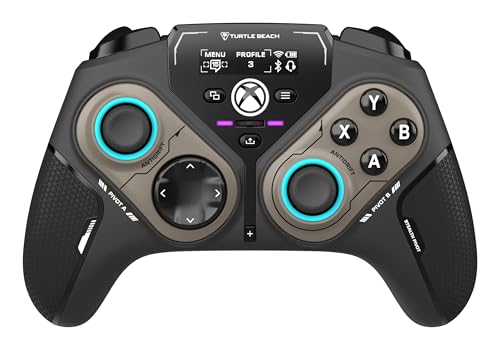
Turtle Beach Stealth Pivot Wireless Smart Game Controller Officially Licensed for Windows PC – Rotating Modules, Display Dashboard, Hall-Effect Sticks, Remappable Buttons, Bluetooth, 20-Hour Battery
- Wireless Connection: 2.4GHz low latency for Windows PC
- Rotating Button Modules: Adjustable for multiple game genres
- Display Dashboard: On-board social notifications
As an affiliate, we earn on qualifying purchases.
As an affiliate, we earn on qualifying purchases.
Back to school Picks
back to school
As an affiliate, we earn on qualifying purchases.