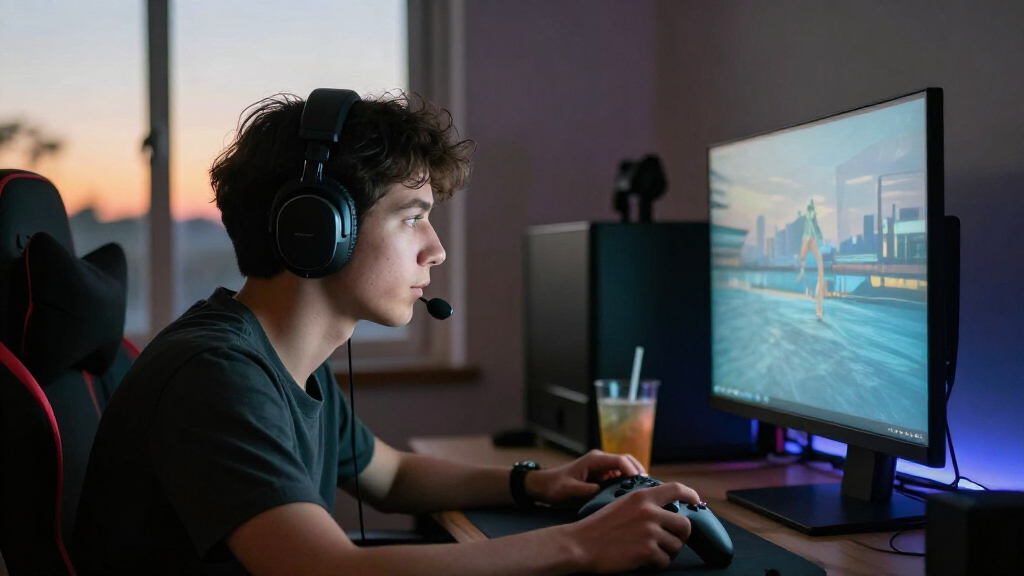

Set up a wireless gaming headset by charging it, connecting it to a compatible PC or console, and checking its audio and microphone. This guide is for beginners setting up a headset for the first time; allow about 15-30 minutes. Connection steps vary by model, so use the headset manual for its specific pairing mode and supported devices.

Get the latest gadgets delivered free with Prime
- Fast, free delivery on millions of items
- Prime Video, Amazon Music and more included
- Member-only deals all year

Turtle Beach Stealth 600 Wireless Gaming Headset
- ✔ Connectivity: 2.4 GHz wireless and Bluetooth
- ✔ Bluetooth: Version listed inconsistently as 5.2 and 5.4 in supplied details
- ✔ Drivers: 50 mm Nanoclear

Logitech G733 LIGHTSPEED Wireless Gaming Headset, Black
- ✔ Connectivity: 2.4 GHz LIGHTSPEED wireless
- ✔ Wireless range: 20 meters
- ✔ Battery life: Up to 29 hours

Earbay G986-PRO Wireless Gaming Headset with Bluetooth 6.0 and RGB Charging Dock
- ✔ Connectivity: 2.4 GHz wireless, Bluetooth 6.0, and 3.5 mm wired
- ✔ Drivers: 40 mm composite diaphragm
- ✔ Battery life: Up to 45 hours
Difficulty: Beginner | Time: 15-30 minutes
What You’ll Need
Tools & Materials:
- Wireless gaming headset and its charging cable
- Wireless USB receiver or base station, if supplied
- PC, console, or phone supported by the headset
- Headset manual or manufacturer’s setup instructions
Knowledge:
- Basic use of your device’s sound or audio settings
- How to connect a USB device or open Bluetooth settings
Check the headset’s compatibility list before setup. A headset that uses a USB receiver may not work with every console, and Bluetooth support does not always include game audio or microphone use. Charge the headset before testing so a low battery does not interrupt setup.
Turtle Beach Stealth 600 Wireless Gaming Headset
The Stealth 600 earns the top spot because it combines two useful wireless paths: low-latency 2.4 GHz for gaming and Bluetooth for compatible devices. That gives it an edge over the G733, whose listed connection is 2.4 GHz, and the G986-PRO, whose wireless modes rely on its base or compatible Bluetooth devices. For players who move between a console, PC, and phone, the Stealth is the most adaptable fit in this group.Its up to 80 hours of battery life is the strongest listed claim here, and the glasses-friendly memory foam cushions address a comfort issue that the other product descriptions do not specifically call out. A flip-to-mute mic is easy to operate mid-game, while the 50 mm drivers and EQ options offer room to adjust audio. The tradeoff is that deeper EQ customization requires the Swarm II app or desktop software. Also, the supplied materials conflict on Bluetooth version—5.2 in the description and 5.4 in the feature list—so we would not choose it based on that version number. Compared with the lighter G733, it puts more emphasis on connection flexibility and battery endurance than a stated weight advantage.
Pros:
- 2.4 GHz wireless and Bluetooth support for compatible devices
- Up to 80 hours of stated battery life with quick charge
- Glasses-friendly memory foam cushions
- Flip-to-mute microphone and customizable EQ
Cons:
- Advanced EQ customization requires the Swarm II app or desktop software
- Supplied product details disagree on whether Bluetooth is version 5.2 or 5.4
Best for: Players who want one headset for console or PC gaming and Bluetooth audio on compatible mobile devices, especially those who wear glasses.
Not ideal for: Buyers who want to avoid companion software for detailed EQ adjustments or need a confirmed Bluetooth version before choosing.
Bottom line: We recommend the Stealth 600 for the broadest mix of gaming connectivity, comfort details, and stated battery endurance in this comparison.
“We recommend the Stealth 600 for the broadest mix of gaming connectivity, comfort details, and stated battery endurance in this comparison.”
Logitech G733 LIGHTSPEED Wireless Gaming Headset, Black
At a listed 278 g, the G733 is the clearest pick for buyers who want to keep headset weight down. Its reversible suspension headband and memory foam earcups reinforce that focus, giving it a different appeal from the Stealth 600, which instead stands out for Bluetooth and much longer stated battery life. The Logitech’s LIGHTSPEED 2.4 GHz connection and stated 20-meter range suit a fixed gaming setup without adding another wireless mode to manage.Logitech also leans into personalization: dual-zone LIGHTSYNC RGB and Blue VO!CE microphone filters give PC players ways to adjust the look and mic sound. PRO-G drivers and DTS Headphone:X 2.0 are listed audio features, but buyers should weigh those against the need for G HUB software to use customization. Its battery claim, up to 29 hours, is lower than both the Turtle Beach and Earbay figures. Compatibility includes PC, PS5, PS4, and Nintendo Switch, but the supplied details say stereo play support is limited to PS4, a caveat worth checking against the intended setup. Compared with the Earbay’s dock and wired Xbox route, the G733 is a simpler comfort-centered choice for its listed platforms.
Pros:
- Listed weight of 278 g with reversible suspension headband
- Memory foam earcups and up to 29 hours of battery life
- Blue VO!CE microphone filters and dual-zone RGB customization
- LIGHTSPEED wireless with a stated 20-meter range
Cons:
- Customization features require G HUB software
- Listed battery life is shorter than the other two headsets
- Supplied details limit listed stereo play support to PS4
Best for: PC and console players who prioritize a lightweight over-ear fit, suspension headband, and customizable lighting or microphone filters.
Not ideal for: Players who need Bluetooth, the longest stated battery life, Xbox compatibility, or customization without G HUB.
Bottom line: Choose the G733 when low listed weight and comfort-focused design matter more than Bluetooth or maximum battery life.
“Choose the G733 when low listed weight and comfort-focused design matter more than Bluetooth or maximum battery life.”
Earbay G986-PRO Wireless Gaming Headset with Bluetooth 6.0 and RGB Charging Dock
The Earbay G986-PRO covers the most connection formats on paper: 2.4 GHz wireless, Bluetooth 6.0, and 3.5 mm wired. That mix can help households with several types of devices, and the wired option gives it a route to Xbox that the G733 does not list. The important limitation is that Xbox play requires the 3.5 mm cable; its wireless modes depend on the included transmitter base or a compatible Bluetooth device. It is therefore the most connection-varied pick, but not a wireless Xbox solution.A charging dock with customizable RGB lighting gives the Earbay a distinctive home setup, while its up to 45 hours of playback sits between the G733 and Stealth 600 claims. The ENC boom mic has a one-touch mute control, making mic management straightforward. Against the Stealth 600, it offers a wired fallback and dock but lacks the same stated glasses-relief feature and lower-latency-plus-Bluetooth combination in the supplied description. Buyers should also account for the dock as part of the wireless setup rather than assuming the headset alone provides every mode. This is a practical option for mixed-device owners who value included accessories, provided its Xbox limitation matches their needs.
Pros:
- Three connection options: 2.4 GHz, Bluetooth 6.0, and 3.5 mm wired
- Up to 45 hours of stated playback
- ENC boom microphone with one-touch mute
- Included RGB charging and transmitter base
Cons:
- Xbox play requires a wired 3.5 mm connection
- 2.4 GHz and Bluetooth wireless modes depend on the base or compatible devices
Best for: Players using several device types who want 2.4 GHz, Bluetooth, and a wired fallback, including Xbox users comfortable gaming over 3.5 mm.
Not ideal for: Xbox players who require wireless play, or buyers who want the longest listed battery life and a clearly glasses-friendly fit.
Bottom line: The G986-PRO is a useful mixed-device option when its dock-based wireless setup and wired-only Xbox support fit your setup.
“The G986-PRO is a useful mixed-device option when its dock-based wireless setup and wired-only Xbox support fit your setup.”
As an Amazon Associate we earn from qualifying purchases.
Before You Start
Check the connection type first. Some headsets use a USB receiver, some pair over Bluetooth, and some support both. Follow the method specified for your device. If the headset has a removable microphone, attach it before testing voice chat. Turn down the device volume before putting the headset on, then raise it gradually.
Step-by-Step Instructions
Step 1: Charge the headset
Connect the headset to its charger or charging cable. Check the indicator light or the manual to confirm that it is charging. Leave it connected until it has enough charge for setup; a full charge is best if you do not know its current battery level.
Tip:Use the supplied cable or a compatible charging source. Some headsets cannot play audio while charging.
Check: The headset shows a charging indicator or reports a usable battery level.
Step 2: Prepare the device
Turn on the PC or console and sign in. Place the wireless receiver or base station where its cable can reach the device without being blocked by metal objects or tucked behind a dense stack of electronics. Connect it to a USB port if your headset uses one. For Bluetooth, open the device’s Bluetooth settings and leave the pairing screen ready.
Tip:On a console, check the headset manual for a supported USB port and any platform-specific setup instructions.
Check: The receiver powers on or the device’s Bluetooth settings are open and ready to find a headset.
Step 3: Connect the headset
Turn on the headset. For a USB receiver, follow the manual’s pairing instructions; some models pair automatically, while others need a button press on the receiver and headset. For Bluetooth, select the headset from the device’s available-device list and confirm the pairing request if one appears. Wait for the headset’s connected indicator or the device’s connection message.
Tip:Use the headset’s pairing mode, not just its normal power-on mode. If several similarly named devices appear, check the model name printed on the headset or receiver.
Check: The headset or device reports a connection, and the headset no longer shows that it is waiting to pair.
Step 4: Choose the headset for game audio
Open the device’s sound, audio, or output settings. Select the headset as the output device. On a PC, check the game and operating-system sound settings; an individual game may use a different output than the system default. On a console, select the headset in the audio output settings if the console does not switch automatically.
Tip:Some headsets list separate game and chat outputs. Choose the game output for general sound and keep the chat output available for voice applications.
Check: Play a system sound or a short game audio sample and listen through the headset.
Step 5: Set the microphone input
Open the device’s microphone or input settings and select the headset microphone. Position a boom microphone near the corner of your mouth, not directly in front of it. If the microphone has a mute switch or flip-to-mute arm, set it to the unmuted position for the test.
Tip:Bluetooth headsets can switch to a lower-quality audio mode when their microphone is active. A USB receiver often provides a better gaming connection when the model supports it.
Check: The input meter moves when you speak, or the device’s microphone test records your voice.
Step 6: Adjust volume and chat balance
Start with a low volume, then raise it to a comfortable level using the device controls or headset wheel. If the headset has separate game and chat controls, play game audio and join a test call or voice channel. Adjust each control until both are audible without either overpowering the other.
Tip:Keep listening volume comfortable, especially during long sessions. If the sound distorts, lower the headset or device volume before changing other settings.
Check: Game sound is clear, voice chat is audible, and the microphone remains active at a suitable level.
Step 7: Test the connection in your game
Open a game with a voice or audio test, or join a private voice channel. Listen for game sound, speak a short sentence, and ask a teammate to confirm that your voice is clear if another person is available. Walk a short distance within your usual play area and check for dropouts.
Tip:Test in the room and seating position where you normally play. Walls, distance, and nearby wireless devices can affect signal quality.
Check: You hear the game without repeated interruptions, and your voice is picked up without excessive noise or echo.
Common Mistakes to Avoid
- Pairing the headset with a device it does not support. — Check the manufacturer’s compatibility list and connection instructions for your exact PC, console, or phone before setup.
- Selecting the headset for output but leaving another microphone selected. — Check both output and input settings, then use the microphone meter or test recording to confirm the headset mic is active.
- Leaving the headset or chat channel muted. — Check the headset’s mute switch, microphone arm, and in-game voice settings before troubleshooting the connection.
- Starting with high volume or placing the receiver where the signal is blocked. — Begin at low volume and place the receiver in an open position near the device.
Troubleshooting
Problem: The headset does not appear in Bluetooth settings or will not pair with its receiver.
Solution: Check that the headset is charged and in pairing mode. Move it close to the receiver or device, then repeat the manual’s pairing sequence. If it was previously paired to another device, disconnect it there first or clear its pairing list as the manual describes.
Problem: The headset connects, but game audio still comes from the speakers.
Solution: Select the headset as the output device in the operating system or console settings, then check the game’s own audio settings. Close and reopen the game if it does not recognize the changed output.
Problem: Other players cannot hear you.
Solution: Select the headset microphone as the input, unmute the headset and game chat, and check the game’s voice permissions. Raise microphone input level gradually and repeat the device’s input test.
Problem: Audio cuts out or sounds distorted.
Solution: Move closer to the receiver, place it away from obstructions, and disconnect unused Bluetooth devices if the headset uses Bluetooth. Lower the volume if the sound distorts, then reconnect the headset and check for a firmware update using the manufacturer’s instructions.
What Success Looks Like
The headset stays connected during a game, plays game audio at a comfortable level, and sends your voice through the selected microphone. There are no repeated dropouts in your usual seating area, and game and chat volumes are balanced for your needs.
Next Steps
Disconnect or switch off the headset when you finish playing, then recharge it before the next session if needed. Store the receiver and charging cable together so they are ready for use. If you change devices, repeat the compatibility check and select the headset’s output and input on that device. Use the manufacturer’s instructions for firmware updates or persistent connection problems.
Frequently Asked Questions
Can I use a wireless gaming headset with any console?
No. Support depends on the headset’s connection type and the console. Check the manufacturer’s compatibility list for your specific console model; a USB receiver or Bluetooth connection may not work for every function on every platform.
Should I use Bluetooth or the USB receiver for gaming?
Use the connection recommended for your device. When a headset includes a compatible USB receiver, it is often the simpler choice for game audio and microphone use. Bluetooth can be convenient for phones and other supported devices, but features and audio quality vary by model.
Why does the sound quality change when I turn on the microphone?
Some Bluetooth connections use a different audio mode when the microphone is active. If your headset supports a USB receiver or a separate low-latency connection, try that method for gaming. Check the manual for supported microphone and audio modes.
How do I reduce delay or audio dropouts?
Use the headset’s supported gaming connection, keep the receiver in an open position near the device, and play within the headset’s stated range. Move other wireless devices away if interference continues.
Do I need special software to set up the headset?
Basic audio and microphone setup usually works through your device’s settings. Optional manufacturer software may add equalizer, surround sound, or firmware controls. Install it only from the manufacturer’s official source and follow the model-specific instructions.