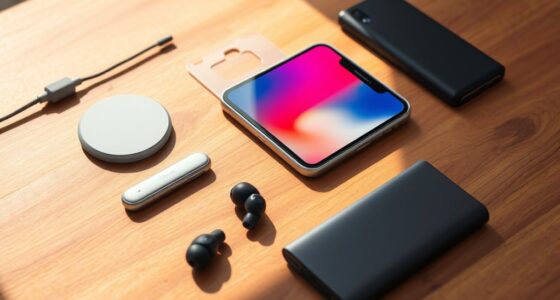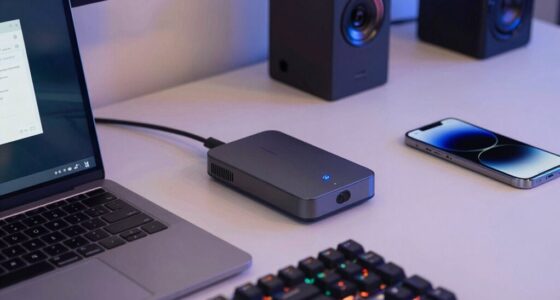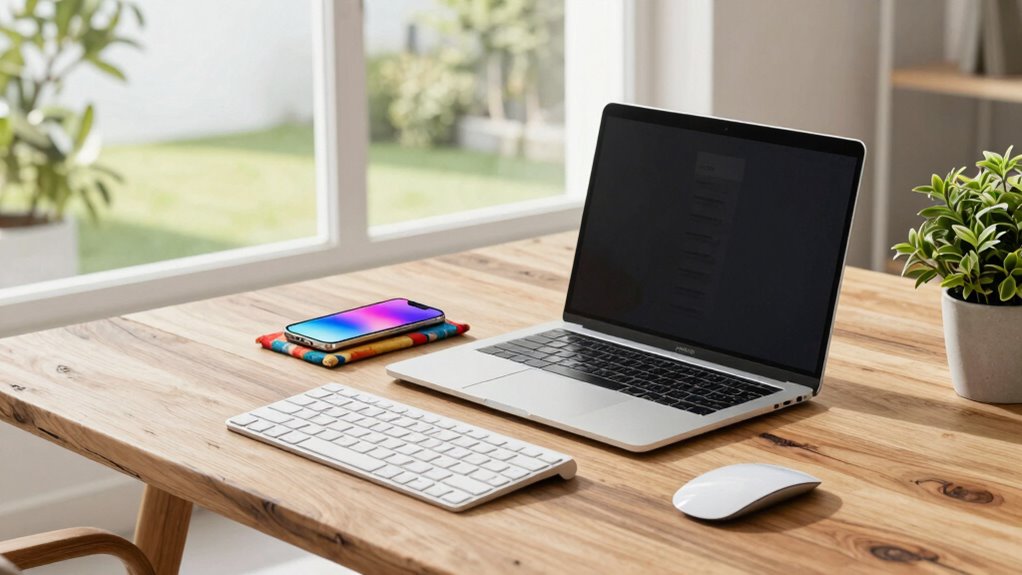

A great work-from-anywhere phone setup combines strong security measures like biometric access, two-factor authentication, and regular updates to protect your data. Ergonomic accessories, such as adjustable stands and portable comfort tools, help you stay comfortable and prevent fatigue. Keep your apps organized and notifications minimized to boost focus. Balancing security with easy access and creating an optimized workspace are key. Want to discover how small changes can make a big difference? Keep exploring for more tips.
Open a free Amazon Business account
Business pricing, bulk buying and tax-exempt orders.
As an affiliate, we earn on qualifying purchases.
Key Takeaways
- Use ergonomic accessories like adjustable stands and wireless keyboards for comfortable extended use.
- Organize apps and notifications to minimize distractions and boost productivity.
- Prioritize strong security measures, including two-factor authentication and regular software updates.
- Maintain a clean, organized workspace with portable comfort accessories for better focus.
- Set device access routines with biometric authentication for quick, secure, and seamless work transitions.
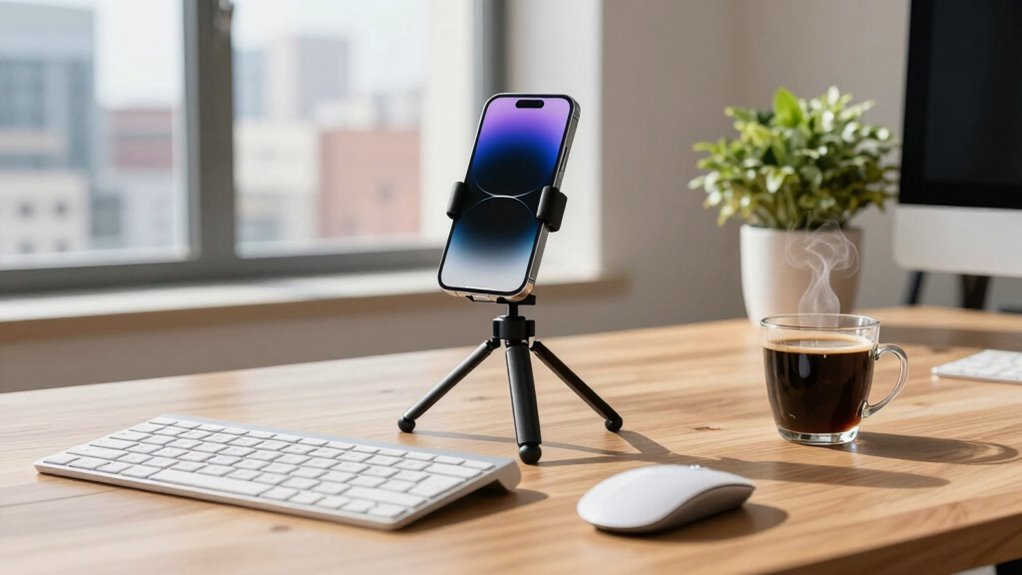
Have you ever wondered how to efficiently set up your phone for work-from-anywhere productivity? The key lies in creating a setup that balances security, comfort, and accessibility. First, mobile security should be your top priority. Since you’re likely handling sensitive information on the go, investing in strong passwords, biometric authentication, and a reliable VPN can keep your data safe. Enable two-factor authentication wherever possible, and make sure your device’s software is always up to date to patch vulnerabilities. Using security apps that monitor for malware and suspicious activity adds an extra layer of protection. Remember, your phone is an extension of your professional identity, so maintaining its security is non-negotiable. Incorporating security policies into your routine can further strengthen your defenses against potential threats.
Next, focus on ergonomic accessories that make working remotely more comfortable and efficient. A sturdy, adjustable stand or holder allows you to position your phone at eye level, reducing neck and eye strain during long periods of use. Pair this with a quality wireless or ergonomic keyboard and mouse to create a mini workstation that minimizes fatigue. A portable lap desk or a compact cushion can improve comfort if you prefer to work from a sofa or bed. These accessories help you maintain good posture and prevent discomfort, which can otherwise hamper your productivity and health over time. Additionally, understanding the importance of projector contrast ratio can help you optimize your viewing environment if you utilize a projector for presentations or entertainment during breaks. Being aware of digital ergonomics can also guide you in designing a workspace that minimizes physical strain and maximizes efficiency.
Beyond security and ergonomics, organizing your apps and notifications is essential. Keep only the essential apps on your home screen to avoid clutter and distraction. Use folders and labels to categorize work-related tools, like email, project management, and communication apps. Turn off non-essential notifications to stay focused and reduce interruptions. Also, consider setting specific work hours on your device to help maintain work-life balance, especially when your phone is your primary work tool. Incorporating remote work best practices can further enhance your productivity and ensure you stay connected effectively while working remotely.

Nulaxy Full Aluminum Dual Folding Cell Phone Stand for Desk, Black
- Universal Compatibility: Fits 4-8 inch smartphones and e-readers
- Adjustable & Portable: Fully collapsible and adjustable for comfort
- Sturdy & Protective: Made of premium aluminum with rubber pads
As an affiliate, we earn on qualifying purchases.
As an affiliate, we earn on qualifying purchases.
Frequently Asked Questions
How Do I Secure My Work Calls on Public Wi-Fi?
To secure your work calls on public Wi-Fi, use a reliable VPN to encrypt your network traffic, preventing outsiders from intercepting sensitive information. Always guarantee your device’s firewall is active and keep your software updated for the latest security patches. Avoid accessing confidential data on unsecured networks, and prefer networks with strong passwords. These steps enhance your network security, protecting your work calls from potential cyber threats on public Wi-Fi.
What Are the Best Apps for Remote Team Communication?
Imagine a bustling digital office where team collaboration flows seamlessly. Apps like Slack and Microsoft Teams become your virtual conference rooms, enabling instant messaging, file sharing, and video calls. These tools keep everyone connected, whether you’re on a park bench or a café. They foster clear communication, quick decision-making, and a sense of unity, making remote work feel just like being in the same room.
How Can I Extend My Phone’s Battery Life During Long Workdays?
To extend your phone’s battery life during long workdays, use battery optimization features and follow power-saving tips. Turn off unnecessary notifications, reduce screen brightness, and enable battery saver mode. Limit background app activity and disconnect unused devices. These strategies help conserve energy, ensuring your phone stays functional throughout your workday. Staying mindful of power consumption and applying these tips can make a significant difference in your device’s longevity.
What Accessories Enhance Sound Quality for Remote Meetings?
You’ll notice a huge improvement in remote meetings with noise canceling headphones and a portable microphone. Studies show that clear audio reduces misunderstandings by up to 50%. Noise canceling headphones block background distractions, ensuring you hear every detail, while a portable microphone captures your voice crisply. Together, these accessories create professional-quality sound, making your communication seamless and boosting your confidence during calls.
How Do I Manage Work Notifications Without Distractions?
To manage work notifications without distractions, activate notification management features on your phone. Prioritize important alerts and silence or turn off non-essential notifications during focused work periods. Use Do Not Disturb mode to reduce distractions during meetings or deep work sessions. Customizing notification settings helps you stay aware of essential updates while minimizing interruptions, allowing you to maintain productivity and focus in your work-from-anywhere setup.

Wireless Keyboard and Mouse Combo, 2.4G Ergonomic Wave Keys(Black)
- Wave ergonomic design: Fits fingers and relieves wrist strain
- Adjustable keyboard stand: Customize height for comfort
- Contoured wireless mouse: Fits snugly in the palm
As an affiliate, we earn on qualifying purchases.
As an affiliate, we earn on qualifying purchases.
Conclusion
A great work-from-anywhere phone setup keeps you connected and productive no matter where you are. With the right tools, like a reliable device and stable internet, you can boost your efficiency effortlessly. Did you know that 70% of remote workers say flexible tech setups improve their work quality? By investing in a solid setup, you’re not just working remotely—you’re working smarter, ensuring seamless communication and focus wherever your day takes you.

MENGQI-CONTROL Smart Phone App Remote PIN Code/KeyFob/Card Biometric Fingerprint Waterproof Keypad Controller Door Security kit 110-240V Power Supply Box(Support Backup Battery) 600lbs Magnetic Lock
- Slim, Stylish Design: Compact touch keypad with fingerprint access
- Waterproof and Durable: IP66 rated for outdoor and indoor use
- Multiple Access Methods: Fingerprint, app, card, PIN code
As an affiliate, we earn on qualifying purchases.
As an affiliate, we earn on qualifying purchases.

BUYIFY 23.4" Foldable Lap Desk Bed Table with Cup Holder Tray Black
- Foldable Design: Compact and space-saving for storage
- Built-in Cup Holder: Securely holds drinks while in use
- Tablet Stand Groove: Keeps your device upright and accessible
As an affiliate, we earn on qualifying purchases.
As an affiliate, we earn on qualifying purchases.
Flea & tick season Picks
flea and tick prevention
As an affiliate, we earn on qualifying purchases.