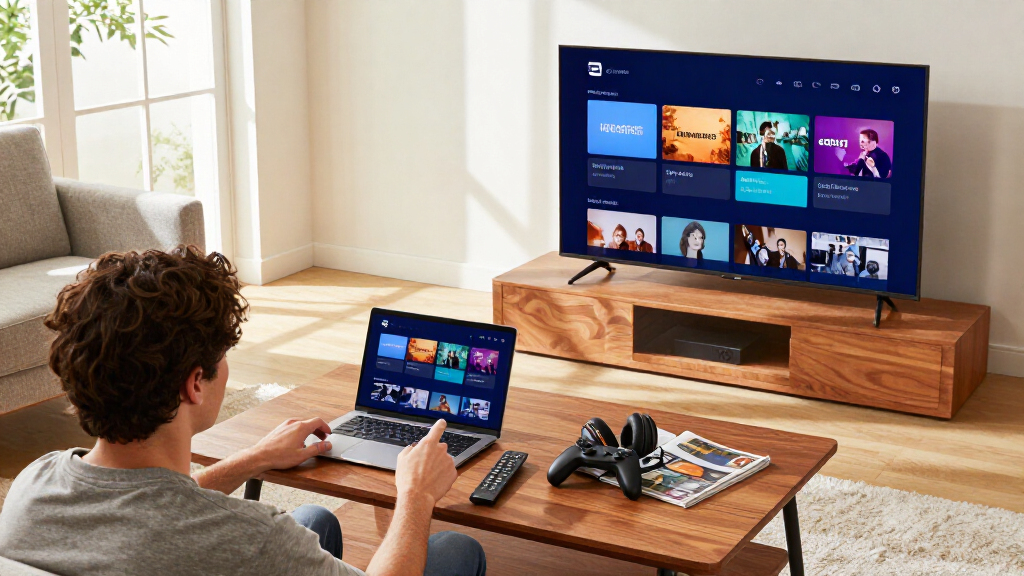
This checklist is for anyone planning a smart TV upgrade in 2026, whether you’re replacing a screen or updating the gear around it. It covers the main picture, streaming, audio, connection, and control choices that can shape a living-room setup.

Get the latest gadgets delivered free with Prime
- Fast, free delivery on millions of items
- Prime Video, Amazon Music and more included
- Member-only deals all year
The sections follow those roles: first the television, then the streaming player, receiver guidance, soundbar, HDMI switch, and universal remote. Each named pick is a starting point for considering what belongs in your setup.
Use the buying notes to check room fit, device connections, and who will use each component before deciding. Confirm compatibility against the specific devices and features you own, and treat the receiver section as general advice because it has no product pick.
OLED television
The television sets the physical and connection requirements for the rest of the upgrade, so begin with room fit and the devices you plan to connect. The named pick is the Samsung QN83S95F 83-Inch Class OLED 4K Smart TV (2025). Its stated 83-inch class size and 4K designation give you concrete details to compare with your room and viewing plans; verify the exact dimensions and installation requirements before choosing a location.
A common mistake is to focus on a model name while overlooking whether the screen can be placed safely and comfortably in the intended space. Measure the available width and height, account for the stand or mounting arrangement, and check viewing distance from the usual seats. Confirm the mounting hardware and wall support requirements from the manufacturer. If your setup depends on particular connections or smart TV functions, verify those details for the exact model rather than assuming them from the category name.
Also consider the people using the screen: remote control needs, placement of connected devices, and access to power can affect daily use. Treat “83-Inch Class” as a class label, not a substitute for checking the product’s actual measurements. Make sure any planned soundbar or other equipment can fit alongside the television without blocking controls or access.
What to look for:
- Measure the intended screen location and compare it with the TV’s exact dimensions.
- Check viewing distance from the seats you use most often.
- Confirm stand or mounting requirements and suitable support.
- Verify the connections and smart TV functions your devices require.
- Plan room for the soundbar, power, and connected equipment.
Samsung QN83S95F 83-Inch Class OLED 4K Smart TV (2025)

The Samsung QN83S95F is an 83-inch OLED 4K smart TV featuring advanced Vision AI technology. It offers high-resolution visuals and smart connectivity for an immersive viewing experience.
Pros:
- Large 83-inch OLED display for immersive viewing
- 4K resolution delivers sharp, clear images
- Smart TV features with Vision AI technology
Cons:
- Specifications and detailed features are not provided
Best for: Households planning around an 83-inch-class OLED 4K television.
Not ideal for: Rooms where the available space or viewing distance does not suit a screen of this class.
Bottom line: Check the exact dimensions, installation needs, and device connections before committing to the Samsung QN83S95F.
Streaming media player
A separate streaming player can be useful when you want to add a dedicated device to your TV setup. The pick here is the NVIDIA SHIELD TV Pro 4K HDR Streaming Media Player. Its name identifies it as a 4K HDR player, but your television, content sources, and setup all need to support the features you expect to use. Confirm the device’s current specifications and supported services before buying.
One frequent buying mistake is assuming that a player’s format labels guarantee a particular result across every app, title, and display. Check compatibility across the entire chain: the player, television, audio equipment, and any intermediary switch or receiver. Make sure you have an available connection and a practical place for the player, with access to power and any network connection it needs. Review the included remote and controls to see whether they suit the people who will use it.
Think through how this device fits with the TV’s own smart features and your existing streaming devices. Avoid adding equipment until you know what capability or convenience you want from it. If you use a soundbar or receiver, verify how audio is routed and which device handles volume and playback controls. A little compatibility checking helps prevent a setup where the player connects but does not work as you intended.
What to look for:
- Confirm the player’s current supported video and audio formats.
- Check that your TV and any audio gear support the features you plan to use.
- Verify available connections and space near the TV.
- Review service availability for the apps you use.
- Consider how its remote and controls fit your household.
NVIDIA SHIELD TV Pro 4K HDR Streaming Media Player

The NVIDIA SHIELD TV Pro streams 4K HDR content with Dolby Vision and Dolby Atmos, and uses AI upscaling to enhance HD video. It includes a Tegra X1+ processor, 3 GB RAM, 16 GB storage, two USB 3.0 ports, built-in Chromecast 4K, and Plex Media Server.
Pros:
- AI upscaling enhances HD video to 4K
- Supports Dolby Vision HDR and Dolby Atmos
- Two USB 3.0 ports support external devices and storage
- Remote includes voice control, backlit buttons, and a locator
Cons:
- Game controller is sold separately
- Built-in storage is 16 GB
Best for: Viewers who want a separate 4K HDR streaming device in their setup.
Not ideal for: Setups where the television’s existing streaming features already meet your needs.
Bottom line: Verify service, connection, and audio compatibility across your full setup before choosing the SHIELD TV Pro.
AV receiver
No product is named for this slot, so treat an AV receiver as a system planning decision rather than a specific recommendation. A receiver may be relevant when several source devices and speakers need to work together, but the right choice depends on your actual equipment. Start by listing each device, the connections it requires, and where audio should play.
A common mistake is to shop by a feature label without checking whether every part of the setup supports it. Compare the receiver’s inputs and outputs with the TV, streaming player, game systems, and speakers you own or intend to add. Confirm which device will handle video switching, audio formats, and remote control. If a soundbar is part of the plan, check whether the receiver is necessary and how the two products are intended to connect; don’t assume they replace one another.
For fit, measure the shelf or cabinet and allow for the manufacturer’s ventilation guidance, cable access, and power. Check speaker compatibility and the practical number of connections you need now, while considering whether your planned setup may change. If you do not need to route multiple sources or connect separate speakers, an extra component may add complexity without solving a specific problem. Write down the connection path for each source before selecting a receiver.
What to look for:
- List every source device, speaker, and display connection in your setup.
- Match receiver inputs and outputs to the devices you plan to use.
- Verify video and audio format support across the full chain.
- Check speaker compatibility and the number of connections needed.
- Measure the cabinet space and follow ventilation guidance.
Soundbar
A soundbar is a compact way to plan audio alongside a television, and the pick is the Sonos Arc Ultra Soundbar with Dolby Atmos – Black. The product name identifies Dolby Atmos support, but the result depends on the TV, source content, connection method, room, and settings. Verify the current specifications and the connection requirements for your exact television before deciding.
A frequent mistake is assuming that a soundbar will work optimally with every TV or that a format label guarantees the same experience in every room. Check how audio will travel from each source, whether your TV supports the required connection features, and how volume control will work with your existing remote. If you are also considering an AV receiver, establish which device will power or manage the audio system and whether the products are designed to be used together.
Measure the space beneath or near the screen and consider whether the bar could block the TV’s sensor, controls, or screen. Check placement guidance, power access, and any setup requirements from the manufacturer. Also consider your usual listening position and room layout; placement can affect how sound reaches the people watching. Confirm that the color and finish suit the intended location, and make a plan for cable routing before installation.
What to look for:
- Confirm the TV’s audio connection and control compatibility.
- Check Dolby Atmos support across the TV, source, and content.
- Measure the intended placement and ensure the screen or controls remain clear.
- Review power, setup, and placement requirements.
- Plan how the soundbar will work with any receiver or existing speakers.
Sonos Arc Ultra Soundbar with Dolby Atmos – Black

The Sonos Arc Ultra delivers an immersive 9.1.4 spatial audio experience with Dolby Atmos and AI‑powered speech enhancement for crystal‑clear dialogue. Its sleek metal enclosure blends into any room, while Trueplay tuning and multi‑room support let you fine‑tune sound across your home.
Pros:
- Advanced Sound Motion technology provides immersive 9.1.4 Dolby Atmos sound.
- AI speech enhancement clarifies dialogue for a better listening experience.
- Sleek metal design looks elegant and fits modern home décor.
- Versatile connectivity options include HDMI eARC, Bluetooth, Wi‑Fi, AirPlay 2, and multi‑room integration.
Cons:
- Large footprint may be challenging to fit in smaller entertainment setups.
- Full performance requires an HDMI eARC connection; older TVs may not support it.
- No built‑in subwoofer—full surround experience needs a separate Sonos Sub.
Best for: TV owners looking for a soundbar identified with Dolby Atmos support.
Not ideal for: Setups without a compatible connection path or room for the soundbar.
Bottom line: Confirm the full audio path and placement before adding the Sonos Arc Ultra.
HDMI switch
An HDMI switch can help when a display has fewer available inputs than the devices you want to connect. The listed pick is the JCHICI HDMI 2.1 Switch 5-in-1 Out 8K@60Hz 4K@120Hz with Remote. Its name gives specific input and format labels to check, but you should confirm the manufacturer’s specifications and supported features for the exact product and your devices.
A common mistake is assuming that the switch’s stated formats will pass through every feature from every source. Check the signal requirements of each device, the TV input you’ll use, and the cable specifications along the entire route. Verify whether the switch supports the features you care about, such as the relevant refresh rate or audio formats, and whether switching is manual or remote controlled. The included remote may be convenient, but consider where the switch will sit and whether its controls will be accessible.
Before buying, count the devices you need connected and compare that number with the switch’s stated inputs. Plan for cable reach, power if required, and a location that keeps connections accessible. If an AV receiver or another switch is already in the chain, draw the connection path and check for compatibility at each point. Confirm that the “5-in-1 Out” arrangement matches your use: the label describes multiple inputs feeding one output, so it is not intended to send one source to several displays.
What to look for:
- Count your sources and confirm the switch has enough inputs.
- Verify format and feature support for each source, cable, and TV input.
- Check the manufacturer’s current specifications for the stated rates.
- Plan accessible placement, cable reach, and any power requirement.
- Confirm the one-output arrangement matches your setup.
JCHICI HDMI 2.1 Switch 5-in-1 Out 8K@60Hz 4K@120Hz with Remote

A 5-input, 1-output HDMI 2.1 switch supporting 8K@60Hz, 4K@120Hz, and 2K@240Hz with HDR10+/Dolby Vision and 48Gbps bandwidth. It includes gaming features like VRR, ALLM, and QFT, plus switching via IR remote or auto-detection.
Pros:
- Supports full HDMI 2.1 spec including 8K@60Hz, VRR, and ALLM for gaming
- Multiple switching modes (IR remote, auto-detection, manual lock)
- Broad compatibility with consoles, PCs, and 8K displays
- 24-month warranty with lifetime technical support
Cons:
- Requires HDMI 2.1 cables for 8K performance
- Remote requires 2 AAA batteries not included
Best for: Setups routing several HDMI sources to one display.
Not ideal for: Anyone needing one source sent to multiple displays.
Bottom line: Match the switch’s input arrangement and supported features to every device in the connection chain.
Universal remote
A universal remote can simplify control for people who prefer larger buttons or want a dedicated TV remote. The named pick is the Flipper Big Button Universal TV Remote for Seniors. Its name highlights big buttons and a senior-focused design, but check the exact functions and device compatibility before relying on it as a replacement for your current controls.
A common mistake is assuming “universal” means it controls every device or function in a living room. Confirm that the remote supports the specific television and any devices you want it to operate, including the streaming player or soundbar if those controls matter. Check how setup works, which functions are available, and whether any desired buttons or shortcuts are supported. If users depend on a particular input, volume, or accessibility control, verify that directly against the product instructions.
Think about the person who will use it most. Button size, labeling, layout, and the number of controls can affect ease of use, so compare the remote with the user’s needs rather than choosing by the category alone. Keep the existing remotes available during setup until you have confirmed the important functions work. If a receiver or HDMI switch is in the system, check whether the remote can control it or whether that equipment will still need its own controller. Plan for simple daily operation across the whole setup.
What to look for:
- Confirm compatibility with the exact TV model.
- Check whether it controls the streaming player and soundbar functions you need.
- Review setup steps and supported buttons or shortcuts.
- Consider button size, labeling, and layout for the primary user.
- Keep access to other device controls in mind.
Flipper Big Button Universal TV Remote for Seniors

This infrared remote controls basic TV and cable or satellite functions with four large, color-coded buttons, designed for easier use by people with low vision or dexterity challenges. It can be programmed with up to 25 favorite channels and works with compatible TVs, cable boxes, and other IR devices, but it cannot navigate streaming apps.
Pros:
- Large, tactile, color-coded buttons with clear labels
- Controls compatible TV and cable or satellite devices with one remote
- Can be programmed with up to 25 favorite channels
- Simple four-button face designed for easier everyday use
Cons:
- Cannot navigate streaming apps or their menus
- Requires two AA batteries, not included
Best for: Viewers who prefer a TV remote with larger buttons.
Not ideal for: Setups that require control of devices or functions the remote does not support.
Bottom line: Verify device compatibility and the required controls before replacing existing remotes with the Flipper.
Build the setup in a need-first order: confirm the TV’s room fit and connections, then identify any gap in streaming, audio, or input switching. Add an AV receiver only if your device and speaker plan calls for one, and check every connection path before purchasing related components.
Take measurements, write down the devices you already own, and verify model-specific details as you compare options. A few careful checks can make the upgrade easier to install and use. Choose the pieces that fit your room and habits, then enjoy setting up a system that works for you.
Black Friday Picks

Bose QuietComfort Headphones (2nd Gen) Wireless Noise-Cancelling Headphones, Black
As an affiliate, we earn on qualifying purchases.