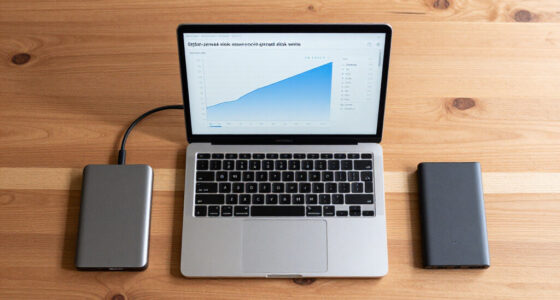
To tell if an accessory is causing the problem, start by disconnecting or disabling it one at a time and observe any changes in device performance. Turn off accessories like Bluetooth gadgets or external drives to see if issues improve. Make sure your accessories are compatible and update their firmware or software if needed. If problems persist, testing on different devices can help. Keep experimenting and you’ll find clues to isolate the culprit.
Listen free for 30 days with Audible
Thousands of audiobooks and originals — cancel anytime.
As an affiliate, we earn on qualifying purchases.
Key Takeaways
- Temporarily disconnect or turn off the accessory to see if device performance improves.
- Test the accessory on different devices to identify if it causes issues elsewhere.
- Look for performance drops, lag, or disconnections when the accessory is active.
- Check for wireless interference from nearby electronics when the accessory is in use.
- Ensure the accessory is compatible and updated with the device’s firmware or software.
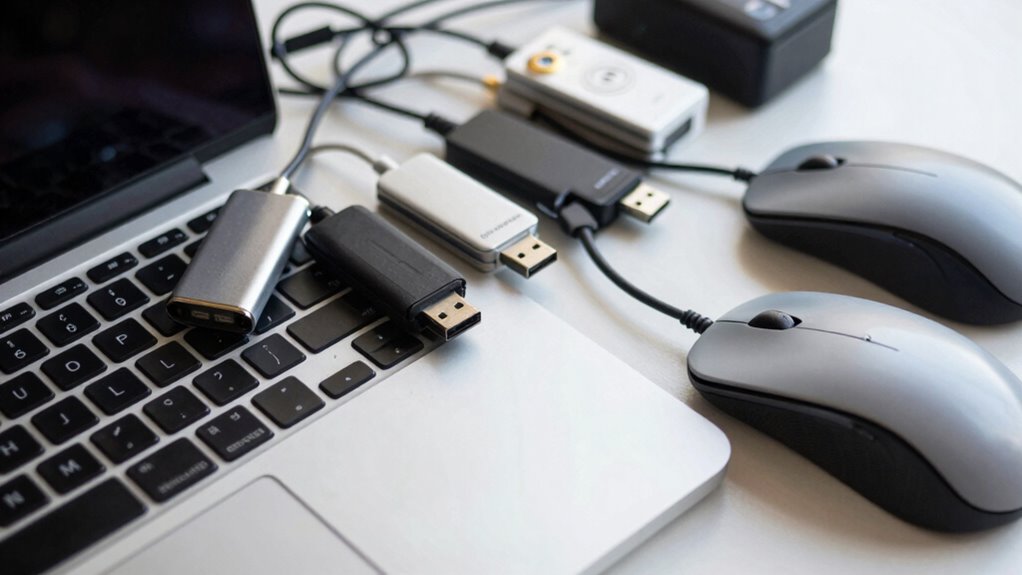
Ever wonder how to determine if an accessory is behind a problem with your device? Sometimes, the culprit isn’t your device itself but the accessory you recently added or started using. One common issue stems from wireless interference. If you notice your device’s performance drops when certain accessories are nearby, wireless interference could be be to blame. Wireless signals, whether from Bluetooth devices, Wi-Fi networks, or other gadgets, can clash and disrupt each other’s communication. This interference can cause your device to lag, disconnect unexpectedly, or malfunction entirely. To test this, try turning off or removing nearby wireless accessories one at a time. If the problem resolves when a specific accessory is disabled, you’ve likely identified the source of interference. Understanding wireless interference can help you prevent future connectivity issues. Other factors, such as the quality of the accessory, can also impact performance and compatibility. Not all accessories are designed to work seamlessly with every device. If you connect an accessory that isn’t fully compatible, it can lead to various issues like poor performance, errors, or even system crashes. Compatibility issues can sometimes be subtle, such as a peripheral not functioning correctly or causing your device to behave unpredictably. To troubleshoot, check the accessory’s specifications and ensure it supports your device’s model and operating system. Updating your device’s firmware or the accessory’s software can also resolve compatibility concerns, but if problems persist, replacing the accessory with a verified compatible one might be necessary. Additionally, device specifications play a crucial role in determining whether an accessory will work properly, and reviewing these details can help identify potential limitations early. When considering market reputation and user reviews, you can better gauge the reliability of accessories and avoid potential issues. Sometimes, the problem isn’t just due to interference or compatibility but a combination of both. For example, a wireless keyboard might work fine in one environment but start acting up in another because of overlapping signals or incompatible drivers. When troubleshooting, consider the environment and any recent changes, like new gadgets or network setups. It’s also wise to temporarily disconnect other accessories to see if that improves performance. If disconnecting or updating doesn’t help, it might be time to test the accessory on a different device or consult the manufacturer’s support resources. Recognizing how external factors can influence accessory performance is key to effective troubleshooting. Ultimately, pinpointing whether an accessory is causing your device’s issues involves a systematic approach: eliminate one factor at a time, check for interference, verify compatibility, and keep software updated. Recognizing the signs of wireless interference and compatibility issues helps you quickly identify and resolve problems without unnecessary frustration. This way, you can ensure your devices work smoothly and efficiently without being hampered by external accessories.
As an affiliate, we earn on qualifying purchases.
Frequently Asked Questions
Can Accessories Cause Issues Even if They Are New?
Yes, accessories can cause issues even if they’re new. Sometimes, their durability doesn’t match your device’s needs, or there’s a defect from manufacturing. Always check the manufacturer’s warranties—they often cover early problems. Even new accessories might not fit perfectly or could have hidden flaws, so it’s essential to test them thoroughly and verify they’re compatible with your device to prevent potential issues down the line.
How Long Should I Test an Accessory Before Concluding It’s the Problem?
You should test the accessory for at least 24 to 48 hours to determine if it’s the problem. During this testing duration, monitor for issues like compatibility problems, performance drops, or errors. If the problem persists beyond this period, it’s likely not the accessory, or it may need replacement. Remember, consistent testing helps you confidently identify whether the accessory is causing the issue or if you should explore other causes.
Are There Specific Tools to Diagnose Accessory-Related Problems?
Diagnosing accessory-related problems is like detective work, and specific tools can be your magnifying glass. You’ll want to use compatibility checks with your device and accessory to confirm they work together. For troubleshooting, tools like multimeters and diagnostic software are recommended, helping you pinpoint issues. These tools provide precise readings and insights, making it easier to determine if the accessory is faulty or incompatible, saving you time and frustration.
Can Cleaning an Accessory Resolve Compatibility Issues?
Cleaning an accessory can sometimes resolve compatibility issues, especially if dirt or debris interferes with connections. Regular accessory maintenance, like wiping contacts and ports, helps guarantee proper functioning. Before connecting, perform compatibility checks to confirm the accessory works with your device. If problems persist after cleaning, it’s worth testing with another device or updating firmware, as the issue might be deeper than just dirt or grime.
What Safety Precautions Should I Take When Inspecting Accessories?
When inspecting accessories, prioritize electrical safety and proper handling. Always unplug devices before inspection to avoid electric shock. Wear insulated gloves and use tools with insulated handles. Work in a dry, well-lit area to prevent accidents. Keep your workspace organized, and avoid rushing. If unsure about handling electrical components, consult a professional. These precautions help protect you and guarantee a safe, thorough inspection.
USB external drive compatibility checker
As an affiliate, we earn on qualifying purchases.
As an affiliate, we earn on qualifying purchases.
Conclusion
Think of your device as a garden, each accessory a essential plant. When one wilts or causes weeds, it’s time to inspect. By gently removing and testing each piece, you nurture the health of your tech. Remember, not every leaf is the culprit, but identifying the troubled plant keeps your garden thriving. Stay attentive, and your device will flourish, free from the weeds of malfunction. Sometimes, the smallest change can restore your entire garden’s beauty.
As an affiliate, we earn on qualifying purchases.
device troubleshooting accessories
As an affiliate, we earn on qualifying purchases.
As an affiliate, we earn on qualifying purchases.
Baby shower & registry season Picks
baby registry must-haves
As an affiliate, we earn on qualifying purchases.