
To child-proof your smartphone, start by using built-in parental controls like Screen Time on iOS or Google Family Link on Android to set web filters, app restrictions, and screen time limits. Enable location sharing and safety alerts for added security. Manage app downloads and in-app purchases with approval settings. Regularly monitor online activity and communicate openly about safe device use. Keep these tools in mind to create a safer digital environment—there’s more to explore to fully protect your child.
Key Takeaways
- Enable built-in parental controls like iOS Screen Time or Android Family Link to set app limits, content restrictions, and activity monitoring.
- Set time limits and scheduled downtime to regulate device use and promote healthy digital habits.
- Use web filtering and content restrictions to block inappropriate websites and media based on age.
- Activate location tracking and safety alerts to enhance your child’s safety and respond quickly in emergencies.
- Regularly review device activity and adjust restrictions to ensure a safe, age-appropriate smartphone environment.
Understanding Built-In Parental Control Features on Ios and Android
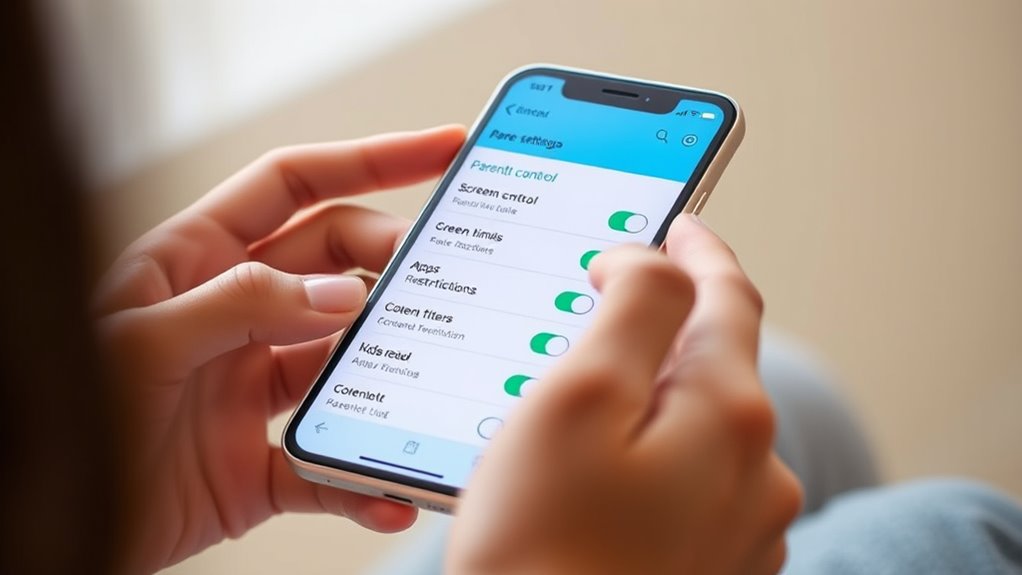
Understanding built-in parental control features on iOS and Android devices is essential for managing your child’s smartphone use effectively. On iOS, the Screen Time feature lets you monitor and limit device activity directly through Settings. You can set app limits, schedule Downtime, and restrict web content with Content & Privacy Restrictions. Family Sharing allows remote oversight of purchases and device management. Android offers similar controls via Google Family Link, which tracks activity, manages app permissions, and sets screen time limits. You can also restrict app downloads and web browsing, and monitor location sharing. Both platforms provide user-friendly tools that don’t require third-party apps, enabling you to tailor restrictions easily. Understanding these native features helps you establish safer, age-appropriate device usage for your child. Additionally, familiarizing yourself with the powerful tools and equipment available can help you create a safer environment for your child’s digital and physical activities.
Setting Up Content and Access Restrictions

To keep your child safe online, you’ll want to set up content and access restrictions on their device. You can enable web filtering, restrict app downloads, and require approval for new content or apps. These steps help you control what your child can see and do on their smartphone. Additionally, understanding parental control features can help you customize and optimize these restrictions effectively.
Enable Web Filtering
Wondering how to keep your child safe online? Enabling web filtering is a crucial step. It blocks access to inappropriate websites, guiding your child toward safer content. To set this up, go to your device’s parental controls and turn on web filtering options. Choose filters based on age-appropriate categories or custom blacklists. This prevents accidental exposure to harmful material and reduces the risk of online dangers. Trendy dog sweaters can also be a fun way to include your pet in holiday festivities, but always ensure they are comfortable and safe.
Restrict App Downloads
After enabling web filtering, the next step is to prevent your child from downloading unauthorized apps. You can do this by setting restrictions that require your approval before any new downloads. To get started:
- Enable app download restrictions in your device’s parental control settings.
- Set a PIN or passcode to prevent changes to these restrictions.
- Activate approval workflows that notify you whenever your child attempts to install new apps.
- Regularly review and update these restrictions to ensure they align with your child’s development and device usage habits. Content restrictions help you maintain control over what your child can access and download, keeping their device safer and more controlled. Make sure to review and update these settings regularly, especially after system updates or new app releases, to maintain a secure environment.
Set Content Approval
Are you ready to guarantee your child only accesses age-appropriate content? Setting up content approval helps you control what your child can see and download. On iOS, go to Settings > Screen Time > Content & Privacy Restrictions, then enable restrictions. From there, you can filter web content, restrict explicit music, movies, TV shows, and books, and prevent access to adult websites. For Android, open Google Play Store, go to Settings > Parental controls, and turn them on. Set a PIN, then filter apps, games, movies, and TV based on age ratings. You can also block specific websites and require approval before installing new apps. Implementing passive voice detection in your review process can further improve clarity and readability. These steps guarantee your child’s digital environment stays safe and appropriate.
Managing Screen Time and Device Usage Limits
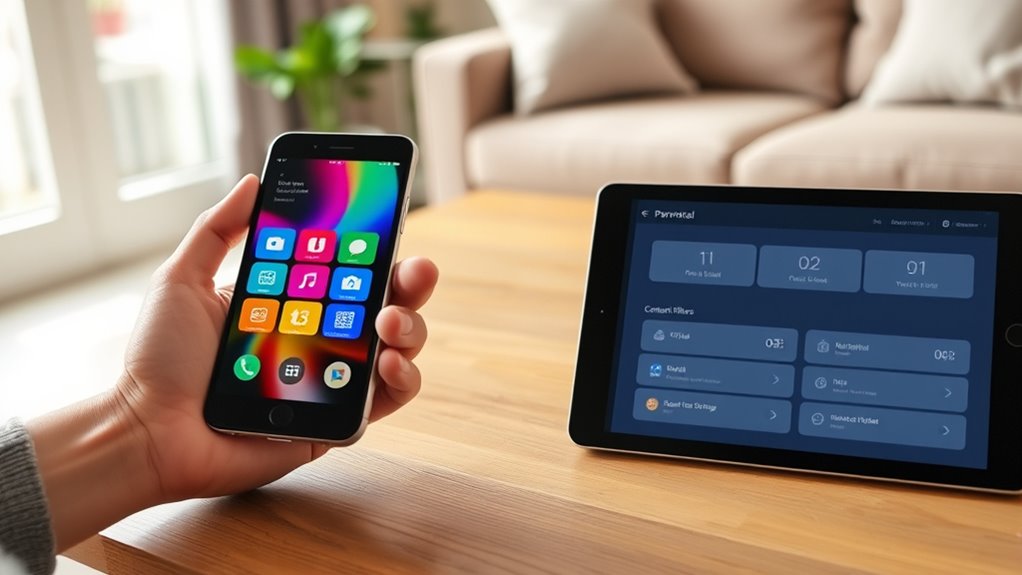
Setting daily limits helps you control how much time your child spends on their device, preventing overuse. Scheduling downtime guarantees they disconnect during specific hours, like bedtime or family time. By combining these tools, you can create a balanced routine that encourages healthy device habits. Additionally, utilizing smart energy management features can help you monitor and adjust device usage more effectively.
Setting Daily Limits
Managing your child’s screen time effectively involves setting daily limits that automatically restrict device usage once the allotted time is reached. To do this, you can:
- Set daily time caps for specific apps or overall device use, ensuring your child doesn’t spend too long on screens each day.
- Configure automatic lockouts after the limit expires, prompting them to take breaks or switch activities.
- Adjust limits for different days or special occasions to provide flexibility, balancing screen time with other activities.
- Implementing these controls supports research‑backed insights into healthy digital habits, fostering a balanced approach to technology use.
These controls help teach healthy habits, prevent excessive use, and reduce arguments over device access. Using built-in parental controls makes managing daily limits straightforward, giving you peace of mind while your child enjoys their screen time responsibly.
Scheduling Downtime
Scheduling Downtime allows you to establish specific hours when your child’s device access is automatically restricted, helping them develop healthy usage habits. You can set designated periods, like bedtime or homework time, during which the device is unavailable. This feature guarantees your child isn’t tempted to use their phone outside approved hours, promoting better sleep and focus. Simply select the days and times you want to enforce downtime, and the device will lock out apps and notifications during those periods. You can customize downtime for different days or routines, giving you flexibility based on your family’s schedule. By proactively managing device availability, you encourage balanced screen time and reduce potential overuse or dependency. It’s an effective way to teach responsible device habits without constant supervision. Additionally, smart appliance integration can help automate certain routines, making device management even more seamless and effective.
Utilizing Location Tracking and Safety Alerts
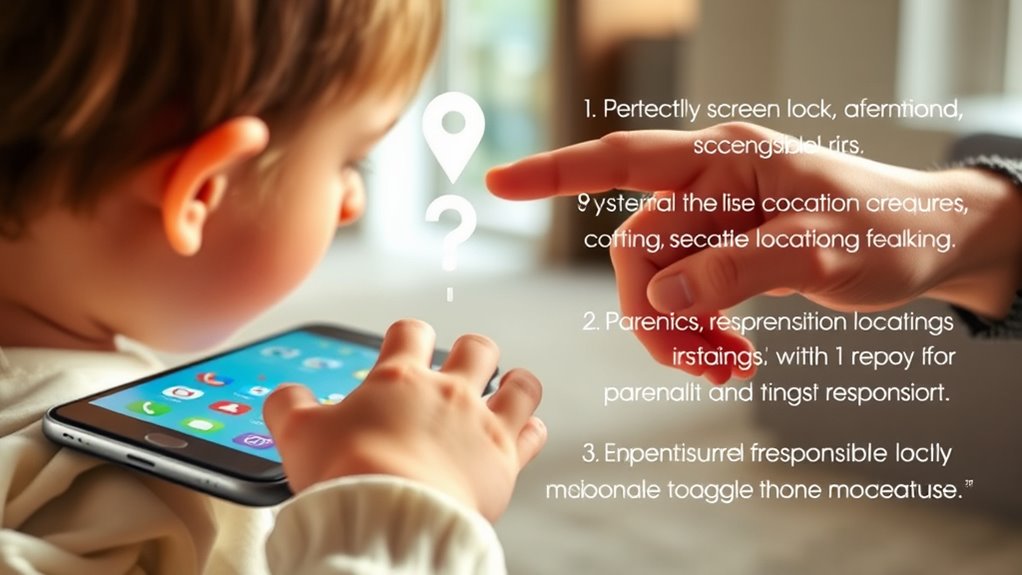
Location tracking and safety alerts provide essential tools for keeping your child secure while they’re using their device. These features help you monitor their whereabouts and respond quickly to emergencies. To make the most of them, consider:
- Setting up geofencing alerts to notify you when your child enters or leaves safe zones.
- Using real-time location sharing to check their current position anytime.
- Configuring emergency alerts that send instant notifications if your child activates a safety feature or presses an emergency button.
Additionally, understanding caregiver support options can help you navigate challenges and ensure your child’s safety effectively.
Configuring App Downloads and Purchase Controls
Controlling app downloads and purchases is essential for preventing unauthorized spending and access to inappropriate content. Start by enabling app store restrictions and setting a PIN or password. Use your device’s parental controls to require approval before any app can be downloaded or purchased. This ensures you review and approve each transaction. Additionally, consider adjusting settings to Free Floating content to further safeguard your child’s online experience.
Monitoring Online Activity and Communication

Monitoring your child’s online activity and communication is crucial for ensuring their safety and promoting responsible internet use. You can do this effectively with built-in tools or third-party apps. Here are three key ways to stay informed:
- Use parental control apps to track messages, calls, and app usage.
- Enable web activity logging and browsing filters to block inappropriate content.
- Set up alerts for suspicious or risky communication patterns.
- Applying consistent monitoring practices aligns with key traits of successful Quality Assurance engineers, such as attention to detail and analytical thinking, to better understand your child’s online behavior.
These features help you spot potential issues early and guide your child toward safer online habits. Regularly reviewing activity reports and conversation logs keeps you aware of what they encounter online. Remember, open communication combined with monitoring fosters trust and encourages responsible behavior. Stay proactive, and adapt your controls as your child grows and their online interactions evolve.
Best Practices for Ongoing Parental Oversight
Maintaining effective oversight requires more than initial setup; it involves ongoing engagement and adaptation. Regularly review your child’s device usage and adjust restrictions as they grow or change interests. Keep communication open—discuss the reasons behind limits and permissions to build trust. Stay informed about new apps, features, and potential risks by checking updates and browsing habits. Use parental control tools to monitor activity, but avoid micromanaging; give your child room to develop responsible habits. Set consistent routines around device use, like scheduled breaks and device-free times. Stay flexible and responsive to your child’s needs, and reinforce safety guidelines. Be aware that wave and wind conditions can influence device safety, especially if your child uses a device outdoors or near water. By staying actively involved, you help your child develop healthy digital habits while maintaining appropriate boundaries.
Frequently Asked Questions
How Secure Are Built-In Parental Controls Against Hacking or Bypass?
Built-in parental controls are generally secure, especially when you set strong PINs or passcodes and keep your device updated. However, no system is completely hack-proof. You should regularly review your settings, enable two-factor authentication where available, and monitor your child’s activity. By staying vigilant and updating your security measures, you diminish the risk of bypasses and ensure your controls remain effective against potential hacking attempts.
Can Parental Controls Be Customized for Different User Profiles?
Think of parental controls as customizable keys for different doors in your house. You can set specific restrictions for each user profile, tailoring content filters, app limits, and screen time settings to their needs. With built-in controls, you actively manage these profiles, ensuring each child has appropriate access. This way, you create a safe digital environment that adapts to their age, maturity, and habits, giving you peace of mind.
Are There Any Legal Restrictions on Monitoring Children’s Online Activity?
Yes, there are legal restrictions on monitoring your children’s online activity. You need to respect privacy laws and avoid intrusive surveillance, especially if your child is a minor. Laws vary by location, but generally, you can’t secretly record conversations or access private messages without consent. It’s best to have open conversations about online safety and set boundaries together, ensuring your monitoring efforts stay within legal and ethical limits.
How Do I Update Parental Control Settings Remotely?
You can remotely update parental control settings like a captain steering your ship from afar. For iOS, open Settings, tap Screen Time, and adjust restrictions or schedules. On Android, launch Google Family Link, select the child’s profile, and change app limits or bedtime settings. These tools act as your digital lighthouse, guiding your child’s online journey safely, no matter where you are, with just a few taps on your device.
What Should I Do if Restrictions Interfere With Essential Device Functions?
If restrictions interfere with essential device functions, start by reviewing and adjusting your settings. For example, modify app limits or downtime to allow necessary access, or temporarily disable specific restrictions. Use your device’s parental control features to fine-tune permissions, ensuring your child’s needs are met without sacrificing safety. Always communicate with your child about these changes to maintain trust and understanding while balancing device safety and usability.
Conclusion
By thoughtfully guiding your child’s digital journey, you create a safe space where curiosity can flourish without unwanted shadows. Embrace the gentle art of balance, setting boundaries that nurture trust and independence. Remember, your attentive presence acts as a guiding light through the ever-evolving landscape of technology. With patience and consistent care, you help your child develop healthy habits, turning their device into a tool for growth rather than a maze of unforeseen pitfalls.